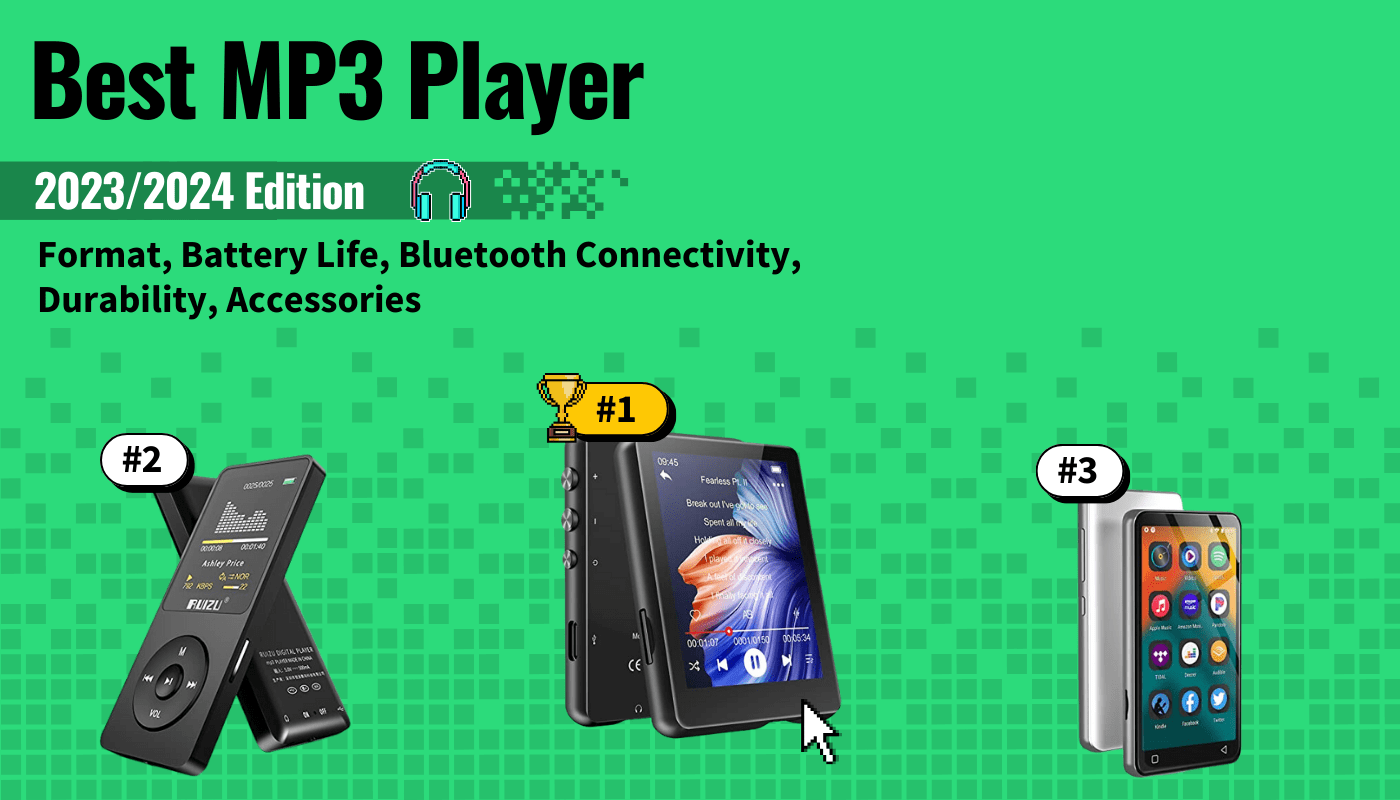
The best MP3 player is capable of holding thousands of songs for immediate playback, keeping you in the groove throughout the day. Choosing the wrong MP3 player can mean the difference between low-quality playback and your entire album library at your fingertips, ready to play any song in seconds. Our evaluation focused on price, feature set, storage, ease of use, battery life, and interface. We also explored auxiliary features such as design and smart compatibility.
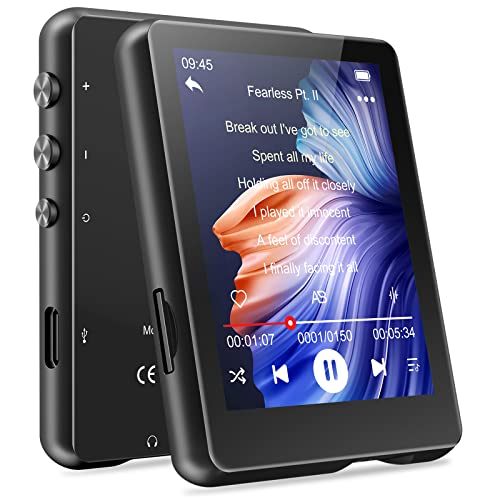


Our top pick, the Searick 16G MP3 Player, is a convenient and durable model, making it a top choice if you’re looking for the best MP3 player for running or outdoor exercise. It has great sound quality if you care about quality and can also function as an eBook reader if you’re an avid reader.
Top 6 MP3 Players
#1 MECHEN 32GB MP3 Player with Bluetooth 5.0
Award: BEST QUALITY
WHY WE LIKE IT: Lossless Hi-Fi with fully manual equalizer control gives this unit the best MP3 player sound quality in its class. Plus, it comes in a compact, durable all-metal housing with Bluetooth connectivity that’s great for running.
- Built-in Bluetooth for wireless headphones
- Functions as ebook reader
- Speaker and touchscreen
- Requires micro TF card for full 128 GB
- Doesn’t pair with phones or computers over Bluetooth
If convenience and durability are important, this may be the best MP3 player with Bluetooth in its price range. It has a touch screen and built-in speaker–rare among budget MP3 player options–and it does FM radio, eBooks, and a wide range of audio formats.
The best sound quality MP3 player we’ve researched for the money has a lossless output and sounds great over earbuds or via an external Bluetooth speaker. It even comes with a manual equalizer function. In a pinch, the built-in speaker also gives decent sound quality for something of this size.
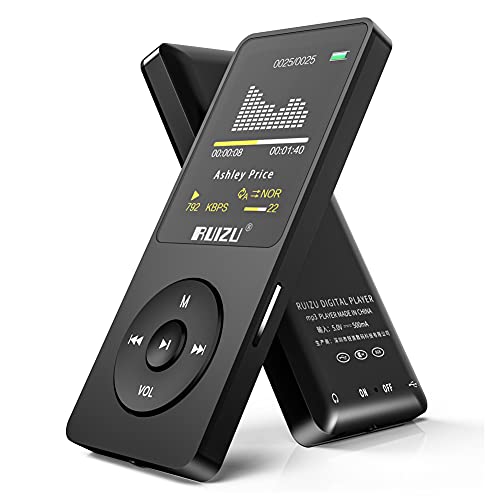
#2 RUIZU X02 Ultra Slim MP3 player
Award: BEST BATTERY LIFE
WHY WE LIKE IT: This tiny device is the best budget MP3 player in terms of battery life, with up to 80 hours of playback available from a 2-hour charge. It also allows video playback, a nice bonus.
- 80-hour battery life
- Lightweight; weighs just 1 oz
- Color screen with video playback
- Only 8 GB internal storage
- Requires TF card for full 128 GB
- Video format limited to AMV
Ultra slim and tiny, this portable budget MP3 player consumes so little power that it can claim an 80-hour playback battery life from a 420mAh battery that takes 2-3 hours to fully charge. In comparison, an iPhone X has a 2700mAh battery.
Thanks to its small size and low price, this may be the best MP3 player for kids, as long as you don’t require too much in the way of app compatibility or video function. It does support image formats, including JPG/JPEG/BMP files, and text as .TXT files, but it only does video in the somewhat rare AMV format.
#3 innioasis G1 MP3 Player
Award: BEST FOR ITUNES
WHY WE LIKE IT: With this multifunctional MP3 player, music is just the beginning: it also does voice memos, pedometers, eBooks, and FM radio and works as an alarm clock, too, with a built-in speaker.
- Durable metal frame
- Supports picture storage and eBooks
- Bright, 4.0-inch screen
- Only 25-hour battery life
This MP3 player, iTunes, compatible with Mac OS 10 and Windows 7/8/8.1/10/XP/Vista, aims to win over those in search of a multifunctional, yet budget-friendly device for travel and outdoor exercise. It’s among the best MP3 players for running and jogging, thanks to the stopwatch and pedometer functions as well as an included armband.
It also works as an FM radio and alarm clock with a built-in speaker. It also supports OTG data transfer with Android phones and is PC compatible via a USB cable.
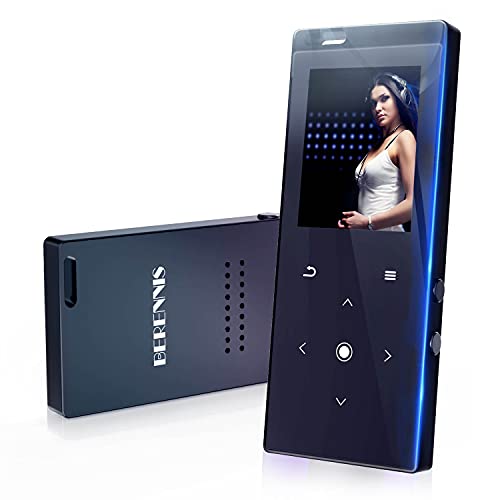
#4 BERENNIS 16GB Portable MP3 player
Award: BEST FM RADIO
WHY WE LIKE IT: The best budget MP3 player in terms of design and quality feel, with its touch button interface and all metal frame, this 16 GB (expandable to 128GB) Bluetooth MP3 player is also a multifunctional item that supports FM radio, data transfer, and image browsing.
- Excellent sound quality
- Sturdy metal construction
- Bluetooth 4.2 for faster connectivity
- Limited video and eBook formats
- Doesn’t pair with computers or phones via Bluetooth
This solid feeling and substantial portable MP3 player is just 1.5 inches by 3.5 inches, but has a high quality and durable feel with its metal frame. It has 16 GB of internal storage, enough for a considerable song library, and it’s expandable up to 128 GB if you have a micro TF card.
While the battery life isn’t as long as you get with some of the other choices for the best budget MP3 player, Bluetooth functionality is superb, thanks to its use of Bluetooth 4.2. It seamlessly pairs with speakers and headphones, as with most portable MP3 players, you can’t pair with computers or phones over Bluetooth. It does have an internal speaker, however.
#5 Mibao MP3 Player with Bluetooth 4.2
We’re sorry, this product is temporarily out of stock
Award: TOP PICK
WHY WE LIKE IT: A slim, pocket-friendly design plus HiFi lossless sound quality and a colorful TFT screen make this MP3 player with Bluetooth one of the best value propositions if you’re looking for a multifunctional MP3 player.
- Up to 128GB via SD Card
- Functions as ebook reader
- FM radio and Bluetooth 4.2
- Lacks smart app support
- Lacks exercise tracking function
A good value, the Mibao MP3 player with Bluetooth 4.2, is pocket-sized and has a generous 600mAh battery that provides up to 50 hours of music playback per charge. It measures just 2.4 inches and has a color screen that displays status, song titles, and album art and also gives this MP3 player the ability to function as a (very small) ebook reader.
While it doesn’t offer app downloads as some other devices do, it does pair with external speakers and provides some of the best MP3 player sound quality in its price range. It also has an FM radio and aux out. It supports playback of a large number of audio formats, including MP3/WMA/WAV and FLAC, and you can add your own SD card for over 128GB of storage.
#6 Victure MP3 Player Clip
We’re sorry, this product is temporarily out of stock
Award: HONORABLE MENTION
WHY WE LIKE IT: Convenient clip-on design lets you take it with you anywhere, while an easy-to-use layout and up to 128 GB of storage allow plenty of songs. This MP3 player with Bluetooth also gives you up to a 30-hour battery life and doubles as a step counter, making it the best budget MP3 player we’ve researched for running.
- Best budget (also Best for Running)
- 1.5 hours of charging and 30-hour battery life
- Clip on design
- Requires micro SD card for full storage capacity
- Lacks the app compatibility of some higher-end MP3 players
This simple, tiny, and convenient MP3 player with Bluetooth comes with a built-in pedometer that lets you track steps, velocity, time spent running, and approximate calories burned, making it our pick among budget models as the best MP3 player for running. It has up to 30-hour battery life and takes only an hour and a half or so to charge.
Storage capacity starts at a rather meager 8 GB but is expandable all the way to 128 GB with a simple micro SD card. While it may not have all the latest apps and smart connectivity features, it does deliver great sound quality and even comes with earphones and doubles like an FM radio tuner.
How We Decided
In order to pick the best MP3 player (digital music player) for travel, running and hiking, or general music listening, we considered value, storage capacity, and user experience.
We only selected MP3 players with at least 8 GB of built-in storage, and a minimum of 64 GB upgradeable storage via SD card or the equivalent.
We also considered battery life, limiting our search for the best MP3 player to those with at least a 30-hour playback time on a full charge.
Since an MP3 player is usually a dedicated device for music, audio performance should be the first priority, we gave preference to MP3 players with lossless Hi-Fi sound output and looked into sampling rate and signal-to-noise ratio where available. We considered other features like FM radio reception, step tracking, video player, and expandable memory to be nice extras.
Best MP3 Player Buyer’s Guide
Features to Consider
- Format
When looking for the best MP3 player of 2024, iTunes compatibility may or may not be essential, but the ability to play the major music formats is a must. For those who want the best portable music player should always look for devices with multiple audio format support. And while you’re at it, don’t forget to check out the thousands of different types of earbuds to go with your MP3 player.- Make sure you find an MP3 player that works for .WMA, MP3, and any other formats you have music stored in. If you are looking for one with the best sound quality, try to find an MP3 player that has a FLAC codec.
- But if you want something more than just playing music, consider investing in the best mp3 player with a Bluetooth connection so you can stream directly from your laptop or phone to your device.
- Now, you can find great cheap MP3 players, but they may not have many features, like Bluetooth or WiFi capabilities, that some of the high-end MP3 players have. Those cheaper audio players may not give you the best high-res audio quality either.
- When you are looking for the best MP3 player in 2024, it is best to search online and read reviews of the top models so that you can make an informed decision.
- Less expensive players may also have less storage space capabilities than other dedicated MP3 players with large built-in storage that can use a microSD card slot to give you expandable storage options to play endless MP3 files.
- For those who want to stream music wirelessly and control the music from their smartphone, tablet, or another Bluetooth-enabled device, there are several best Bluetooth mp3 players available that provide this feature.
- Battery Life
A good reason to have a good MP3 player in addition to your mobile phone and other devices is that they can play music for an incredibly long time on a tiny battery charge.- Moreover, Even though mobile phones and other computing devices have become more powerful, the best MP3 player for 2024 has been able to provide up to 30 hours on a single charge.
- Whereas an iPhone only gives you 60 hours of playback from a 2700-3000mAh battery, the best MP3 players offer 80 hours of battery life or more from a mere 500mAh.
- With all that said, be sure to carefully read the many MP3 player reviews of 2024 available on our site to see battery life ratings.
- Bluetooth (aka Connectivity)
When choosing the best MP3 player, Bluetooth connectivity is important, especially if you use wireless earbuds and speakers.- Although, if you find a great MP3 player with a speaker, you won’t need to connect a speaker via Bluetooth.
- Some portable music players are compatible with wired headphones via a headphone jack, which helps you avoid having to charge another wireless pair of headphones.
- When shopping for the best portable MP3 player, it’s best to consider how you plan on using it. If you don’t plan to use to for rigorous physical activity, wired headphones can work fine when listening to your digital music collection of audio files on a dedicated music player. If you want a workout music player, not only should you consider wireless connectivity, but you may want to consider a lightweight player for added convenience.
- Durability
If you’re looking for the best MP3 player for kids or the best MP3 player for running and hiking, look for a model that combines a small, simple form factor with durable construction and a budget price. Some of the best budget MP3 players have all-metal or scratch-resistant acrylic materials. Casual listeners that won’t use it during physical activity may not have to worry about sturdy materials as much. - Accessories
If you’re looking for the best MP3 player for running or for the gym, consider an MP3 player for workouts with a sleek design that comes with a sports armband or a built-in clip to attach to your workout clothes, so you don’t have to worry about it falling out of a pocket, such as the Sandisk Clip Sport.
You’ll want the best speakers to go with your MP3 player. Although the best smartphone will usually serve most of your MP3 functions these days.