


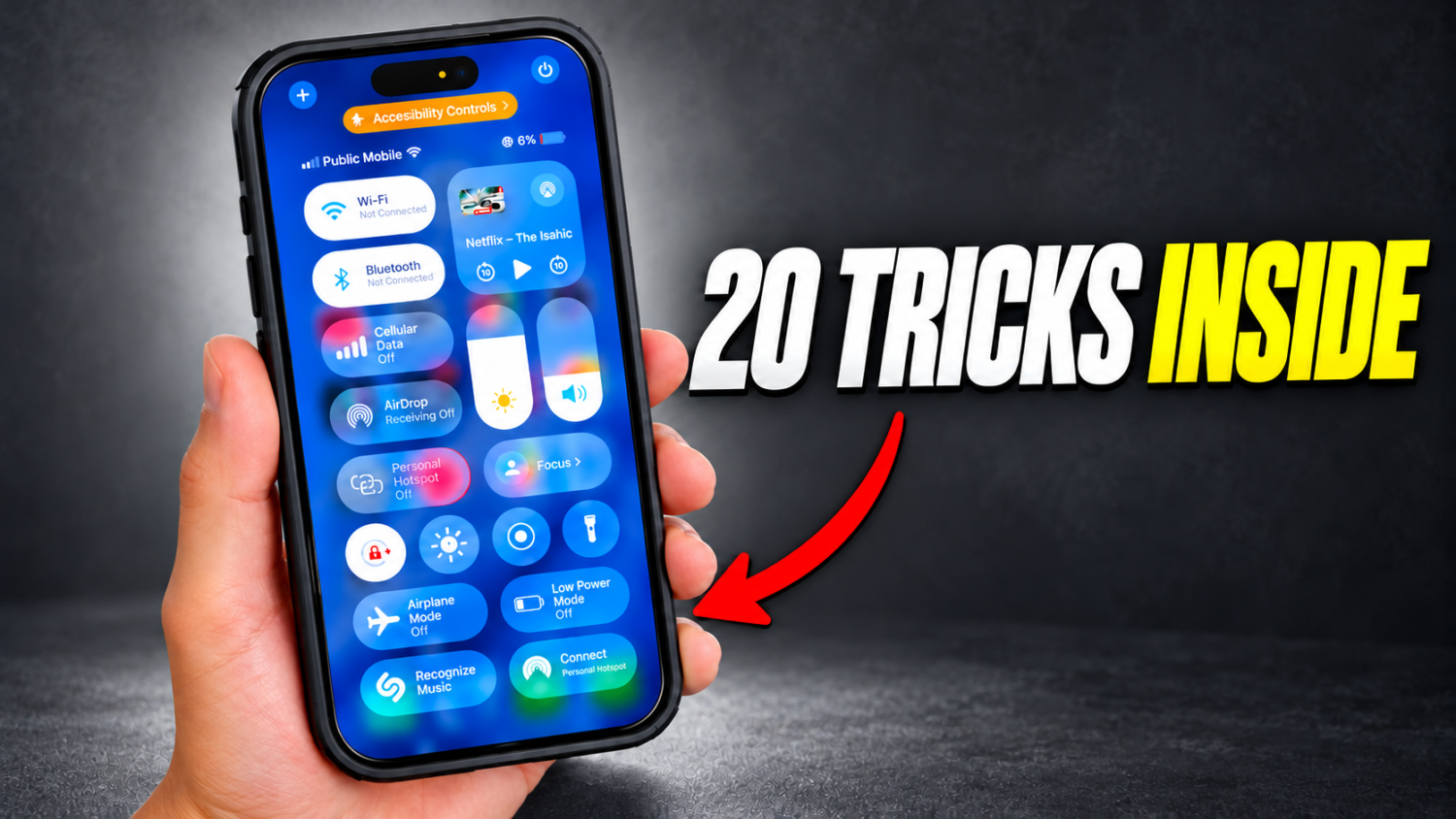
Apple’s iOS 26 introduced a robust framework for personalizing your device, moving far beyond mere wallpaper changes. This guide cuts through the noise, showing you how to leverage dynamic wallpapers, custom widgets, and powerful Shortcuts to create a truly bespoke experience. These tools transform your iPhone from a generic slab of glass into a reflection of your unique style and needs. Unlock a seamless aesthetic and stunning functionality that feels distinctly yours.
20. iOS 26 Customization System
Apple’s latest OS redefines how you personalize every screen, icon, and widget.
Apple’s iOS 26 redefines digital personalization. The Liquid Glass design uses translucent and reflective elements across your Lock Screen, Home Screen, apps, navigation, and controls. Adaptive Lock Screen time sizing responds to notifications and Live Activities. Icons shift to dark or tinted appearances, and labels can be hidden for a cleaner interface.
This system supports flexible Home Screen placement, interactive widgets, and custom Lock Screen/Home Screen pairings. Crafting unique visual themes becomes like curating your perfect Spotify playlist for your entire device. Your phone truly reflects your vibe, whether in ‘work mode’ or ‘weekend warrior’, transforming daily interaction into a seamless blend of aesthetics and practicality.
19. Split Wallpaper Pack
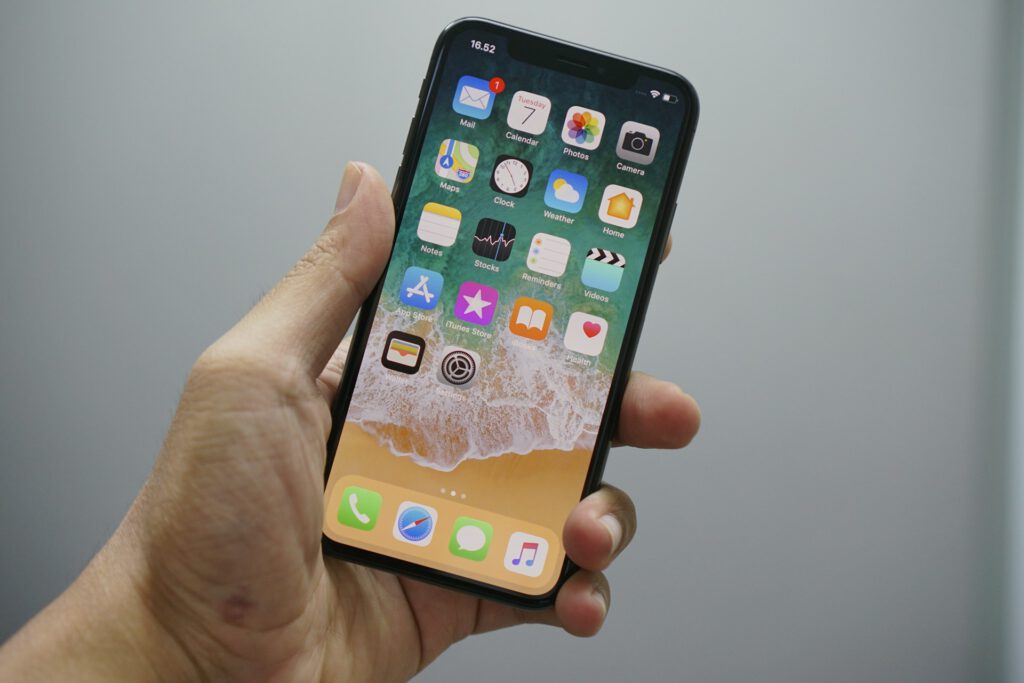
Sophisticated black-and-white designs add depth without the usual complexity.
Moving beyond flat designs, this creator-made wallpaper collection delivers a striking visual upgrade. The ‘Split’ pack provides sophisticated black-and-white split-screen wallpapers, available in both flat and dynamically shadowed variants. The shadowed options, optimized for newer iPhone models, add depth that simpler backdrops often lack. This pack is offered as a free download, with an optional payment feature for users who appreciate the thoughtful design.
Bland phone aesthetics often plague users, but this pack offers a refined, direct solution. The creator focused on elevating the overall aesthetic, proving that impactful visual enhancement doesn’t always require a hefty price tag. You receive these sophisticated options without the usual fuss of complex icon sets or widget layouts.
18. Apple Lock Screen & Wallpaper Customization
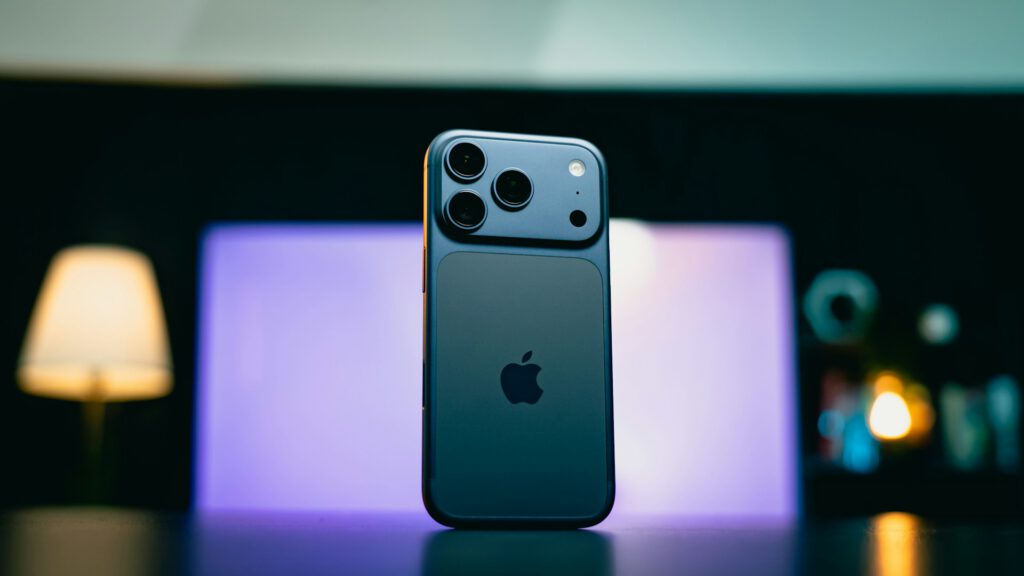
Multiple Lock Screens tailored to specific moods or tasks transform a basic background into a dynamic hub.
iOS 26 transformed the iPhone’s Lock Screen from a mere background to a personalized hub. The Liquid Glass design system adds a slick, modern feel across screens and apps. You can create multiple Lock Screens, each tailored to specific moods or tasks.
This flexibility extends to intricate clock customizations, letting you expand size or increase weight for a bolder look. Lock Screen widgets provide at-a-glance information without unlocking your device. The system links specific Lock Screens to Focus modes, giving you situational relevance and granular control over your device’s visual identity.
17. Liquid Glass Design
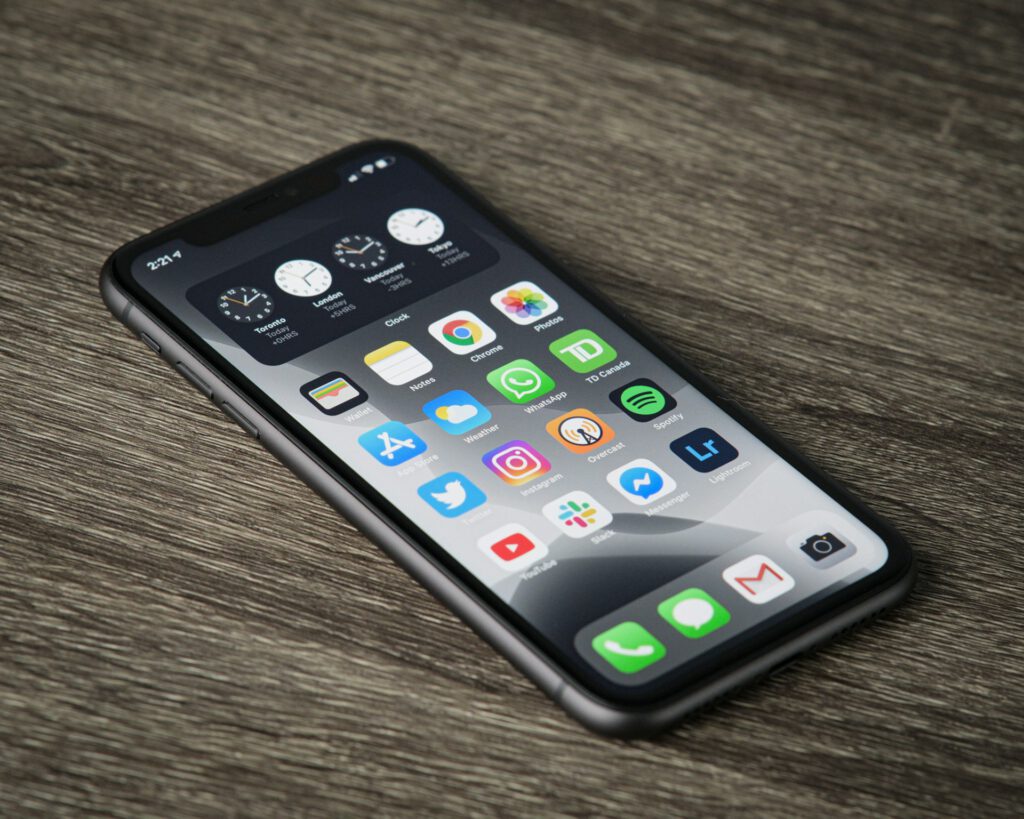
Translucent, reflective interface elements create cohesive visual themes across your entire device.
Apple’s iOS 26 redefines interface elements with its Liquid Glass design system. This fundamental overhaul affects your Lock Screen, Home Screen, apps, navigation, and controls. Users gain clear or tinted Liquid Glass appearance options, fostering cohesive visual themes. The Dock maintains a distinct presence under this design language.
This pervasive visual system creates a distinctly modern aesthetic, emphasizing depth and light within the interface. Liquid Glass ensures everything coordinates smoothly, delivering a seamless experience. Apps feel contemporary and unified rather than disconnected from your OS version.
16. Not Boring Weather App
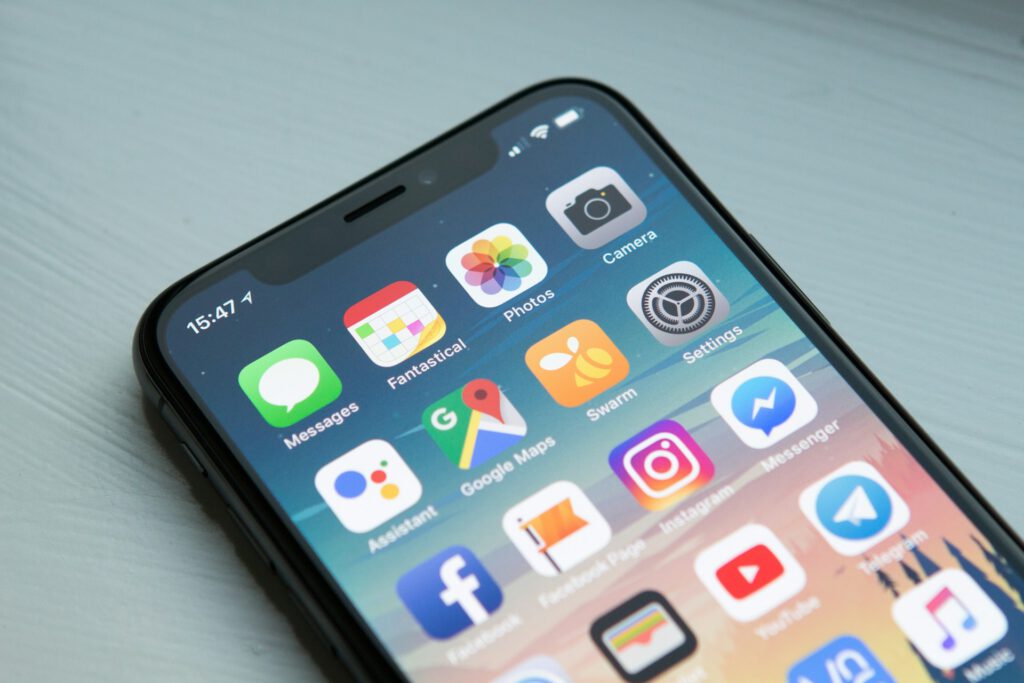
Home Screen and Lock Screen widgets display forecasts without the usual visual clutter.
The Not Boring Weather app transforms daily forecasts into a visually engaging experience. Its acclaimed interface presents essential data like current temperature, conditions, rain probability, and air quality directly on your Home Screen and Lock Screen widgets. This approach makes checking the weather feel less like a chore and more like curating your digital space.
Full widget capabilities and advanced customization require a paid membership. This subscription unlocks real-time widgets, faster forecasts, expanded weather data, skins, and custom app icons. The free tier provides useful functionality, but deeper personalization awaits those willing to invest.
15. Not Boring Weather “Graphite” Skin
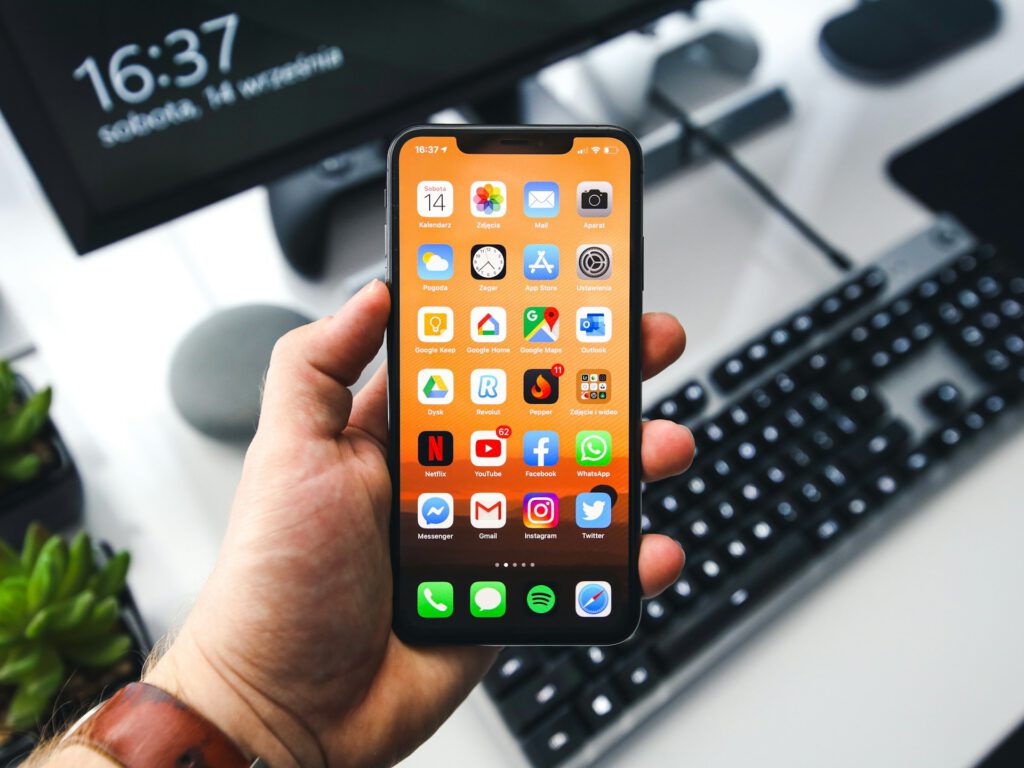
This monochrome visual option integrates seamlessly into grayscale customization themes.
The pursuit of a cohesive monochrome aesthetic often hinges on minute details. Not Boring Weather’s “Graphite” skin offers a specific visual option, integrating seamlessly into a grayscale customization theme. This skin operates as an internal feature within the Not Boring Weather application. Accessing it requires a paid membership, a small price for consistent visual control.
Implementing this design choice is straightforward. Navigate to the app’s settings and select ‘Graphite’. This transforms the app’s interface, aligning it with your device’s chosen grayscale elements. The ‘Graphite’ skin ultimately underpins the desired unified look, contributing to an interface that feels deliberately curated.
14. Not Boring Weather Widgets
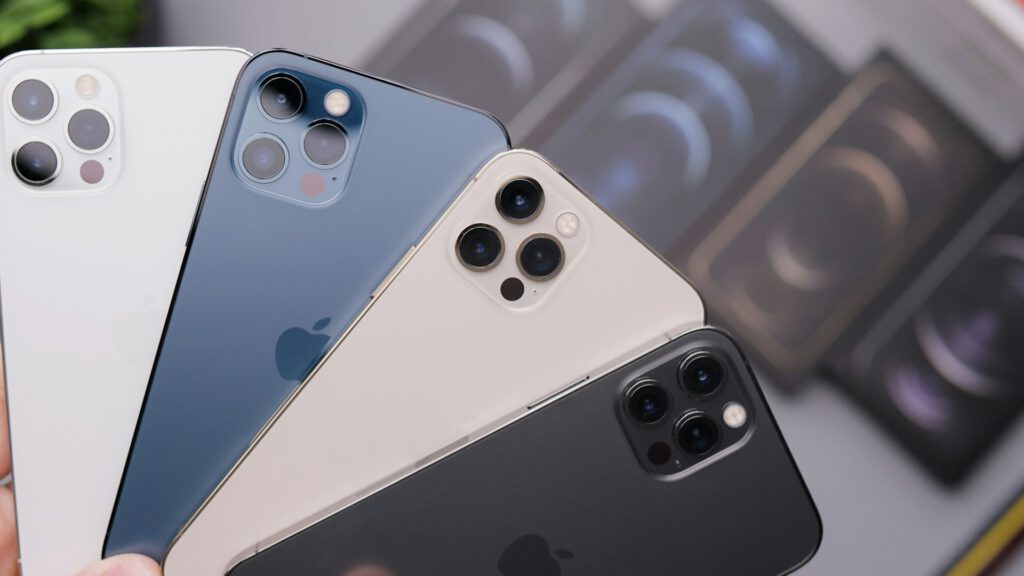
Forecast, moon-phase, and current-conditions displays provide immediate insights without opening the full app.
Constantly flipping open a weather app to check conditions creates unnecessary friction. The Not Boring Weather app ends that hassle, offering widgets for your iPhone Home or Lock Screen. These include forecast, moon-phase, and current-conditions displays, providing immediate insights without needing the full application.
These widgets boast aesthetically pleasing designs, often with subtle shadow elements that give them a slick feel. They integrate cleanly with iOS 26’s Liquid Glass aesthetic. However, the most comprehensive environmental data and fastest update frequencies remain tied to the app’s paid subscription tier.
13. Widgy App
Extensive third-party widget customization offers pixel-perfect control for bespoke layouts.
Widgy offers extensive third-party widget customization for iPhone, essentially providing a digital renovation kit for your Home Screen. You can meticulously adjust layouts for maximum personalization. This particular setup, however, bypassed Widgy and opted for Not Boring Weather’s pre-made widgets, prioritizing simplicity and replication over custom-tailored complexity.
This decision highlights a core dilemma in iOS personalization: deep control versus straightforward implementation. Sometimes, a clean aesthetic doesn’t demand complex customization. This setup proves impressive visual integration is possible with app-native solutions, letting you achieve sharp results without complex third-party tools.
12. CleverType One Keyboard
Multi-device connectivity and trackpad-style gestures eliminate hand gymnastics between typing and navigation.
Switching between various devices and constantly reaching for a mouse disrupts workflow, yet the CleverType One keyboard simplifies this with multi-device connectivity. You can swipe and scroll directly over the keys themselves, effectively turning the entire keyboard into a trackpad. This design eliminates the hand gymnastics typically involved in moving from typing to navigation.
Touch sliders offer instant control for volume, brightness, and zoom, saving you from digging through system menus. It aligns seamlessly with Apple’s clean aesthetic, looking less like a peripheral and more like an extension of your existing setup.
11. CleverType S Keyboard
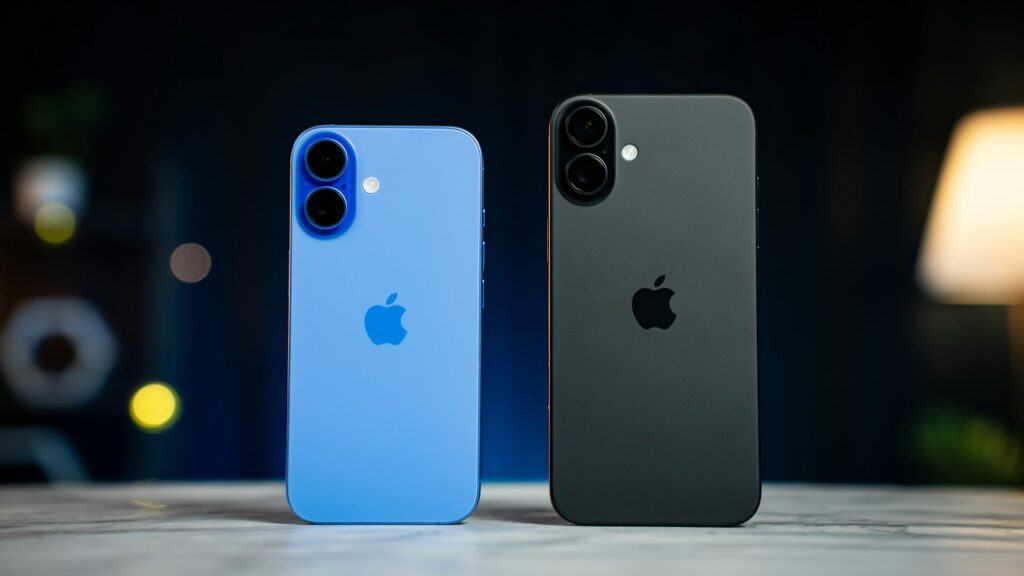
Compact design retains essential functionalities for portable workstations without sacrificing features.
Working from a coffee shop often feels like a game of Jenga with your gear, but a compact keyboard can change that dynamic. The CleverType S keyboard emerges as a compelling option for users who prioritize a minimal footprint. This smaller variant of the CleverType One retains essential functionalities, including integrated trackpad-style gestures directly on the keyboard surface.
This keyboard supports multi-device connectivity, letting you seamlessly switch between devices. It also incorporates intuitive touch-control sliders for system functions such as volume and brightness. The clean aesthetic maintains suitability for pairing with various Apple devices, proving that powerful features can be condensed into a highly portable package for on-the-go productivity.
10. Vision OS Icon Pack (Square Version)
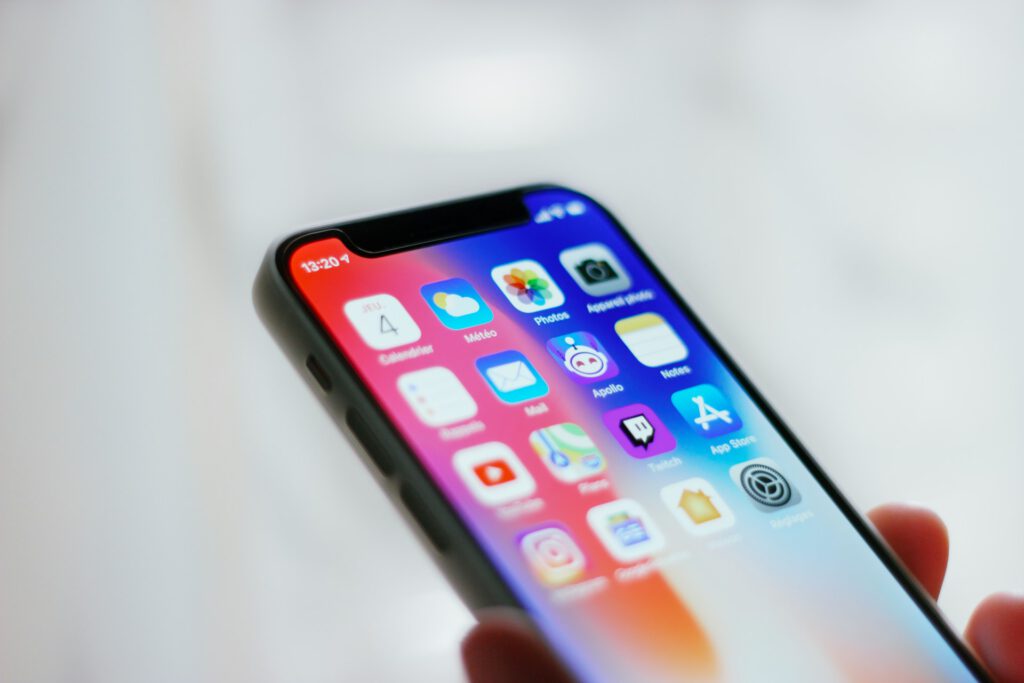
Square backgrounds eliminate the transparent icon workaround, working directly with iOS 26’s Shortcuts app.
The transparent icon workaround was digital purgatory for customization enthusiasts. Initially, the Vision OS icon pack presented circular designs, demanding third-party apps for a ‘fake’ transparent look. With iOS 26 and its Liquid Glass design, the pack’s creator redesigned every icon with a square background, preserving the original design language while fitting seamlessly.
This pivotal change allows direct image file use within the Shortcuts app, eliminating the cumbersome workaround. Square app icons, plus alternate versions for media player controls, streamline your setup. The redesign transforms customization from a frustrating process into a straightforward one.
9. Apple Shortcuts App
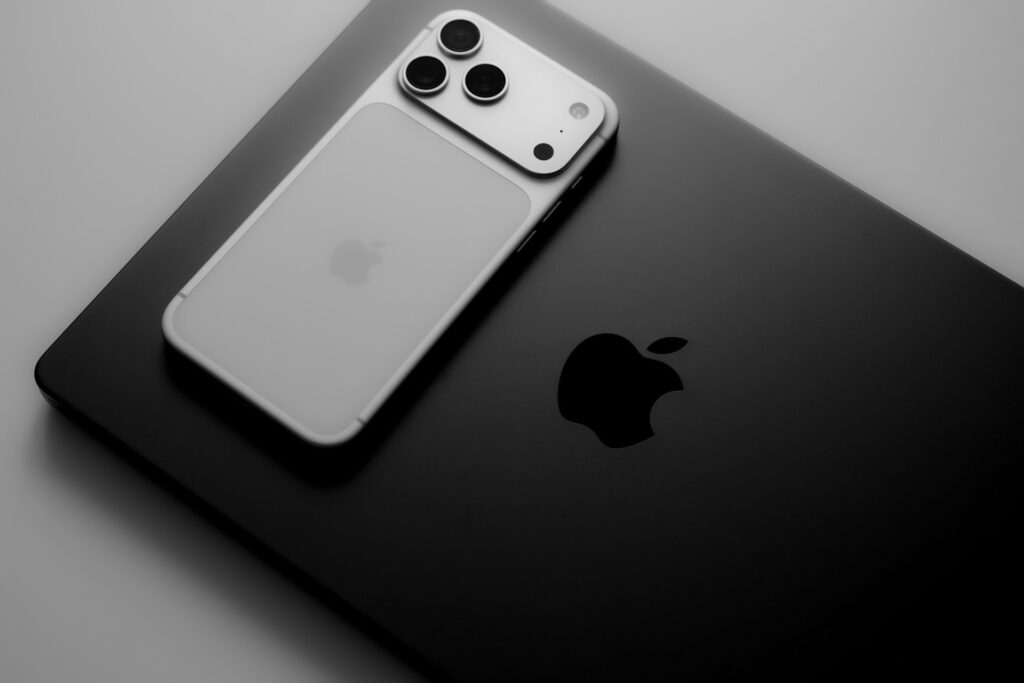
Create custom actions and place personalized shortcut icons directly on your Home Screen.
The Apple Shortcuts app transforms your iPhone into a highly customized command center. This powerful tool, integral to iOS 26, enables you to create custom actions and place personalized shortcut icons directly on your Home Screen. It streamlines everyday tasks into effortless routines.
You can assign unique custom image icons to launch apps, giving your iPhone a bespoke visual identity beyond stock layouts. This extends to media controls, allowing you to skip tracks or pause playback with a single tap from the Home Screen. Sophisticated theme-switching shortcuts instantly revamp your device’s aesthetic, proving a little automation goes a long way.
8. Custom App Icons via Shortcuts
Create “Open App” shortcuts with custom images for a completely personalized visual identity.
Apple officially supports adding shortcuts to the Home Screen, a core feature of iOS 26 that allows for extensive visual customization. You simply create an “Open App” shortcut for each selected application, rename it, assign a custom image, and add it to your Home Screen. This preserves full app functionality while presenting a completely customized visual icon.
Custom icons transform your iPhone into a personal statement, not just another stock gadget. This level of customization lets you escape generic settings. You gain full control over your phone’s visual identity, ditching default icons for a look that mirrors your unique style, whether minimalist monochrome or something more vibrant.
7. iPhone Media Control Shortcuts
Play/pause, skip back, and skip forward functions in the Dock create a persistent media player.
iOS 26’s interactive widgets and controls natively support media actions like play/pause and skipping tracks. This capability allows you to create dedicated media controls directly on your Home Screen. Utilizing Apple’s Shortcuts app, you can set up play/pause, skip back, and skip forward functions, all represented by custom icons.
Strategically placing these in the Dock transforms it into a persistent, intuitive media player. Managing audio playback no longer requires opening a specific music application. These media actions operate smoothly because iOS 26 natively supports them, eliminating lag and friction. The result is a dramatically enhanced daily media consumption flow.
6. Change-Theme Shortcut
A custom Focus named ‘dark’ enables instant thematic changes with a single Dock tap.
Fumbling through system settings to adjust your display’s aesthetic is tedious. A custom ‘Change-Theme Shortcut’ streamlines this, dynamically switching your visual setup. It leverages a custom Focus named ‘dark’ to manage the shift. You’ll spot its distinctive red stop-style icon in the Dock, offering instant thematic changes when your eyes demand a break from bright white.
While this shortcut showcases user ingenuity, its underlying mechanisms are fully supported by Apple. Custom Focus modes, linked screens, schedules, and filters coordinate seamlessly. This dynamic control enhances your experience by allowing on-demand aesthetic adjustments without forcing you through endless menus.
5. Custom “Dark” Focus Mode
Schedule nightly activation to automatically link dark wallpapers and tinted icon appearances.
iOS 26 enables robust personalization, allowing users to tailor their iPhone’s digital environment to any daily rhythm. You can create a custom Focus mode, like one named “dark,” and schedule its activation nightly. This automatically links your device to a specific Lock Screen and Home Screen, complete with a dark wallpaper.
This automated control offers mastery over your digital surroundings. The system leverages iOS 26’s Liquid Glass design and Focus filters, coordinating visual themes with custom Focus modes. Your device becomes a chameleon, shifting its appearance to suit the moment, ensuring a consistent interface for any activity.
4. Focus Filters
Customize how apps and system features behave while a Focus is active for coordinated aesthetics.
Focus filters allow users to customize how apps and system features behave while a Focus is active. Apple’s documentation outlines adding these filters directly from Focus settings, letting you select specific app or system options. Applying a dark appearance filter to your custom “dark” Focus helps coordinate your wallpaper and icon appearance.
Activating a Focus does more than just manage notifications. It can visually transform your interface elements. The system delivers a consistent aesthetic across different usage scenarios, making your phone look intentionally styled. This dedication to visual consistency shows you can achieve both serious function and undeniable style.
3. Large Home Screen Icons
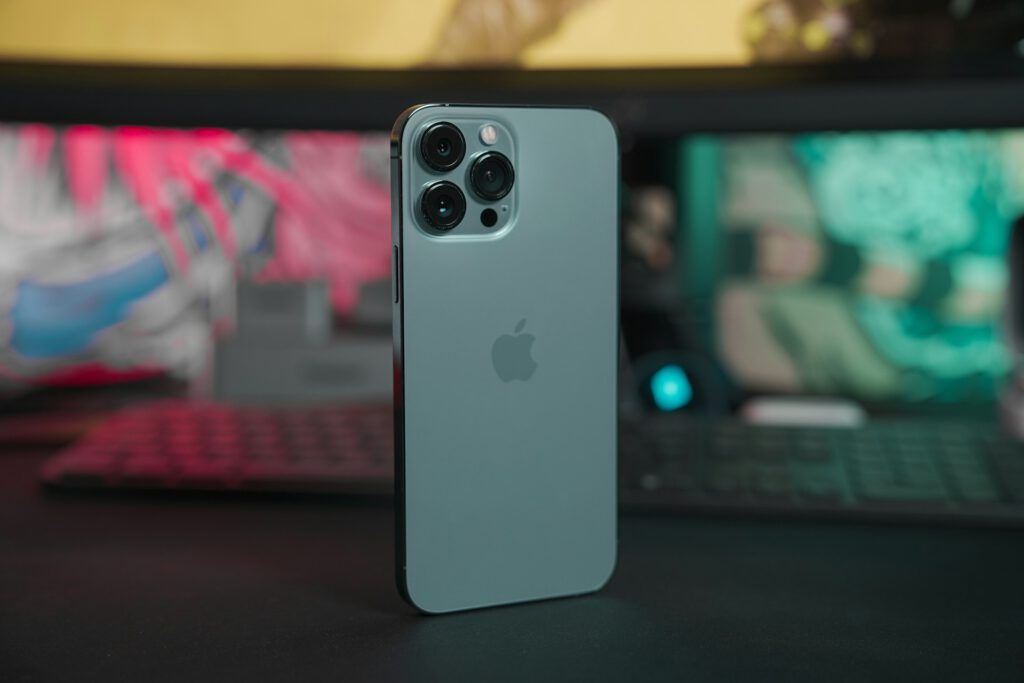
Image: Unsplash
Larger icons with hidden labels emphasize custom artwork for a cleaner interface.
iOS 26 introduces support for larger Home Screen icons alongside the welcome option to hide text labels beneath them. This change finally lets you curate a Home Screen that feels less like a crowded billboard and more like a curated display. Eliminating extraneous text allows custom icon artwork to truly shine.
This visual approach delivers a significant punch, helping you achieve a cleaner, more visually engaging interface that emphasizes pure iconography. The combination of increased icon size and optional label removal creates breathing room, turning chaos into calm. Your Home Screen becomes a deliberate statement rather than an accident of default settings.
2. Dark and Tinted Icon Appearances
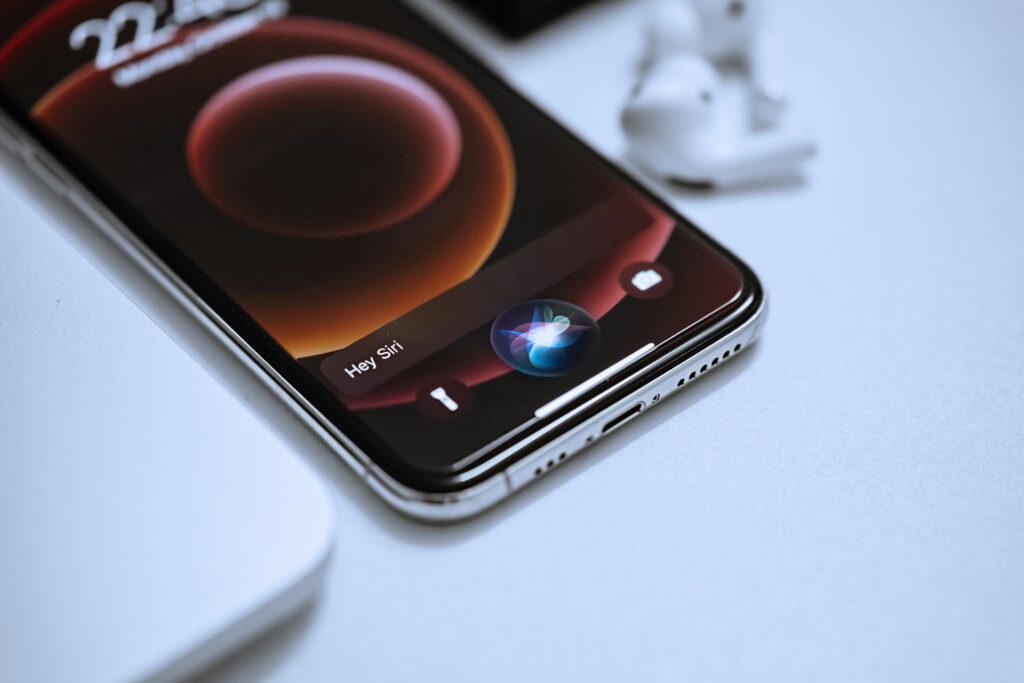
Image: Unsplash
Associate light, dark, clear, or tinted looks with wallpaper configurations or Focus modes.
iOS 26 delivers significant visual flexibility, allowing app icons and widgets to adapt their appearance dynamically. You can select between light, dark, clear, or tinted looks. Apple supports associating these visual treatments with specific wallpaper configurations or active Focus modes, ensuring your phone’s aesthetic shifts smoothly.
This intricate control ensures that icons and widgets adapt dynamically to the overall device aesthetic. A bright app icon forced onto a deep dark wallpaper creates visual discord. This unified approach prevents that problem, making sure every element contributes to a cohesive theme. Your phone finally looks coordinated instead of haphazard.
1. Apple Dock Customization
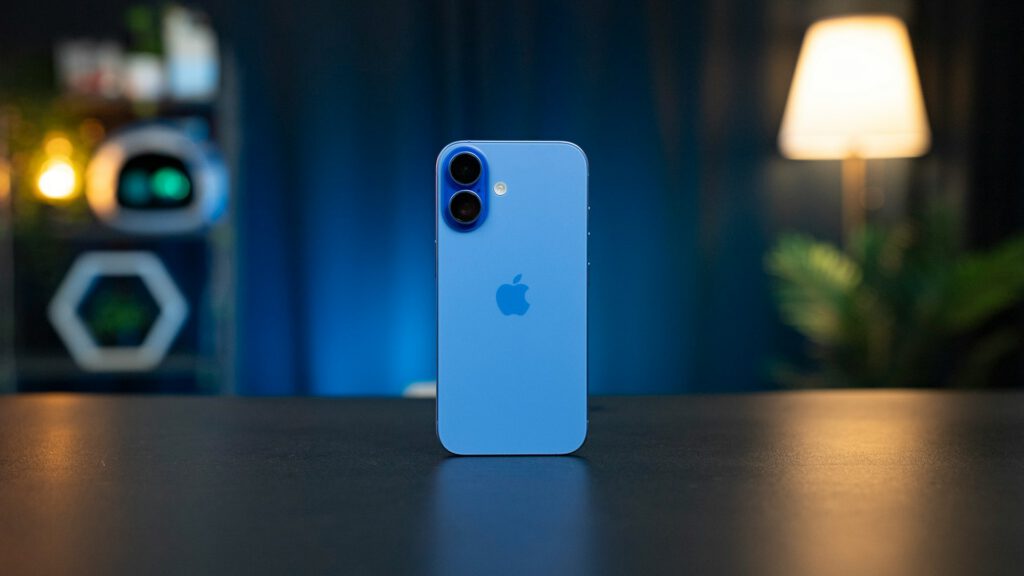
Configure four custom shortcut icons for a sleek, always-accessible command center.
iOS 26 lets you treat your iPhone’s Dock like the prime real estate it should be. Apple’s Liquid Glass design system ensures it’s a visibly translucent, always-there command center. You can configure it for four custom shortcut icons, turning a basic strip into a sleek control panel.
These custom shortcuts ensure your most-used controls are always just a tap away. Play/pause, skip back, skip forward, and a theme switcher create a personalized command center. The expanded customization in iOS 26 allows Home Screen icons and layouts to be resized and rearranged, giving you the flexibility to build a control panel that functions as an extension of your digital self.