




Some iPhone tips are like that spare key you hide under the flowerpot—there all the time, yet totally forgotten. You’re probably not using all 16 of iOS’s coolest tricks, right? This rundown will make you a ninja at everything from silencing annoying timers to locking down your deepest, darkest Notes secrets with Face ID. Think of it as pimping your iPhone—without the bad reality TV. Keep reading, and you’ll be schooling the “Genius” Bar in no time.
16. Silent Timers
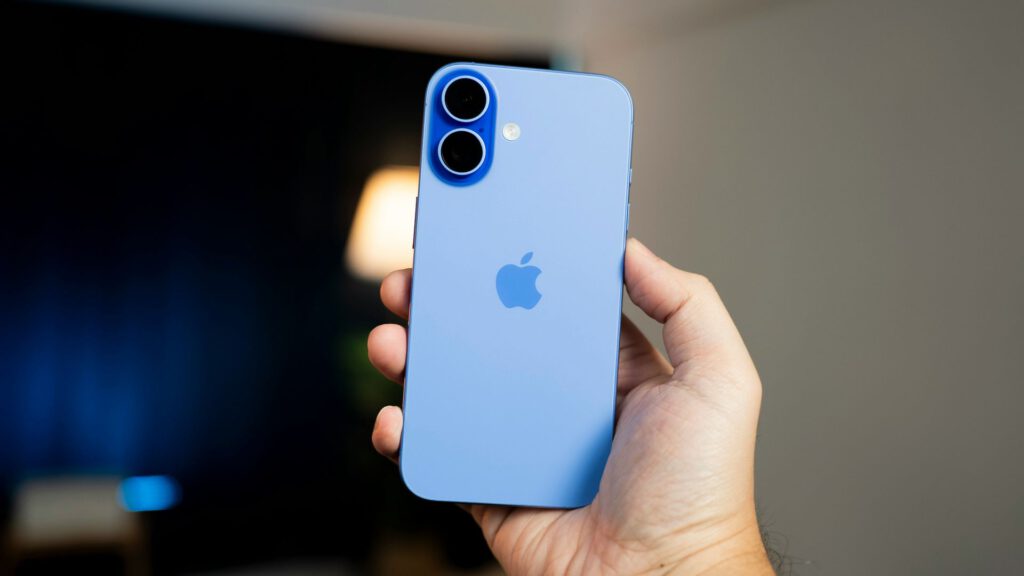
Turn your timer into a stealth ninja with vibration-only alerts.
Ever been in a quiet restaurant, waiting for that crucial reservation confirmation, only to have your iPhone blare like a fire alarm? Yeah, Apple gets it. Instead of risking death stares, you can tap the bell icon in the Timer app for vibration-only alerts, meaning your timer goes full incognito.
The most baller move is staying discreet. Vibration alerts make sure you get that reminder without disrupting the vibe. Perfect for those moments when you need timing precision without the acoustic chaos.
15. Spotlight Flight Info Search
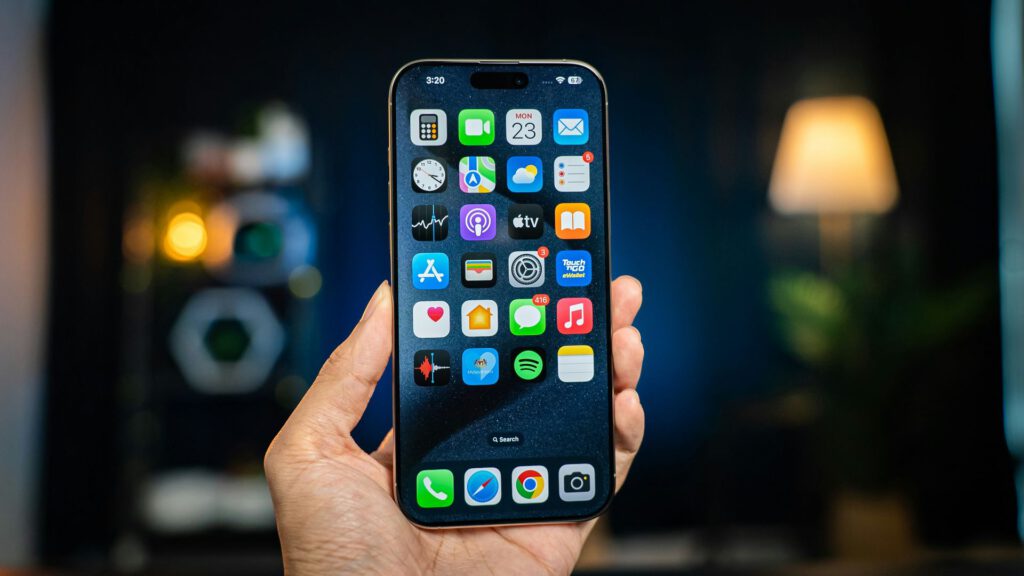
Skip the airport board hunt and get instant flight status updates.
Ever find yourself sprinting through an airport, convinced your gate has moved to another dimension? iOS has your back, naturally. Spotlight search grants instant flight status retrieval by simply typing your flight number. No more hunting for those dimly lit display boards.
This hidden gem pulls up gate info, departure times, and potential delays. Anyone who’s been stuck in security while trying to access their itinerary knows this beats hunting for airport displays. It’s like having a personal assistant minus the awkward small talk.
14. Notes Formatting
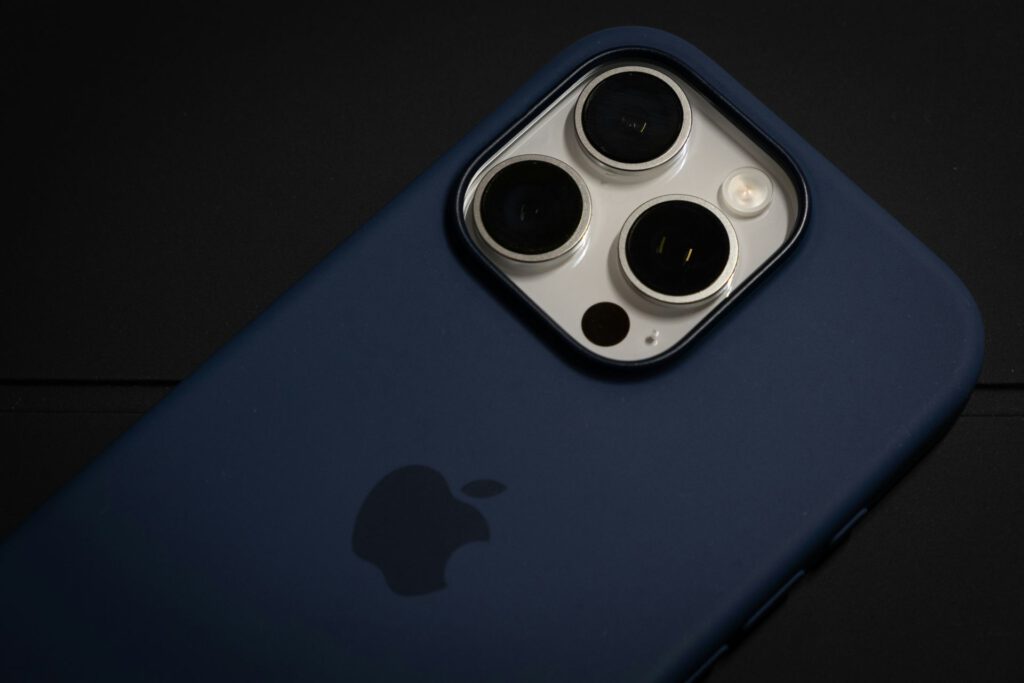
Transform plain text into organized masterpieces with hidden formatting options.
Jotting down a recipe during a cooking class? iOS makes it simpler than perfecting a soufflé. Text enhancements are surprisingly easy; a pop-up menu offers bold and italics. Think of it as adding a dash of spice—instantly highlighting key ingredients or steps.
Digital note-taking becomes your sous chef, helping you track everything from wine pairings to secret family recipes. Embracing these iOS tools means you can capture, organize, and share culinary wisdom faster than you can say “Bon appétit!”
13. Disable Auto-Brightness
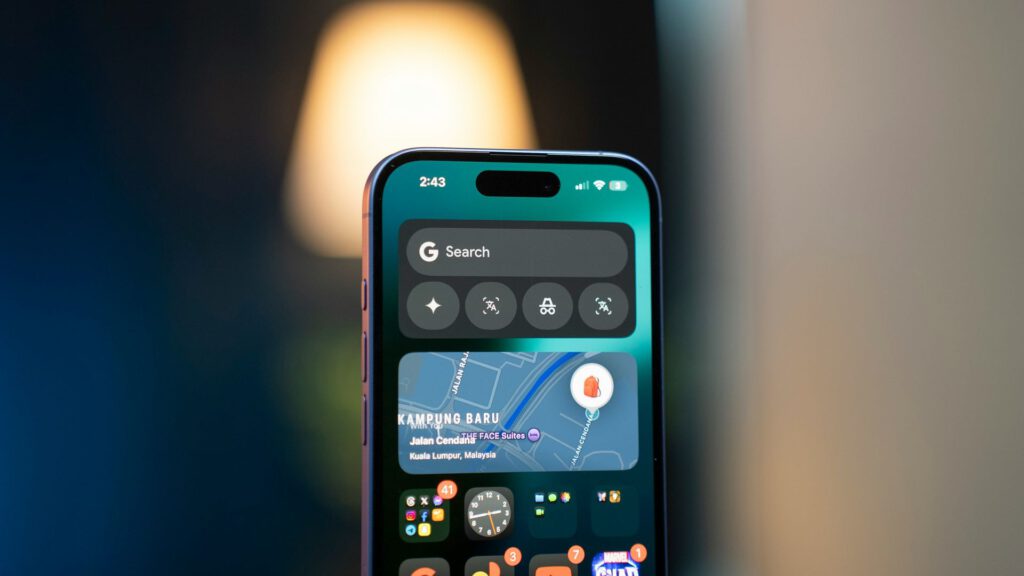
Take manual control of your screen brightness and save your eyeballs.
Your iPhone’s auto-brightness cranks up the screen to supernova levels, burning your retinas and killing your battery. Ditching auto-brightness gives you back the dial so you can set the perfect level for your peepers.
Want that sweet, golden-hour glow when snapping sunset pics? Custom brightness settings are your ticket. Dive into Settings > Accessibility > Display & Text Size and toggle off Auto-Brightness. Anyone who’s ever tried to edit photos on the fly knows controlling light intensity is clutch.
12. Custom Snooze
Extend your morning denial for up to 30 blissful minutes.
Ever hit snooze so many times you’re basically living in Groundhog Day? iOS gets it, serving up a customizable snooze option that lets you drag out the inevitable for up to 30 minutes. Perfect for those Monday mornings when that extra 15 minutes is the only thing standing between you and a full-blown existential crisis.
Consider winding down an hour before bed instead of relying on tech to fix human error. Ditch the doom-scrolling and pick up a book. Just a thought, not a lecture.
11. Text Scanning in Notes
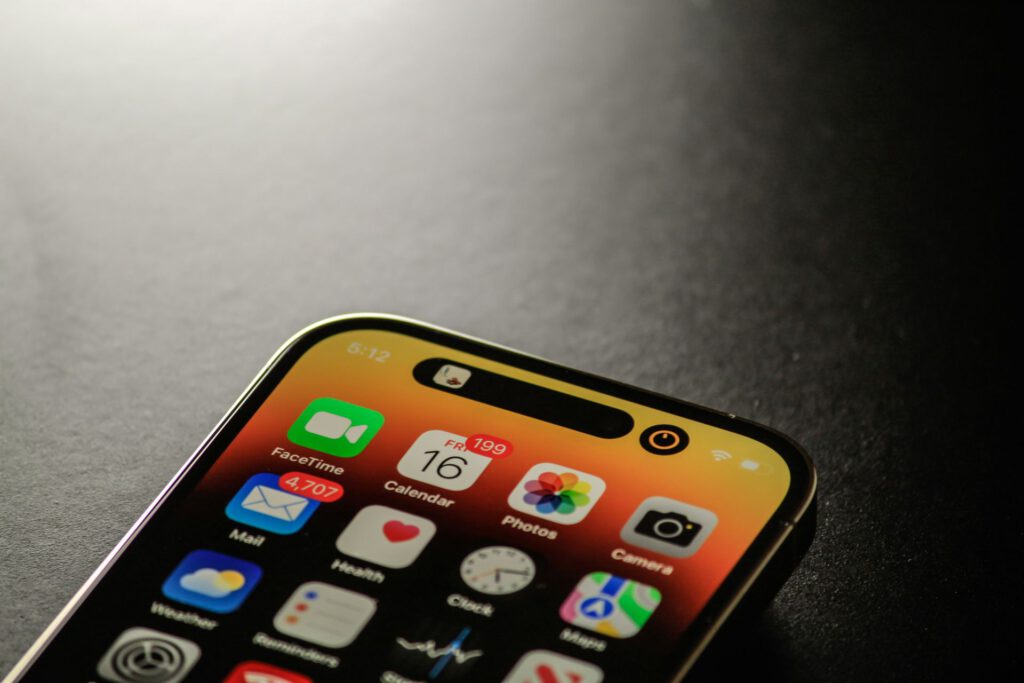
Turn your iPhone into a portable document scanner.
Imagine hitting a bustling open-air market where you want to capture every artisanal cheese plate detail. Scanning handwritten recipe cards into Notes becomes faster than a barista slinging lattes—perfect for quick document capture. Who needs physical menus when you can digitize them faster than a TikTok trend cycle?
Expect optical character recognition to improve, so your iPhone turns into a portable scanner. Soon enough, grandma’s secret sauce recipe becomes a shareable digital treasure.
10. Muting Group Chats
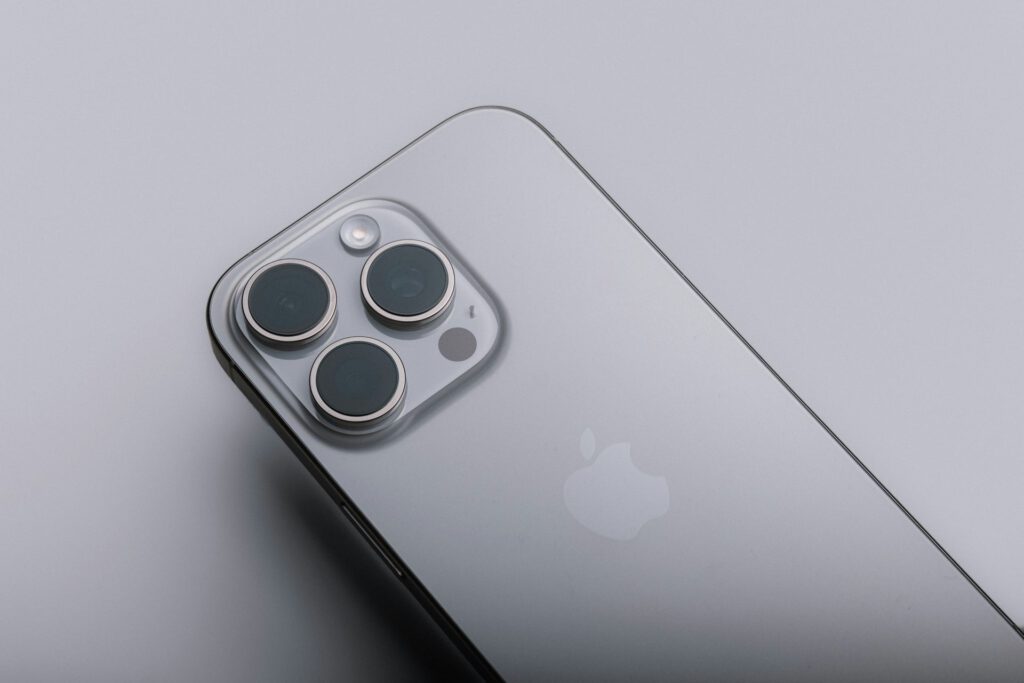
Escape notification chaos with strategic temporary silence.
Group chats can blow up faster than a soufflé collapses, especially when you’re trying to savor a truffle pasta. iOS offers temporary mute options: an hour, a day, or “until I unmute”—perfect for maintaining digital boundaries while exploring gelato shops.
FOMO is real, but so is JOMO (the joy of missing out). Muting those chats isn’t about being antisocial; it’s about curating your own peace so you can focus on what really matters: not missing the waiter.
9. Reverse Image Search
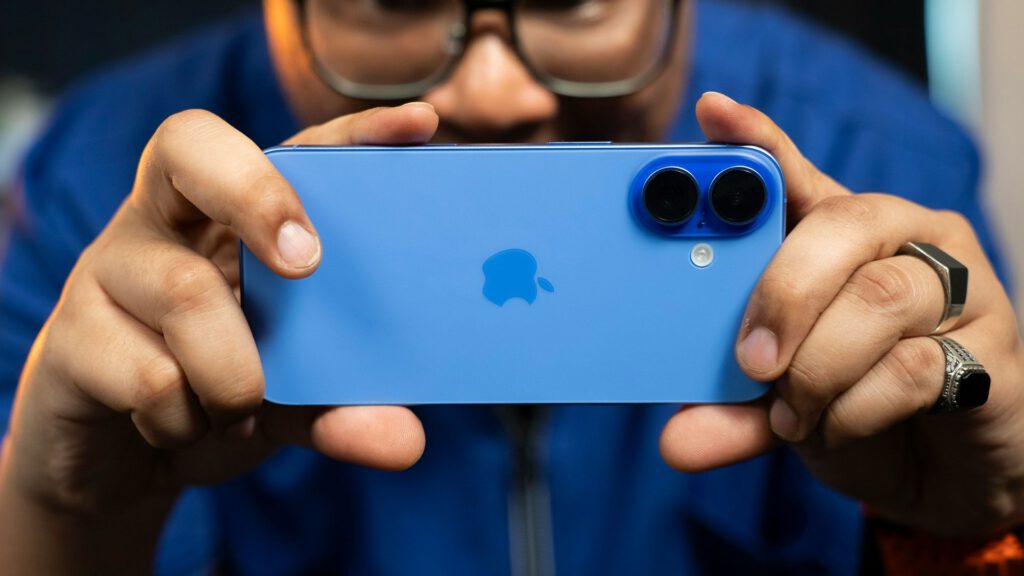
Identify mysterious dishes and ingredients with AI-powered visual search.
Apple Intelligence-powered reverse image search lets you identify almost anything—making it a low-key superpower. Trying to name the spices at that Marrakesh souk? Snap a pic, and suddenly you’re an expert. Especially handy when you’re ordering in a foreign country and translation apps fail you.
Snap a pic of an unfamiliar dish in Thailand and instantly know you’re about to devour fried crickets—knowledge is power, people. With AI-driven discovery, you can kiss those “mystery meat” moments goodbye, no matter how far you roam.
8. Multi-App Movement
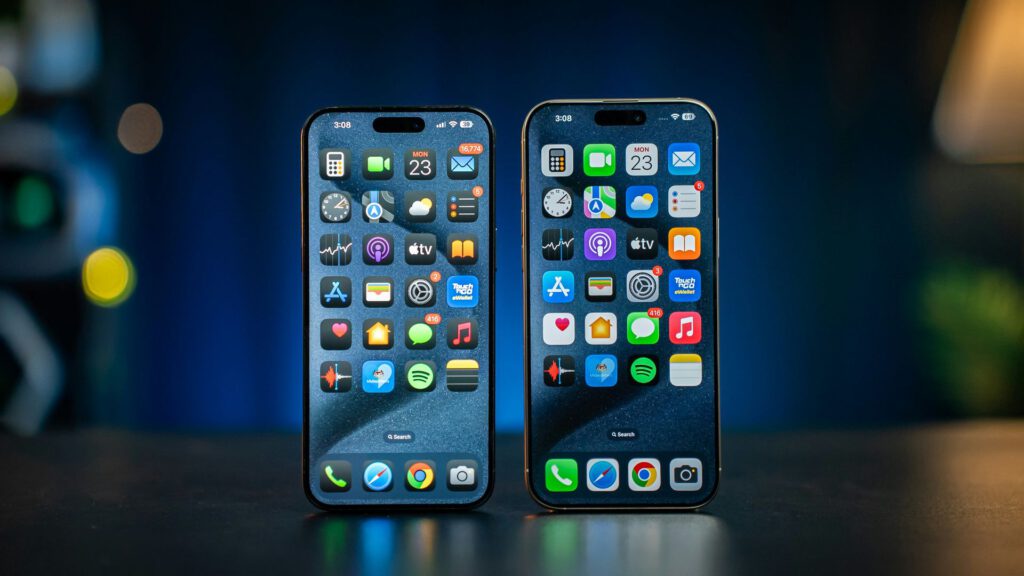
Organize multiple apps simultaneously like a home screen maestro.
Home screen reorgs can feel like moving furniture: back-breaking and only marginally more satisfying. iOS jiggle mode lets you tap and drag multiple apps at once—a spatial organization trick that transforms digital chaos. Imagine grouping all those travel apps (Maps, Uber, Delta) onto one screen, right next to your food squad (Yelp, DoorDash, Resy).
UI design isn’t just about aesthetics; it’s about streamlining your digital life. Spend less time swiping and more time discovering that hole-in-the-wall taco joint everyone raves about.
7. Hiding/Reordering Home Screens
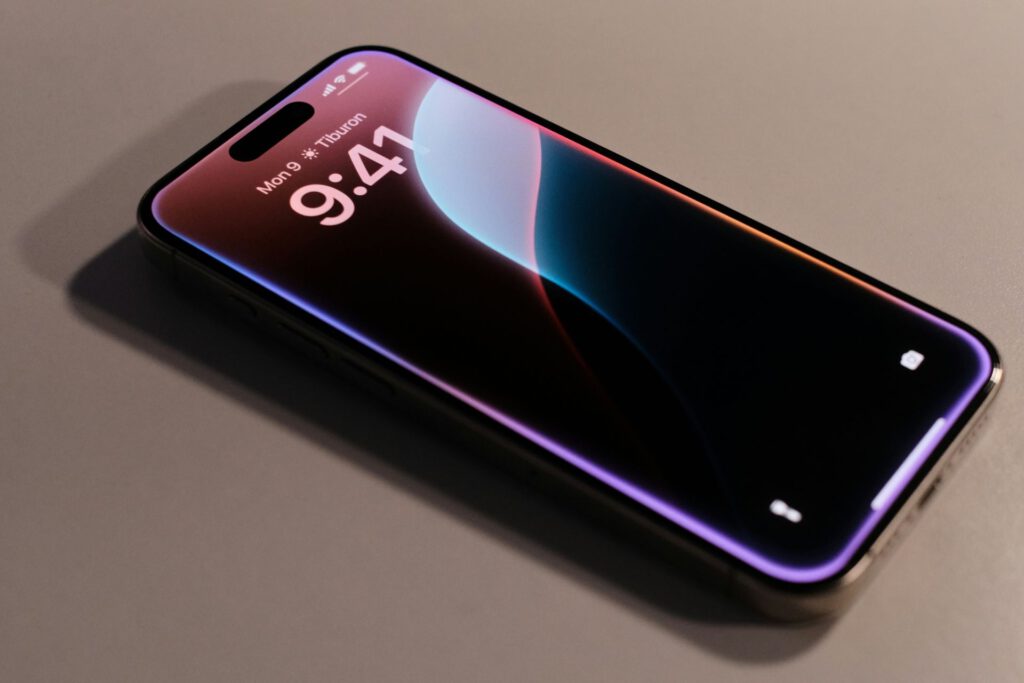
Curate your digital space like a minimalist guru.
Home screen Tetris is totally a thing, but it’s not about hoarding apps—it’s about curation. iOS gives you personalized screen layouts so you can put the apps you need front and center. This means less swiping and more doing.
Declutter your iPhone during business trips by stashing entertainment apps on a separate screen that’s out of sight, out of mind. It’s like digital minimalism with the option to binge-watch later.
6. Removing App Names
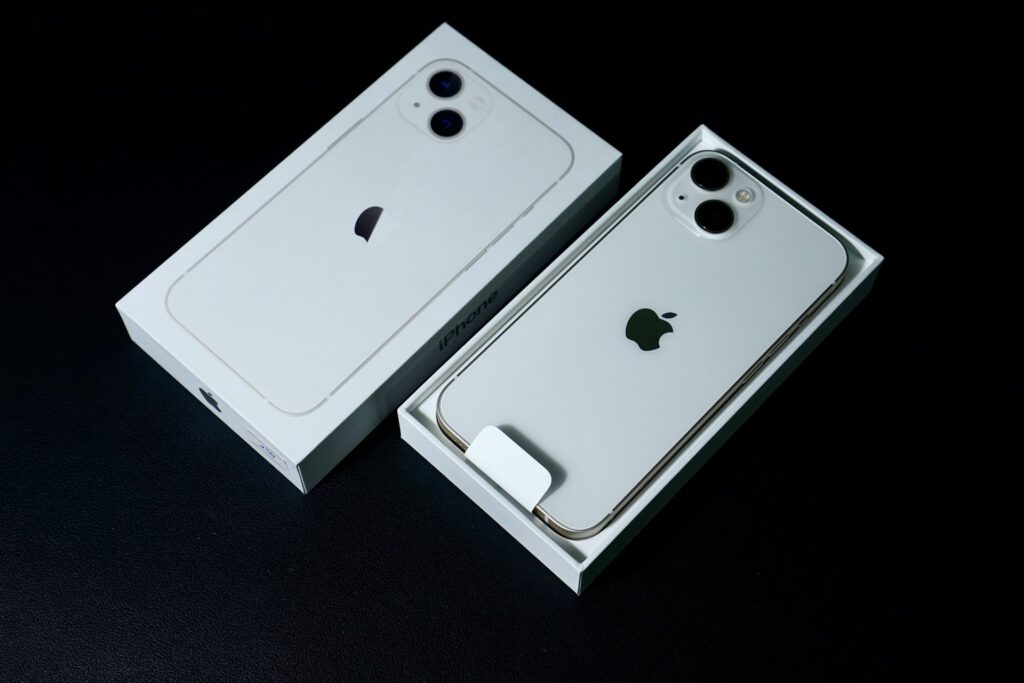
Achieve zen master status with a label-free home screen.
Most people assume a clean home screen means hiding apps in folders, but there’s a next-level minimalist trick that makes Marie Kondo look like a hoarder. By removing app names, you can ditch visual clutter and go full zen master. It’s like trading that messy junk drawer for a curated gallery wall.
Just a few taps in accessibility settings, and your home screen transforms. Anyone who’s tried to optimize their iPhone for maximum battery life knows every little tweak counts.
5. Safari Word Find
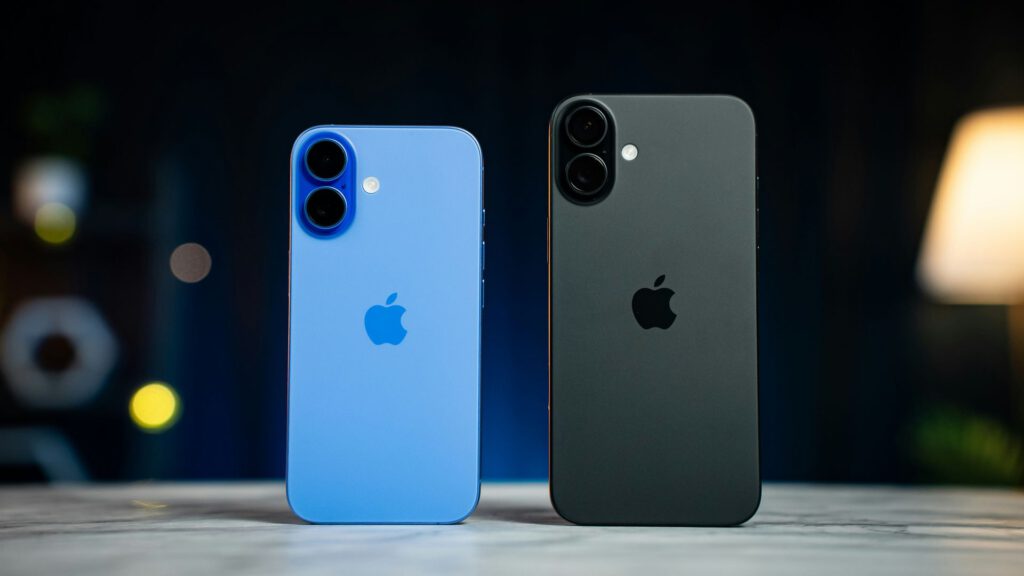
Turn your browser into a precision search tool.
Ever feel like you’re playing hide-and-seek with crucial details buried in a website? Safari’s word find, accessible via the “Aa” icon, turns your iPhone into a heat-seeking missile for information. Just tap, type, and watch target terms light up like a Christmas tree—ideal for scanning restaurant menus for gluten-free options.
Finding that gluten-free disclaimer is like discovering a hidden oasis in a desert of dietary restrictions. Instead of endless scrolling, this feature helps you find that needle in a haystack, fast.
4. Instant Top Scroll
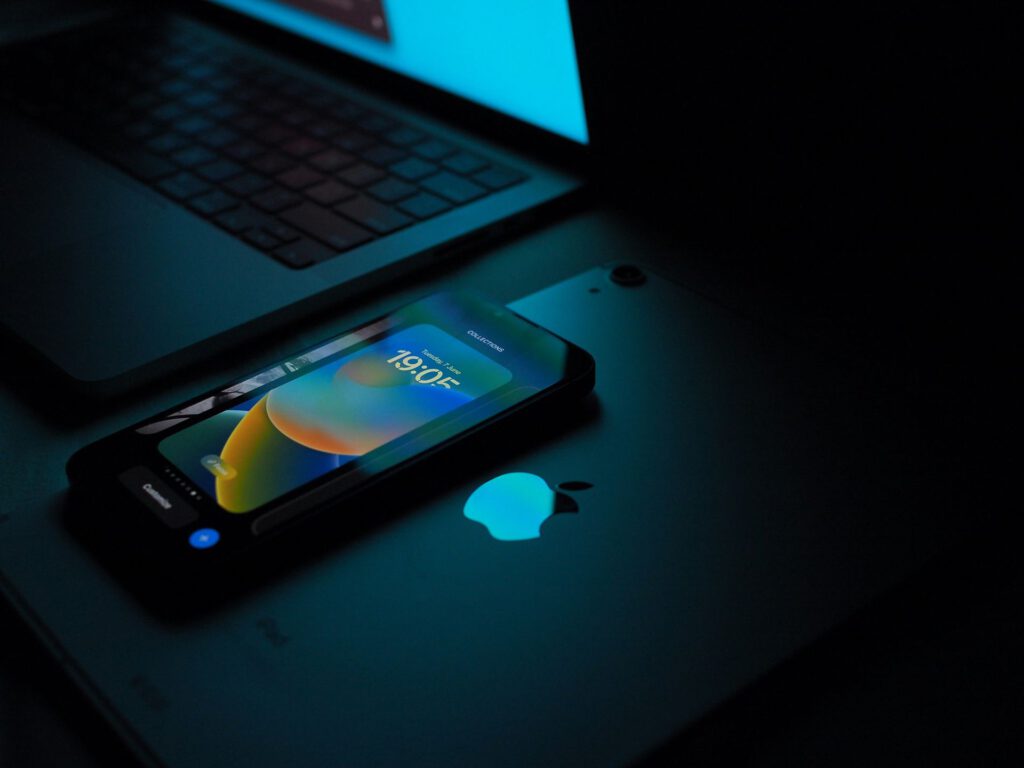
Teleport to the top of any page with a single tap.
Anyone who’s endlessly thumbing through the digital equivalent of War and Peace knows the wrist burn is real. Instead of all that scrolling, iOS has a sneaky shortcut: tap the status bar at the top of the screen, and you’re instantly back at the top. It’s like your iPhone just teleported you.
Imagine navigating that beast of a recipe blog with 20,000 words about the chef’s grandma before the actual instructions. A single tap saves precious minutes better spent perfecting your nonna impression in the kitchen.
3. Face ID Note Locking
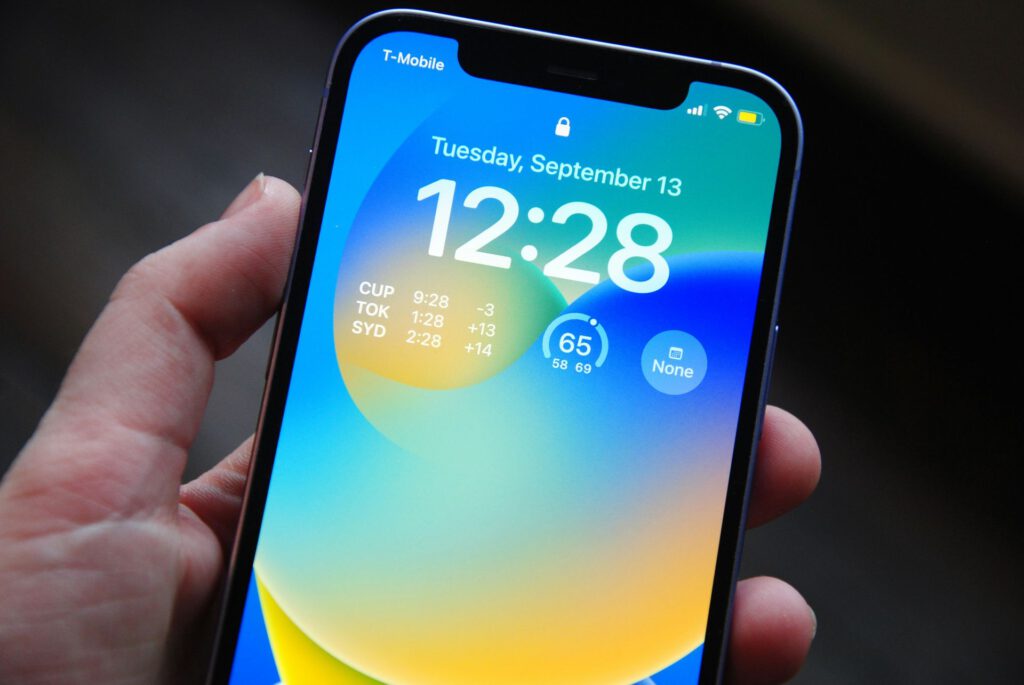
Secure your sensitive notes tighter than Fort Knox.
Storing your travel itinerary and passport details in a standard note is about as secure as storing cash under the mattress. iOS lets you lock individual notes using Face ID. Just toggle the lock in note settings, and your sensitive info is sealed tight.
Anyone who’s been burned by a data breach knows digital privacy isn’t just a luxury; it’s table stakes. Apple’s Face ID note locking reminds you that every layer of security counts.
2. Shortcuts Automation
Transform chaos into organized bliss with automated workflows.
You can set up a Shortcut to automatically log your food expenses, turning chaos into accounting peace. Imagine: every time you Venmo your buddy for that questionable taco, a line item magically appears in your expense sheet.
By automating tedious tasks, you’re not just saving time; you’re dodging the existential dread of expense reports. If your phone is smarter than you, who’s really in charge?
1. Accessibility Shortcut
Triple-click your way to instant visual assistance.
Ever find yourself squinting at a dimly lit menu, wishing you had Inspector Gadget eyes? iOS has you covered with the accessibility shortcut. Instead of fumbling through settings, just triple-click the side button. Instant access to features like the Magnifier, turning tiny font into something your weary eyes can actually decipher.
Set this up in Settings > Accessibility, assigning functions to the Triple-click your way. Beyond menu-reading, this shortcut opens up options from VoiceOver to AssistiveTouch. Consider it your Swiss Army knife for digital convenience, all just a triple-click away.