



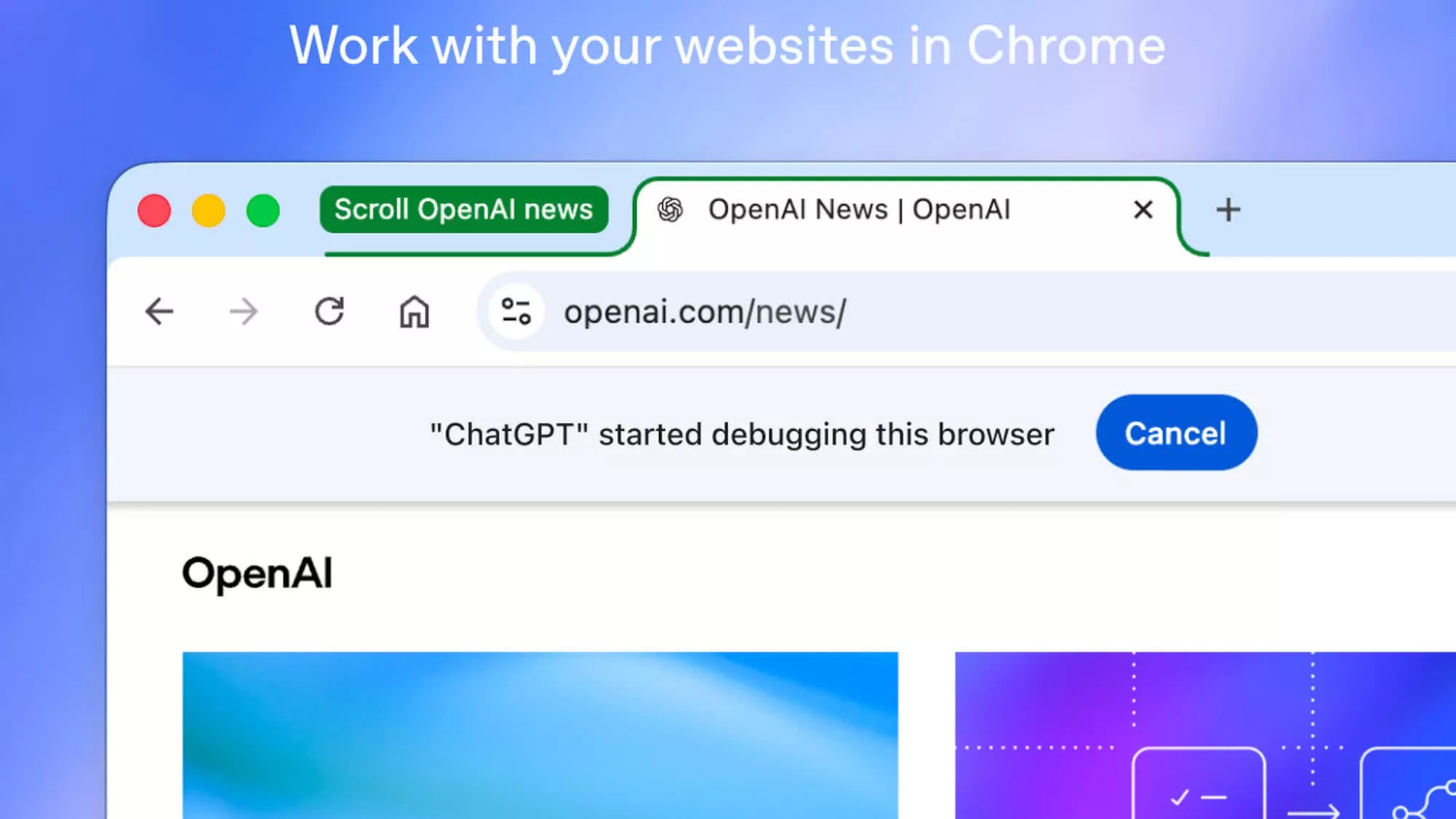
You’re comparing prices across four retailer tabs when you realize the AI in your browser isn’t just reading the pages anymore. It’s filling in a shipping form on one of them. That’s the shift OpenAI announced on October 15, 2026. The ChatGPT browser extension now splits into two distinct modes: Chat, which reads open tabs and uses that context to answer questions, and Work, which takes actual browser actions on your behalf.
Two Modes, One Clear Divide
The update draws a firm line between reading the web and acting on it.
Chat mode is the straightforward half. Point it at your open tabs and ask it to compare specs, delivery windows, or return policies across multiple retailer pages, and it synthesizes what it reads into a direct answer.
Work mode is something else entirely. Reports citing OpenAI’s announcement say it can fill out forms using information pulled from open webpages or files stored on your computer, send messages, download files, and sort open tabs into topic-based groups.
Available reporting confirms that users can review completed forms before submission. It does not establish that every browser action triggers a manual approval step, a distinction worth weighing before you grant access.
OpenAI also added a shortcut. Typing “@Chrome” in the ChatGPT website or app reportedly lets you invoke browser tasks directly, without opening the extension’s side panel.
What You Need to Know Before Granting Access
The extension asks for permission before acting, but those prompts deserve more than a quick tap.
The extension requests permission before accessing your browser history, visiting new sites, or handling files. Permission options reportedly include once, per site, across all sites, or declined entirely.
You can also restrict the extension to specific tabs, which limits how much context it pulls into any given task. Reports citing OpenAI’s announcement describe services such as Gmail, LinkedIn, and Salesforce as examples of signed-in sessions the tool can interact with when broad access is granted.
That makes each permission prompt a meaningful decision. Work mode can send messages and populate forms, so any active session on a service you use regularly falls within its reach if you approve broadly.
A few other limits are worth noting. The extension supports Chrome, Edge, Brave, Opera, and reportedly Vivaldi, though sources are not fully consistent on Vivaldi’s inclusion. Firefox and Safari were not part of the initial rollout, according to available reporting. Whether every Work-mode capability is available across all ChatGPT plans also remains unclear; sources conflict on whether browser control requires a paid plan.
Setup runs through the ChatGPT desktop app. Open Settings, select Computer Use, install the extension for your preferred browser, and then select that browser inside a ChatGPT Work or Codex conversation.
The Bigger Picture
This update moves ChatGPT from reading the web to operating within it.
This is a concrete step in OpenAI’s push to move ChatGPT from assistant to agent. Think of it less like Siri setting a timer and more like handing your browser to someone who can actually navigate it, provided you define exactly how far they’re allowed to go.
How accurately Work mode handles multi-step tasks, and how well its permission controls hold up in practice, will shape whether this becomes a productivity tool or a liability. That question remains open. For now, the answer depends largely on how carefully you read the prompts before clicking allow.