



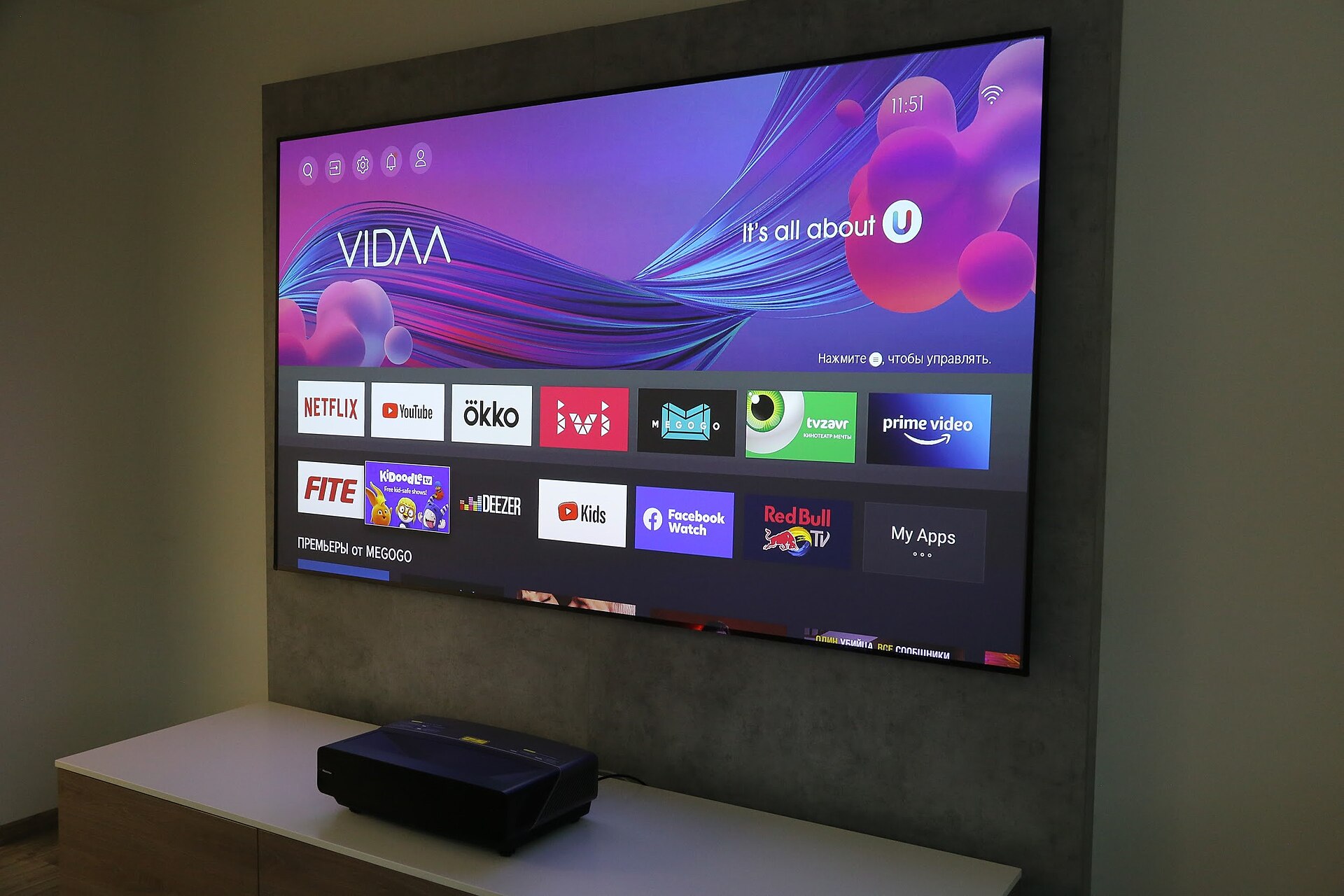
Every Hisense model ships with picture settings that prioritize energy savings over visual impact. Your brand-new Hisense TV probably looks disappointingly dim or unnaturally vivid straight from the box. The culprit isn’t your model—it’s the factory settings that prioritize energy efficiency over visual punch. You can transform your viewing experience with strategic menu tweaks that cost nothing but five minutes of your time.
Universal fixes that work across all content
These “set-and-forget” toggles optimize picture quality automatically without constant adjustments.
Start with the automation settings that adapt to whatever you’re watching. Enable Auto Picture Mode and Content Type Detection so your TV switches between optimal presets automatically. Turn on Active Contrast, HDR Enhancer, and set Dynamic Color Enhancer to Medium for immediate vibrancy improvements.
Disable Energy Saving mode entirely—this feature dims your display to cut power consumption, undermining every other adjustment you’ll make. Set Motion Enhancement to Standard and turn Motion Clearness OFF to eliminate that soap opera effect that makes action movies look like daytime dramas.
Dial in settings for your favorite content
Sports, streaming, and gaming each demand different picture profiles for optimal results.
For live TV and sports, switch to Sports mode and adjust:
- Local Dimming to High
- Brightness to 100
- Contrast to 75
This combination delivers the vivid, punchy look that makes football games pop off the screen. Keep Gamma at 2.2 and Color Temperature on Standard for broadcast accuracy.
Streaming movies and shows benefit from Filmmaker Mode with more restrained settings:
- Local Dimming on Medium
- Peak Brightness High
- Brightness only at 50
- Contrast at 40
This preserves the director’s intended look without crushing shadow details in darker scenes.
Gaming benefits from Vivid mode for maximum impact. Bump Brightness to 100 and Contrast to 75, but keep Local Dimming on Medium to prevent distracting halo effects around bright objects. Enable Game Mode for reduced input lag—crucial for competitive play where every millisecond counts.
Expert-level tweaks from professional calibrators
These specific adjustments unlock your TV’s hidden potential based on independent testing.
Professional calibration principles reveal optimal settings for most models. Keep Sharpness between 0-5 to prevent artificial edge enhancement that creates visual artifacts. Set Color Temperature to Warm1 or Warm2 for more accurate colors—the default Cool setting creates an unnatural blue tint.
If blooming around bright objects bothers you, reduce Local Dimming from High to Medium. You’ll sacrifice some contrast but gain cleaner overall image quality. The Picture settings menu includes a reset option at the bottom if any adjustment goes wrong, returning everything to factory defaults instantly.