



Anyone who defaults to basic phone functions leaves genuine power sitting idle. This isn’t about memorizing obscure settings; it’s about leveraging smart features that change how the device works for daily tasks. From snappy gestures that reduce screen time to AI that anticipates needs, these capabilities transform everyday interactions. The following list covers iPhone functions selected to unlock efficiency, whether dodging late-night texts with scheduled sends or creating custom shortcuts. Time to turn a familiar companion into a true personal assistant.
26. iOS Keyboard Text Replacement
Create shortcuts that deploy full phrases instantly
Typing out complete email addresses or verbose corporate sign-offs repeatedly wastes keystrokes. Apple’s Text Replacement feature acts like a secret back-end hack. Navigate to Settings → General → Keyboard → Text Replacement, then set up shortcuts like “em” expanding into a complete email, or “brb” delivering a professional “I will return shortly.”
This utility reduces typing time and typos that turn professional messages into cringe-worthy gaffes. Think of it as a personal assistant that never demands a monthly subscription, seamlessly syncing shortcuts across all Apple devices via iCloud. Instead of fumbling for contact details, a single tap deploys a detailed signature. The digital equivalent of having someone fetch coffee and remember exactly how it’s preferred, minus awkward small talk.
25. Space Bar Trackpad Cursor Control on iOS Keyboard
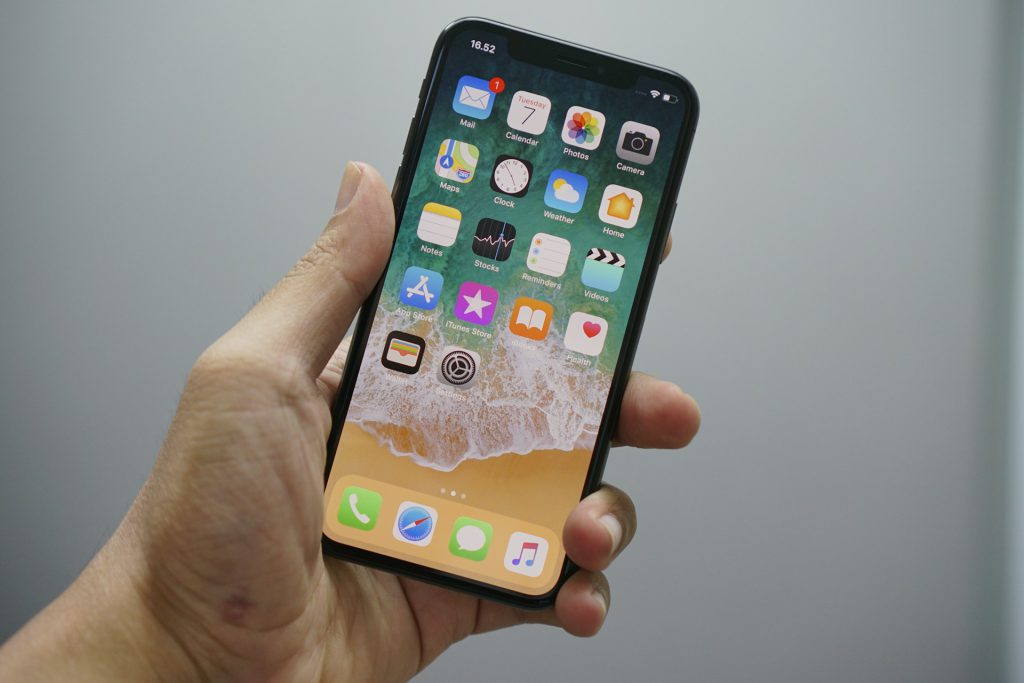
Navigate text with pixel-perfect precision by holding the space bar
Manual cursor placement on touchscreen often requires multiple taps for exact positioning. This frustration vanishes when pressing and holding the space bar on the iOS keyboard. It instantly transforms into a virtual trackpad, allowing gliding movement of the text cursor with precision. Navigating long messages becomes as smooth as a fresh scroll.
For some devices, placing two fingers on the keyboard activates this same precise cursor control. Needing to correct a single typo deep within a lengthy email no longer requires the clumsy tap-and-magnify dance. This trackpad mode navigates directly to that single character. The feature integrates seamlessly across standard iOS apps like Messages and Mail, ensuring edits stay sharp and flow uninterrupted.
24. QuickPath Swipe Typing on iOS
Slide a finger continuously over letters for faster text input
Apple’s QuickPath, built into iOS 13 and later, allows typing by sliding a finger continuously over letters. It’s like a digit ice skating across the keyboard, effortlessly connecting dots. On-device machine learning predicts intended words while gliding. QuickPath comes enabled by default on the standard iOS keyboard, requiring zero setup.
This streamlined input method shines when juggling multiple tasks. Quickly drafting a message while holding coffee or navigating a crowded street becomes easier; QuickPath fires off entire words without lifting a finger from the screen. This efficiency stems from privacy-conscious design. Personal predictions and data process directly on device, ensuring conversations remain private, not cloud server fodder.
23. Home Bar App Switching Gesture
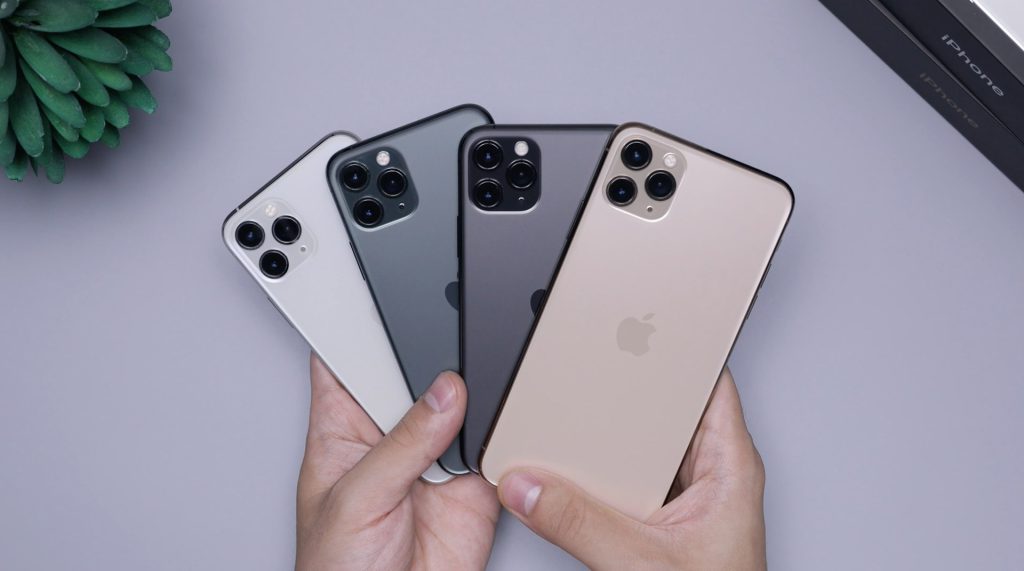
Swipe left or right along the home bar to jump between apps
For Face ID iPhones, a dedicated gesture streamlines constant app toggling. A quick swipe left or right along the home bar at the bottom of the screen allows instantly jumping between recently used applications, much like a DJ crossfading between tracks. This bypasses opening the full app switcher, turning app navigation into fluid motion.
This simple swipe makes transitions between two or three frequently used apps noticeably faster. Toggling between a recipe app and a timer becomes seamless without interruption. The constant return to home screen gets eliminated, cutting out unnecessary mental friction. This gesture is a subtle power-up that maintains focus during complex tasks, preventing workflow from becoming a digital labyrinth.
22. Scheduled Send in iMessage (Send Later)
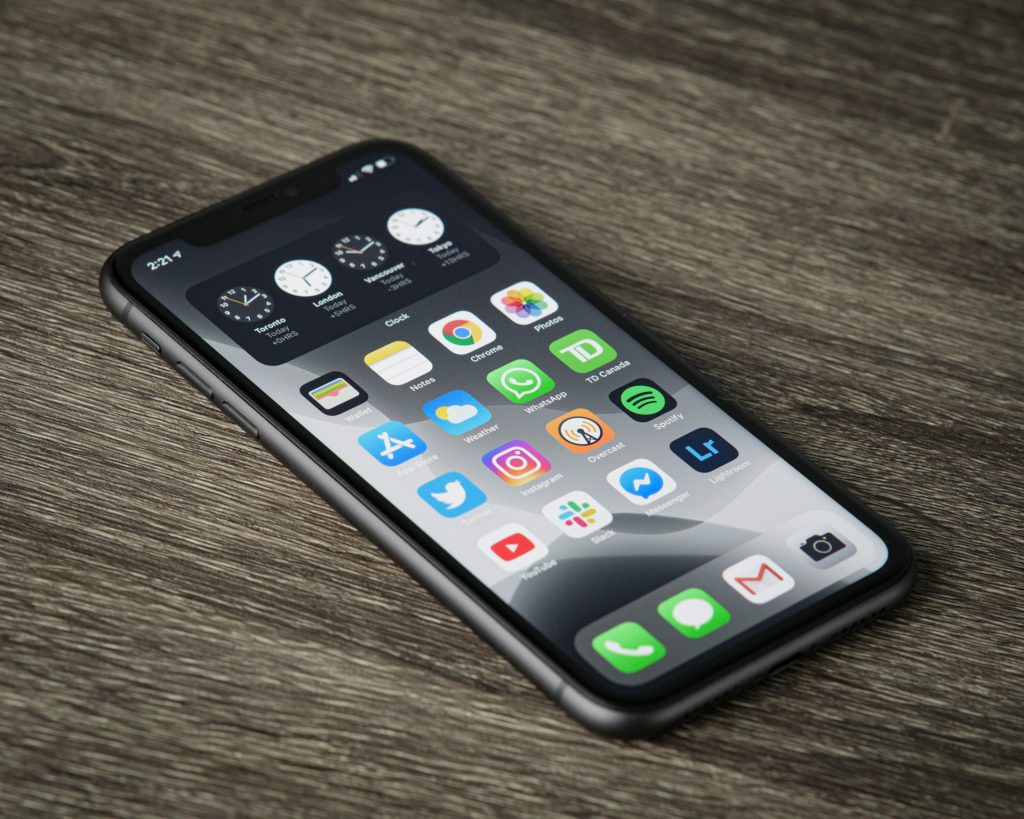
Schedule messages to arrive at chosen future times
Ill-timed messages, like that work reminder sent at 2 a.m., are now avoidable. The ‘Send Later’ option in iMessage schedules messages precisely. Tap the plus (+) button in any conversation, select ‘Send Later’, and pick the desired future date and time. This ensures crucial information arrives when it matters, not in the dead of night.
This feature transforms the Messages app into a well-oiled communication machine. Batching communications guarantees time-sensitive texts deliver exactly when needed. No longer will quiet evening binge-watching sessions get disturbed. This seamless integration into Apple’s native Messages app offers a powerful tool for managing both professional and personal outreach with ease.
21. Siri Alarm and Timer Short Commands
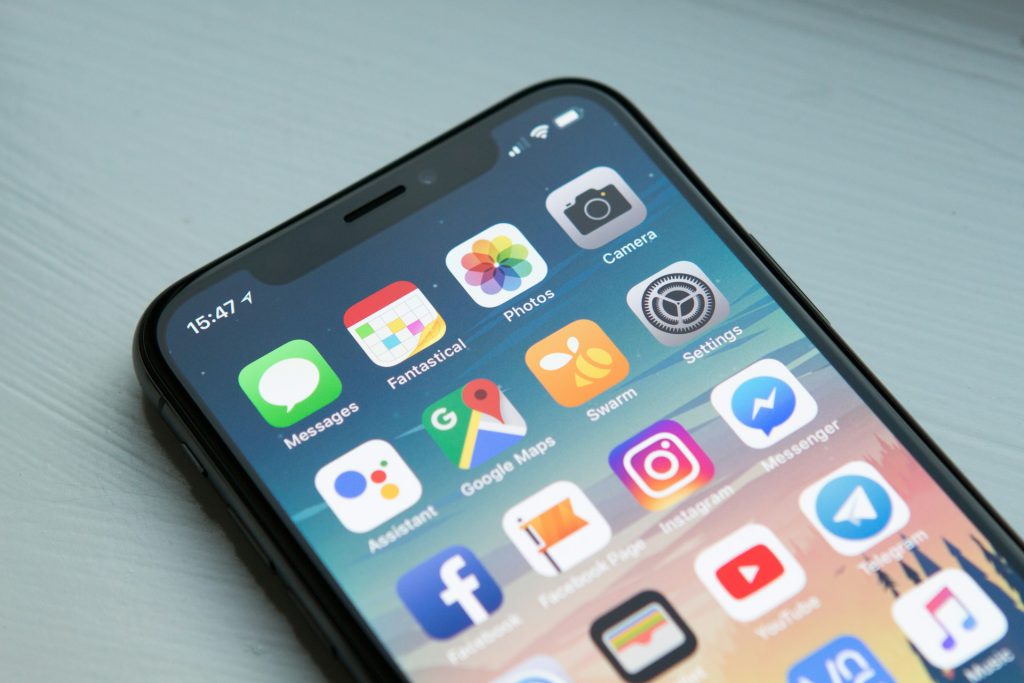
Say bare time expressions like “5 a.m.” or “15 minutes” to set alarms and timers
Siri’s language processing has evolved, making formal pronouncements a relic of earlier iterations. Now, Siri interprets bare time expressions, cutting straight to the point. Say “5 a.m.” and an alarm is set; state “15 minutes” and a timer begins, all thanks to refined natural language understanding and on-device processing.
When hands are covered in flour, swiftly setting a 10-minute cooking timer with just two words becomes possible. This streamlined interaction eliminates redundant verbal commands, turning everyday tasks into slick, seamless operations. The improved natural language understanding maps time phrases to the most likely intent without requiring full sentences.
20. Back Tap on iPhone (Double/Triple Tap Shortcuts)

Trigger actions by double or triple-tapping the back of the iPhone
Back Tap, an iOS accessibility feature available on iPhone 8 and later running iOS 14 or newer, lets triggering specific actions with a double or triple tap on the back of the device. It’s like having an invisible, customizable button directly on the phone’s chassis, ready to spring into action.
Configure this power user move under Settings → Accessibility → Touch → Back Tap. There, assign functions like instantly pulling up the Calculator or snapping a Screenshot. Even through most phone cases, taps register, turning the device into a personalized remote for frequently used actions, such as launching a custom Shortcut. It eliminates digging through menus, ensuring what’s needed is always one quick, firm tap away.
19. Two-Finger Swipe to Select Multiple Items in iOS Native Apps
Place two fingers on a list and swipe down to highlight consecutive items
In native iOS apps such as Mail, Messages, Notes, and Files, the tedious tap-and-tick gets bypassed. Place two fingers on any list and swipe down; the system instantly highlights consecutive items for selection. This gesture streamlines tasks, turning digital whack-a-mole into a swift motion.
Clearing old email clutter becomes effortless: archive dozens of messages in Mail with a simple swipe, rather than tapping each one. This isn’t a minor tweak; it’s a direct response to the digital hoarder in all of us. This two-finger swipe streamlines bulk actions like deleting, moving, or marking items as read. A universal remote for digital life that actually works.
18. Drag-and-Drop from Screenshot Preview
Drag the floating screenshot thumbnail directly into other apps
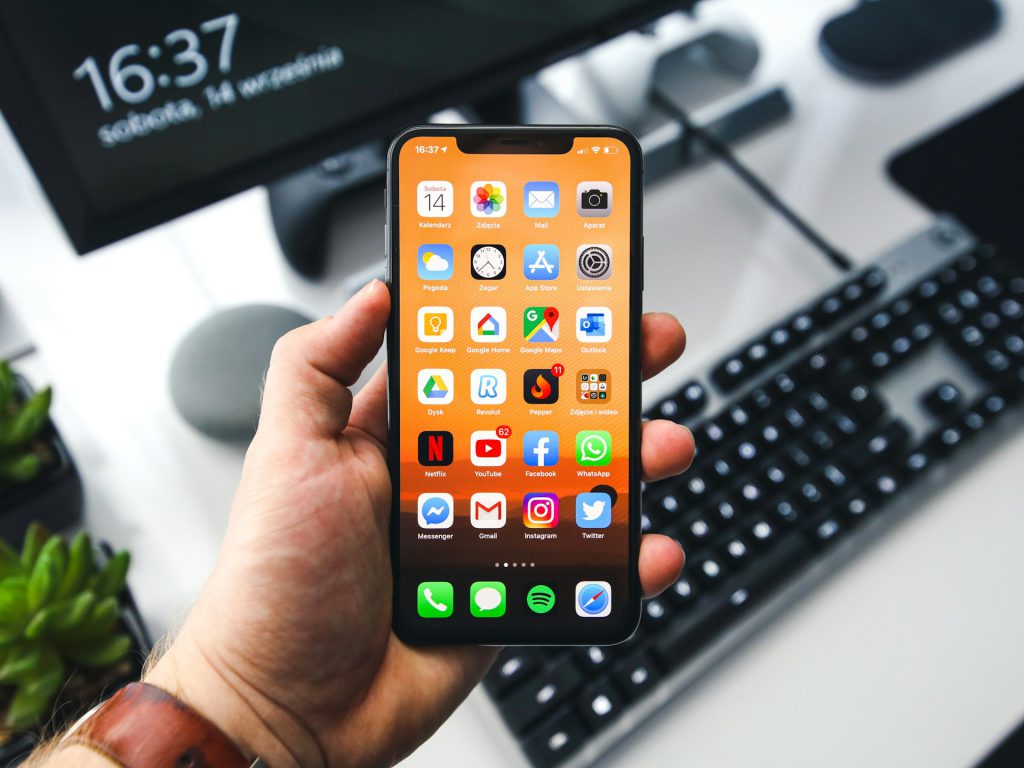
After capturing the screen, the floating thumbnail no longer requires tapping for markup. Simply drag this preview directly into another application, like Mail, Messages, or Notes. This system-wide drag-and-drop support attaches the screenshot instantly.
It bypasses the frustrating detour of saving to Photos first and then browsing for the image. Snagging a screenshot of a product detail and instantly dragging it into a message to a friend for feedback becomes seamless. This streamlines rapid visual communication and content management, especially when asking AI for information based on that visual input.
17. Long-Press Back Button Breadcrumb Trail in iOS
Reveal a hierarchical menu by pressing and holding the back button
Navigating deep into app settings can involve multiple back taps just to return to a main menu. This is where a subtle iOS feature transforms the experience, preventing repeatedly hitting a digital dead end. It streamlines getting around cumbersome menus and submenus.
Long-pressing the back button in the top-left corner reveals a breadcrumb menu. This menu displays the entire hierarchy of screens traversed, allowing jumping directly to any higher-level view without repeatedly tapping back. If four layers deep in the Files app searching for an old receipt, instantly warping back to the root folder becomes possible, avoiding the digital equivalent of a treasure hunt. This utility extends across both Apple’s native applications and many third-party apps.
16. Scheduled Summary for Notifications in iOS
Bundle non-urgent notifications for specific delivery times
Apple’s Scheduled Summary for Notifications offers a smarter way to manage endless pings, allowing bundling of non-urgent alerts for specific delivery times. Configure this in Settings → Notifications → Scheduled Summary, selecting which apps can wait and setting preferred delivery times. Critical alerts, like urgent calls, still break through immediately.
Less important notifications, perhaps social media updates, get neatly packaged and delivered at chosen times like noon and 5 p.m. This ensures regaining focus, transforming constant distraction into manageable information without missing anything truly important. The feature aims at reducing interruptions and improving focus by controlling notification overload.
15. Calculator App Convert Feature
Transform calculation results into different units directly in the Calculator app
The iOS Calculator app streamlines unit conversion friction. After inputting a value, a “Convert” function appears, allowing instantly transforming results into different units, from currencies to distances or temperatures. This feature leverages system conversion data and up-to-date exchange rates, eliminating the need for a separate converter app.
A traveler calculating a local price and, with a quick tap, seeing €25 instantly become $27.50 makes on-the-go budgeting far less of a headache. This integration delivers a versatile tool for various metric conversions, all within the app already in use. Recent iOS versions tie unit conversion directly to everyday calculations.
14. Camera App Quick Video from Photo Mode (Hold Shutter)
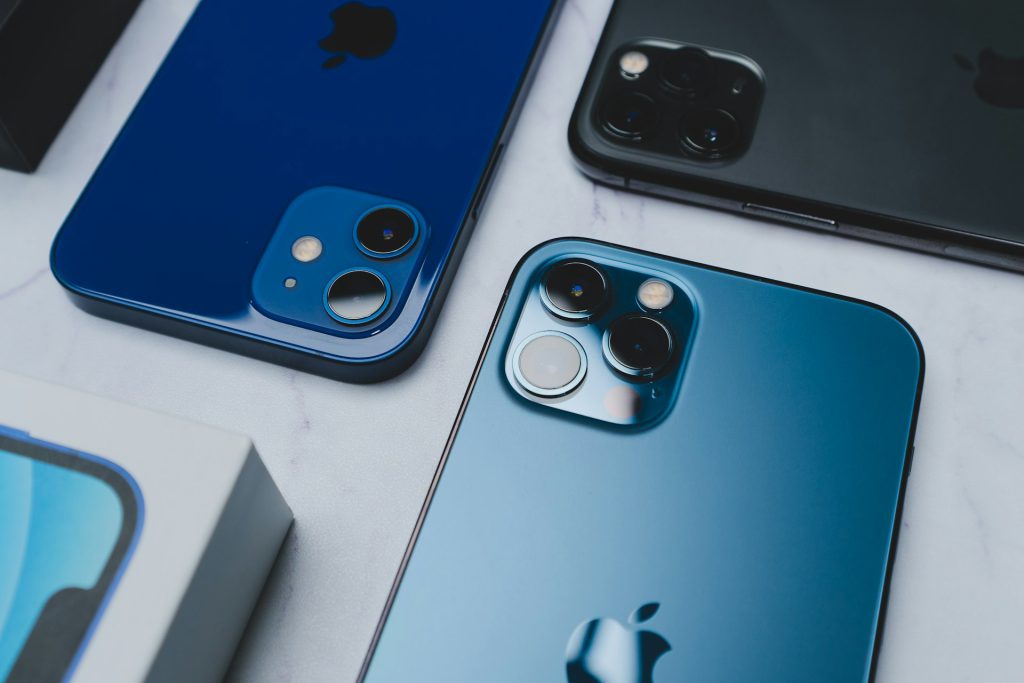
Press and hold the shutter button in Photo mode to start recording video instantly
The perfect video moment can pass quickly, often evaporating before camera modes can be switched. A child does something unexpectedly hilarious, or a pet pulls a stunt worthy of a viral clip, and by the time fumbling through the app ends, the magic is gone. The iOS Camera app tackles this directly with its ‘QuickTake’ feature.
While in Photo mode, simply pressing and holding the shutter button instantly begins recording video. Even dragging the shutter button to the right locks the recording hands-free, capturing action without juggling the phone. Releasing the button stops the recording if not locked. This seamless transition ensures catching those fleeting, unscripted moments. This intuitive functionality is readily available on many recent iPhone models.
13. Control Center Timer Slider with Haptics
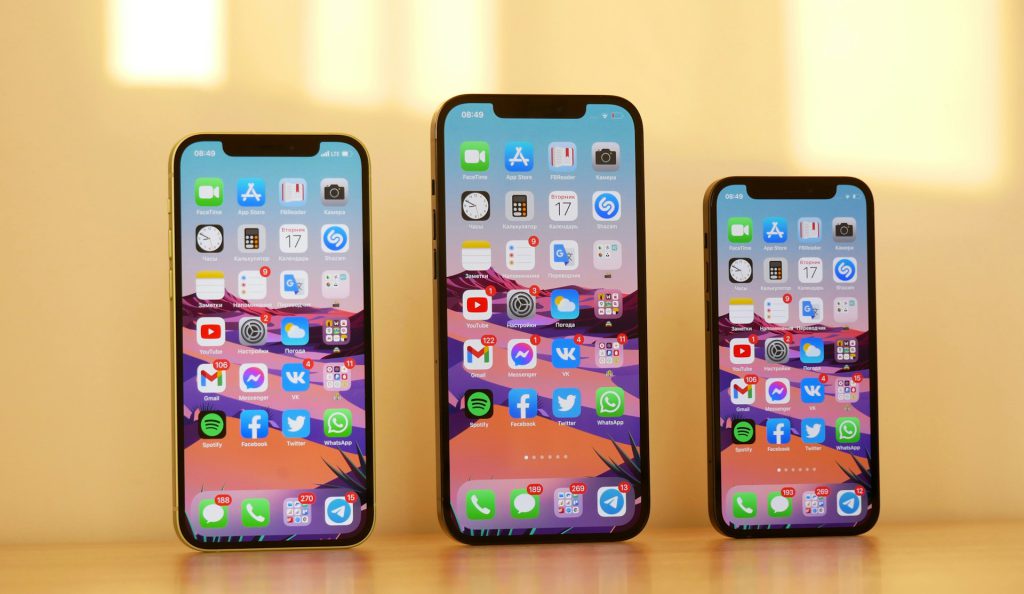
Drag a slider to set timer duration directly from Control Center
The Control Center offers a direct path to setting timers. Tapping the Timer control reveals a drag-to-set slider at the screen’s top, allowing quickly selecting a duration. Haptic feedback provides satisfying tactile confirmation, delivering precision like a finely tuned instrument.
A home cook needing a 7-minute pasta timer now sets it with a single tap and drag. This instant access makes the standard Clock app feel excessive. Integrate this control into Control Center via Settings → Control Center. This ensures it’s always within reach, especially when mapped to the Action Button, transforming the device into an instant timekeeper.
12. Action Button on iPhone (for Timer and Other Actions)
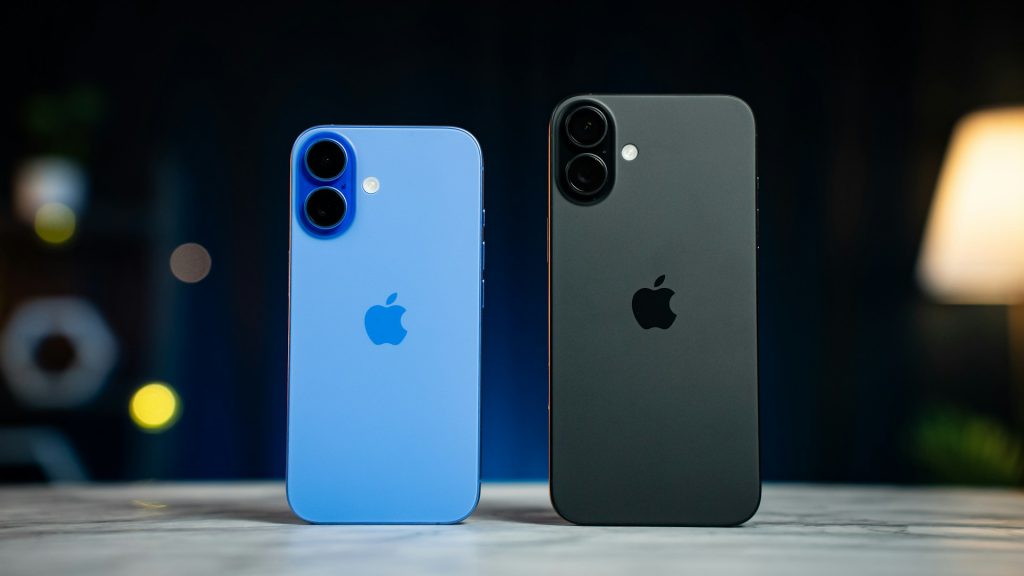
Configure a physical button to trigger Camera, Timer, Focus, or custom Shortcuts
On the iPhone 15 Pro series and other supported models, the Action Button replaces the traditional mute switch, offering a direct line to critical functions. Configure it in Settings → Action Button, transforming it into a customizable trigger for the Camera, a Timer, Focus modes, or even a specific Shortcut.
A photographer needing to capture a fleeting shot can launch their camera from a locked screen, bypassing the typical swipe-and-tap routine. It’s like having a personal assistant living on the phone’s edge, ready to deploy complex workflows built in Shortcuts, making multi-step tasks feel instantaneous. Once set, pressing the Action Button performs that action even from the lock screen.
11. Siri App (Apple Intelligence Chat Assistant)
Access contextual AI assistance across Messages, Mail, Photos, and Files
With Apple Intelligence, Siri sheds its one-dimensional approach, morphing into a sophisticated, app-style conversational AI assistant integrated directly into the operating system. No more blank stares when real context is needed.
This enhanced Siri generates personalized reply suggestions and full AI drafts right within the keyboard, making it feel like having a digital co-writer. Ask it to “find me all the files on my phone related to productivity,” and it dives into Messages, Mail, and Photos to pull relevant data. All of this heavy lifting happens with a strong emphasis on privacy, processing many requests directly on device and offering transparent controls over personal data.
10. Systemwide Writing Tools (Grammar & Spelling with Colored Underlines)
Rewrite, proofread, and summarize text across all apps with Apple Intelligence
Apple Intelligence introduces systemwide Writing Tools. These capabilities allow rewriting, proofreading, and summarizing text directly within any app, even third-party ones. It’s like having a meticulous copy editor baked into the iPhone, offering real-time, context-aware suggestions while composing.
Grammar issues appear with special underlines, differentiating them from traditional red flagging for spelling mistakes. The Proofread function delves into word choice and sentence structure, then offers precise edits, complete with clear explanations. This pervasive intelligence elevates written communication across the entire iOS ecosystem, ensuring messages are always polished and professional.
9. Improved Dictation with On-Device Model

Dictate complex messages with accurate punctuation and formatting
Recent iOS versions enhance dictation with an advanced on-device language model, vastly improving recognition. Dictating complex messages, complete with precise punctuation, intricate formatting, and specific monetary values, no longer requires slowing down. This system delivers a responsive, accurate experience.
This shift to on-device processing also dramatically bolsters privacy. Audio data remains on device; it doesn’t continuously stream to cloud servers. The reduced latency provides fluid transcription that feels responsive and secure. One user described this new iteration as “streets better” than previous versions, establishing it as a highly capable and private input method.
8. Siri Reply Suggestions and AI Drafts in Keyboard
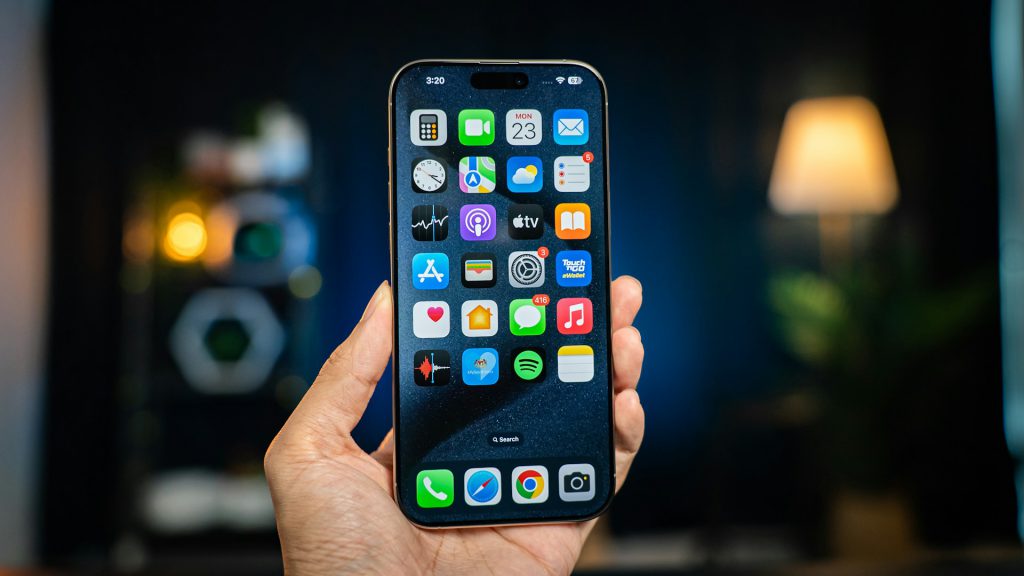
Receive AI-generated reply templates above the keyboard
Apple’s latest iOS keyboard update, powered by Apple Intelligence, now delivers Siri-powered suggestions. These appear directly above the keyboard, offering quick reply templates or full AI-generated drafts. It’s like having a personal assistant ready to draft emails, bypassing the mental block of starting a new message.
This system learns unique writing style, adapting over time to provide personalized, relevant responses. Receiving a message might instantly show three tailored options, one perfectly capturing sentiment. Full control remains, able to select, edit, or ignore any draft, and can even tap the Siri icon to request a custom reply. This feature effectively streamlines communication across messaging and email.
7. Visual Siri Button in Camera for On-Image Queries
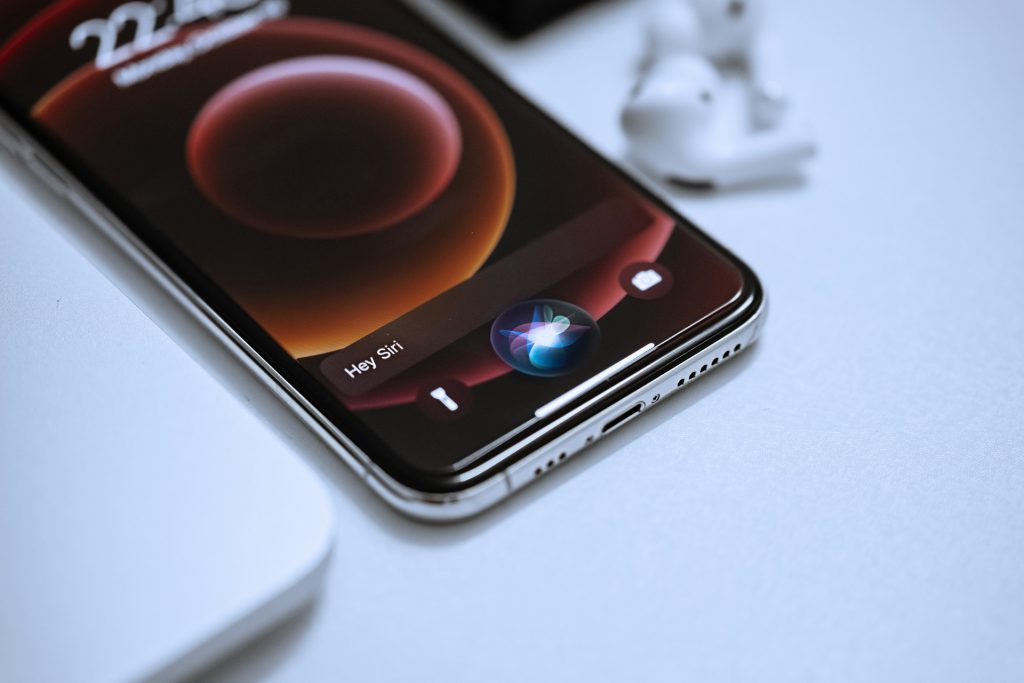
Ask questions about objects in photos using Visual Intelligence
In newer iOS versions, a Siri/Visual Intelligence button appears in the Camera app, accessible by holding the camera button. This transforms the iPhone into a real-time visual search engine. Ask about objects, request text translations, or identify items like plants or products, all processed securely via Apple’s on-device and private cloud intelligence.
Snap a foreign street sign and instantly ask Siri for a translation, bypassing manual look-ups. This tool acts like a built-in encyclopedia for the physical world, cutting out the need for separate identification apps. It offers instant answers when out and about, a lifesaver when stumped. Some advanced visual features may face regulatory constraints and not be available in the EU at launch.
6. One-Tap Contextual Actions on Photos (Posters, Business Cards)
Add calendar events or contacts directly from photos with a single tap
Apple Intelligence eliminates manual data transcription with contextual actions appearing directly on photos and screenshots. The system uses on-device image and text recognition, identifying entities like dates, addresses, and phone numbers without cloud processing.
This intelligence then surfaces actionable buttons or menu items when viewing a relevant photo in the Photos app. Tap to add an event from a concert poster directly to Calendar or save details from a business card as a Contact. This significantly reduces manual data entry, transforming the camera roll from a passive archive into a proactive data hub.
5. Siri Voice Commands in Third-Party Apps
Execute direct voice commands inside apps like “Open Amazon and search for desk organizers”
Updated Siri now executes direct voice commands inside third-party applications, streamlining interactions. This combines launching an app with an immediate in-app action, effectively bypassing tedious manual steps. This integration relies on advanced APIs that allow apps to expose their specific intents to Siri.
Verbally queue up a playlist in Spotify and simultaneously order groceries in a third-party delivery app during a busy morning, cutting through daily clutter. This feature makes Siri a powerful system-wide automation and navigation layer, improving efficient phone usage across both Apple and third-party software.
4. Siri Deep Search Across Personal Data (Messages, Mail, etc.)
Ask Siri to find specific information buried in Messages, Mail, and Files
With Apple Intelligence, Siri evolves into a personal memory assistant, performing deep, semantic searches across all on-device data. This includes apps like Messages, Mail, and Files, finally allowing asking, “What restaurant did Sarah recommend last month?” and actually getting a concise answer.
Siri intelligently parses content and metadata, surfacing exact details without scrolling through endless app threads. It’s like having a perfectly indexed brain for digital life, ready to recall any detail. This privacy-conscious feature emphasizes on-device analysis and gives explicit control, establishing Siri as the default AI assistant for personal data retrieval.
3. Safari “Organize Tabs” Feature
Automatically group open tabs into logical categories
Safari’s “Organize Tabs” feature steps in as the digital Marie Kondo, decluttering browser windows with automated precision. It groups open tabs into logical categories by analyzing page titles and content using machine learning, ensuring research on new gadgets won’t get lost next to news articles.
Staring at a screen full of tabs, wondering where that one crucial link vanished, becomes a thing of the past. This feature instantly sorts them into thematic groups like “Shopping,” “Research,” or “News.” This automated cleanup complements existing tab groups and private browsing modes, providing a structured approach for anyone who prefers keeping numerous tabs at arm’s length without the usual digital chaos.
2. Natural-Language Shortcut Creation with Siri (Shortcuts App)
Create complex automations by describing workflows in plain English
Apple Intelligence allows simply telling Siri what should happen. Describe workflows in plain English, like, “When I take a screenshot of a receipt, save it to my expenses folder in Apple Notes and rename it with today’s date,” and Siri handles the multi-step Shortcut creation automatically.
This removes the need to drag and drop blocks in the Shortcuts app, making complex automations accessible to everyone. The system also allows power users to fine-tune these Siri-generated automations within the Shortcuts app for specific needs. It leverages the Shortcuts framework and App Intents to map natural language to actions and triggers.
1. Charging-Based Automations via Shortcuts

Trigger multi-step actions automatically when plugging in the device
iOS Shortcuts transforms a simple charging connection into a powerful automation trigger. This feature allows turning plugging in into a personal digital concierge, initiating multiple routine actions. Define sequences such as “Every time I plug my phone in, turn off the light, open the Sleep Cycle app, and set an alarm,” essentially a string of digital dominoes for a smart home.
These automations can be built manually in the Shortcuts app or through natural-language commands with Siri and Apple Intelligence. Plugging in the phone at night can have three separate actions automatically initiate, making the device feel less like a gadget and more like a proactive assistant. Control remains, as these routines can either prompt for confirmation or run automatically, ensuring convenience without sacrificing oversight.