



Apple’s native apps perform their individual functions well when used in isolation. Using Reminders for groceries and Notes for meeting summaries is standard practice. Your iPhone, iPad, and Mac can collaborate more effectively than you might realize. When Freeform’s brainstorming canvas links to Notes’ detailed records and Reminders’ timely nudges, your digital life gets a serious upgrade. Features like Shortcuts and Apple Intelligence transform these apps into a unified system, making organization and efficiency less of a chore. Ready to turn your chaotic workflow into a synchronized dance?
10. Apple Freeform
A flexible canvas for capturing ideas before they become structured notes or tasks.
Apple Freeform provides a collaborative canvas for initial idea organization. This tool operates like a digital whiteboard with an effectively infinite canvas, letting you zoom in and out of complex concepts. It facilitates spatial brainstorming by integrating text, images, drawings, shapes, sticky notes, and links, making it suitable for the messy, conceptual beginnings of any project.
Initial bursts of ideas can feel like a toddler’s toy box after a sugar rush. Freeform acts as your brain’s chaos coordinator. Use it as a dynamic strategy board for mapping a vacation or app design before ideas solidify into notes. It excels at capturing and arranging complex, evolving concepts freely, then syncing those boards across your Apple devices through iCloud.
9. Apple Notes
Smart Folders automatically curate content, turning scattered information into organized collections.
Many people find themselves buried under digital clutter, making critical information feel like searching for a specific LEGO in a toddler’s toy box. Apple Notes steps in with a robust framework. It offers standard folders and tags, but Smart Folders truly shine by automatically curating content based on your set criteria. This turns a messy pile of research material, attachments, scans, drawings, and handwriting into organized collections.
Notes handles substantial information storage across devices, though users with vast collections of PDFs or extensive handwritten elements should be aware that navigation demands can increase with larger archives. The app provides powerful features for knowledge management while maintaining searchability across your synchronized content.
8. Apple Reminders
Subtasks, tags, priorities, and location-based alerts transform basic to-do lists into a dynamic command center.
Native task managers are often underestimated, but Reminders proves its depth. You can break down objectives into granular subtasks, attach notes, and assign tags for effortless organization. Priorities keep crucial items front and center. Recurring tasks handle routine chores, and location-based alerts trigger when you arrive at work, ensuring you remember that report lurking like a digital ghost.
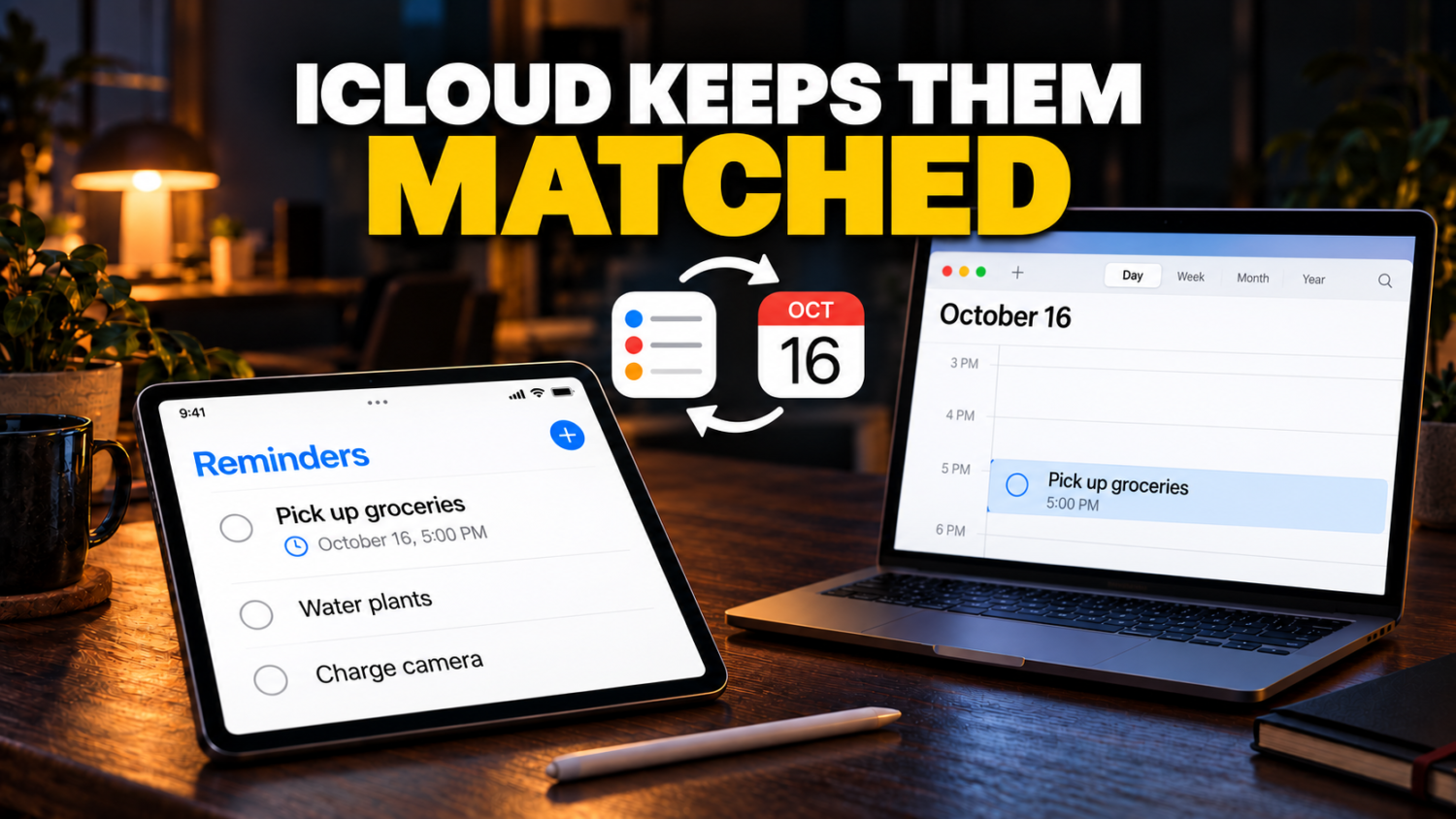
The app’s integration with iOS 18 and later means scheduled reminders appear directly alongside your Calendar events, eliminating app-toggling for a full daily view. Structure any major project by adding subtasks, each with a time-based alert. Reminders transforms into a command center that orchestrates tasks from conception to completion. It’s like having a personal assistant who streamlines your life with zero judgment, all synchronized through iCloud across your compatible Apple devices.
7. Apple Intelligence in Reminders
Automatic suggestions from Mail action items and Safari recipes eliminate manual task sorting.
Apple Intelligence significantly improves how you manage daily actions on supported devices. It scans text across other apps, automatically suggesting new reminders from Mail action items or Safari recipe ingredients. The system can automatically categorize related reminders into sections within your lists. This capability requires an iPhone 15 Pro, iPhone 15 Pro Max, or iPhone 16 model and later, along with compatible operating-system versions, languages, and regional availability.
Manual task sorting feels like herding digital cats. Apple Intelligence sidesteps this entirely, shaping your reminders into collections that update based on context. Anyone who’s spent time manually organizing to-do lists will appreciate how this feature shapes information into actionable sections, dramatically boosting efficiency and making task management feel less like a chore.
6. Apple Calendar
Scheduled reminders appear alongside events, and natural-language input creates tasks on compatible devices.
Apple Calendar streamlines event scheduling and time management, coordinating across all your Apple devices. Your day can become a high-stakes game of Tetris, with blocks of time threatening to crush productivity. This app goes beyond basic appointments. In iOS 18 and later, scheduled reminders appear directly alongside your events. You can even create new reminders straight from your calendar view.
For those with Apple Intelligence on compatible devices, the system can parse natural-language descriptions for creating reminders, turning a casual thought into a concrete task. This transforms a simple calendar into a precise, integrated time management hub. It’s like having a personal assistant who actually listens, coordinating your schedule without the awkward small talk.
5. Siri
Voice commands capture ideas hands-free, bridging the gap between thought and action.
Siri provides voice-based access to essential Apple applications when your hands are busy. That sudden, brilliant idea while driving shouldn’t vanish because you cannot type. This virtual assistant acts as your digital transcriber, turning fleeting thoughts into actionable items. Commands like “Add artichokes to my groceries list” file that information directly into your Reminders app without requiring you to touch your device.
This hands-free capability means no good idea is lost mid-commute. Siri integrates across your Apple ecosystem, interacting with Notes, Calendar, and Shortcuts. It bridges initial information capture with concrete task creation. You can direct it to add events or jot down thoughts, making it a practical, accessible conduit for your busiest moments, available across compatible devices and languages.
4. Apple Shortcuts
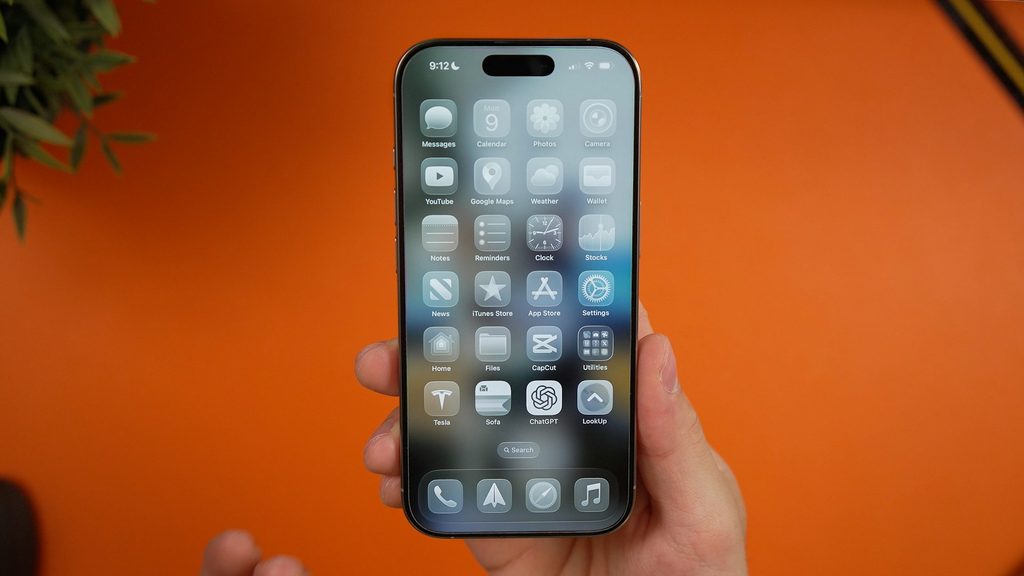
Automated workflows eliminate repetitive steps, connecting quick capture with follow-up tasks.
Automation beats perfection every time for digital productivity. Apple Shortcuts automates sequences across Apple and supported third-party apps. Launch these workflows from Siri, the Shortcuts app, widgets, or system controls, eliminating repetitive manual steps that make you feel stuck in email purgatory.
Need to capture text, create notes, or quickly set a reminder? This tool handles multi-step processes in one trigger. Brilliant ideas can vanish like yesterday’s trending topic; Shortcuts bridges the gap between thought and action. One shortcut can jot down a note and immediately schedule a related reminder. Customizing and accelerating your daily routines becomes surgical in its precision, connecting information across your apps without manual copying.
3. iPhone Action Button
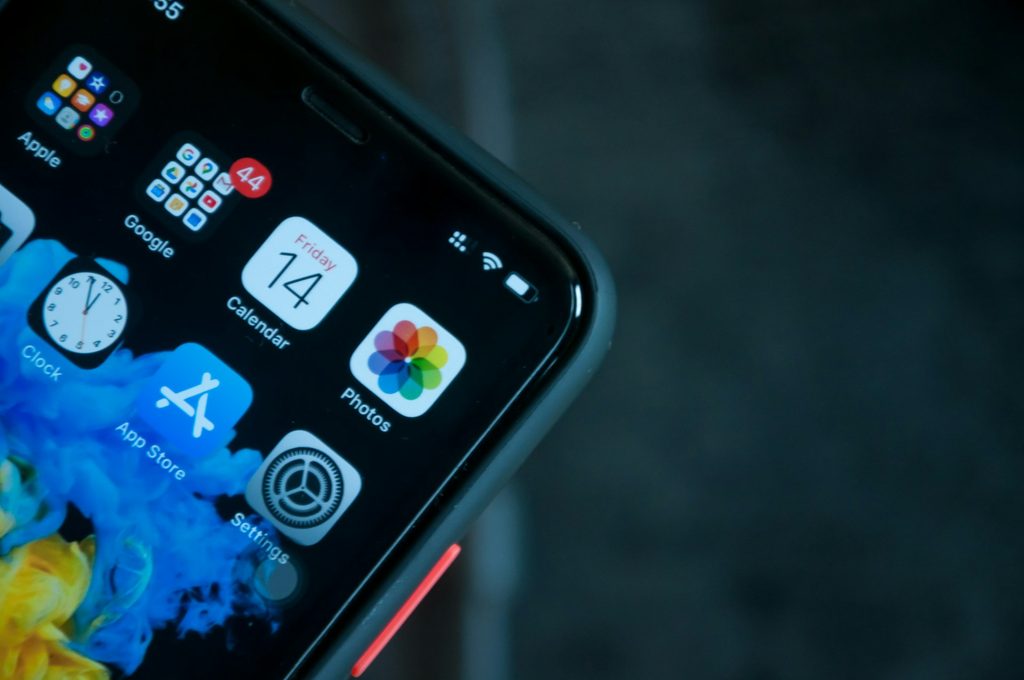
A physical trigger on compatible models turns multi-tap tasks into single-press commands.
Dedicated physical controls prove their worth by streamlining digital tasks. The iPhone Action button on compatible models acts as a customizable physical trigger, transforming how you interact with your device. You can configure it to run a Shortcut, turning a multi-tap chore into a single press. According to Apple’s documentation, assigning Reminders to the Action button is a supported option, meaning you can capture fleeting thoughts without opening the app. This tactile immediacy acts like a fast-pass for your brain’s sudden demands, saving you from that all-too-common moment when you realize you forgot something critical.
2. iCloud Synchronization
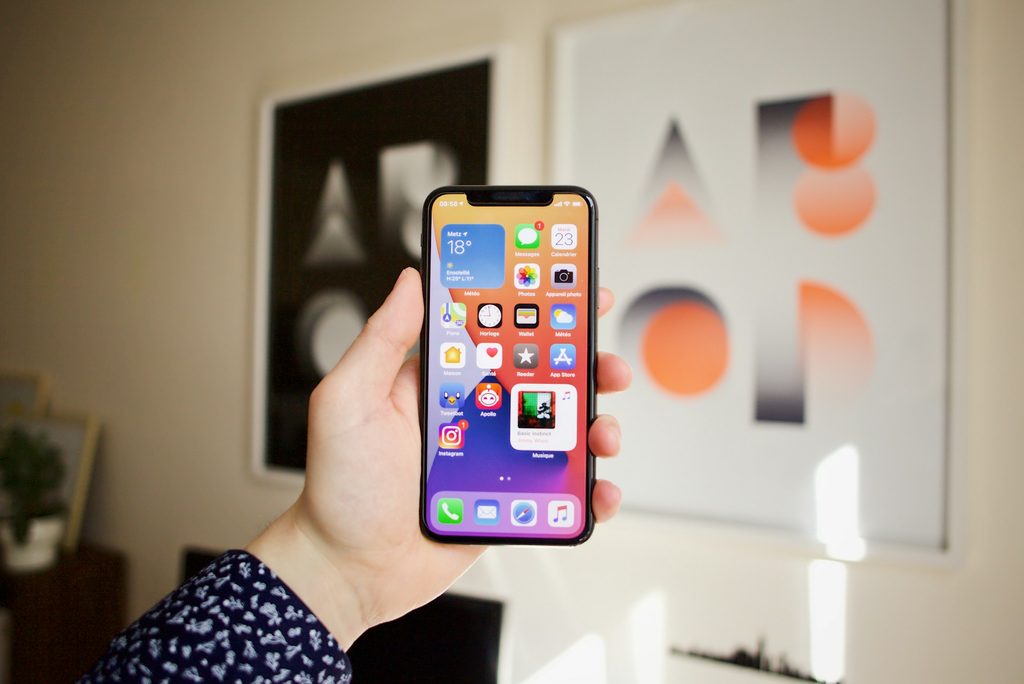
Notes, Reminders, Calendar, and Freeform sync across devices for uninterrupted workflow.
Four Apple apps or services remain synchronized through iCloud on compatible devices: Notes, Reminders, Calendar, and Freeform. This ensures cross-device continuity, acting as your personal digital stage manager. Every piece of your work is ready on any device, subject to connectivity, account settings, and software compatibility.
This handoff provides the foundation for uninterrupted workflow. A sketch on your iPad’s Freeform board appears on your Mac, ready for refinement. Some advanced Reminders capabilities require updated iCloud Reminders; accounts from other providers may not support all features. Your digital workspace moves with you across compatible Apple devices, preventing the jarring feeling of starting over mid-project.
1. Apple Device Ecosystem
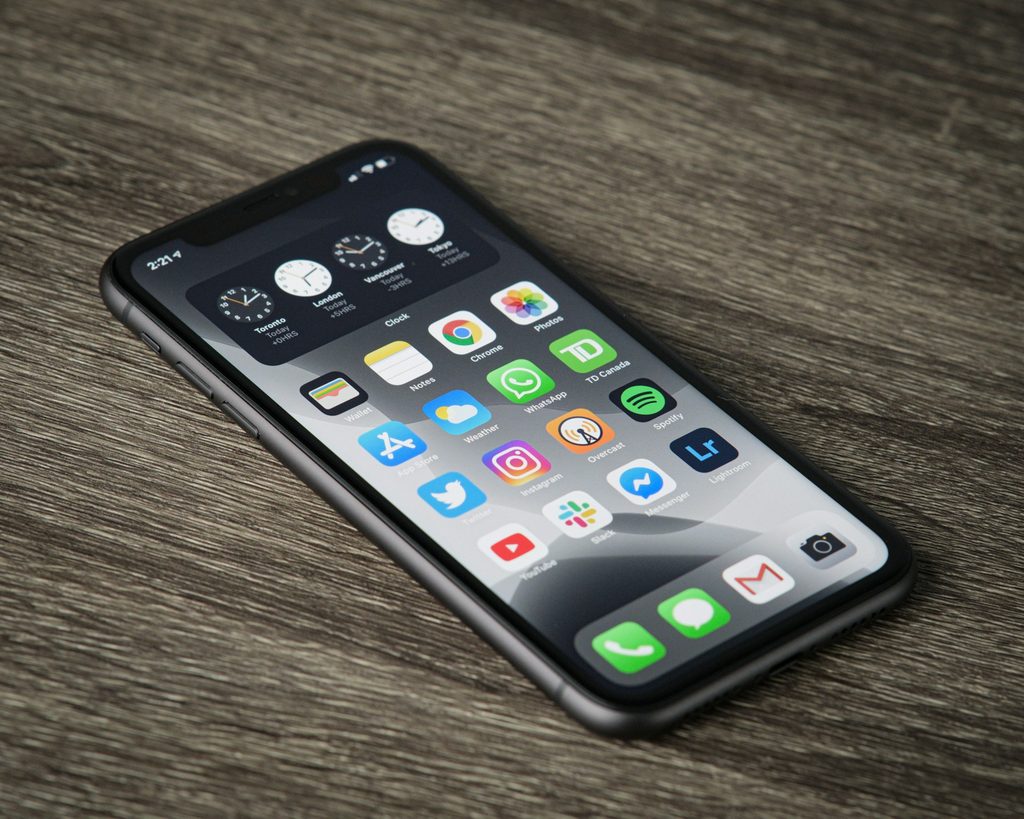
System-wide integration transforms isolated apps into a unified productivity environment.
Apple apps can share information through iCloud, Siri, system share sheets, and Shortcuts on compatible devices. An idea captured on one device can become a note, reminder, or calendar entry elsewhere through user-initiated actions and supported workflows. This cross-device continuity acts like a synchronized orchestra, where each instrument plays its part without missing a beat, subject to device compatibility, operating-system versions, languages, and regional availability.
This integration transforms individual applications into a unified productivity environment. An idea initiated on your iPad with Freeform synchronizes for refinement in Reminders on your Mac. Anyone who’s wrestled with moving crucial details manually knows the relief of this streamlined handoff. Setting up the connections between these apps takes some initial configuration, but the resulting workflow eliminates common digital friction and keeps your focus where it belongs.