



Mid-boss fight, your screen cuts to blackouts. Controller still vibrating, audio still pumping, but you’re staring at nothing. Welcome to HDMI handshake hell—where your gaming setup decides to take unscheduled breaks during the worst possible moments.
The Real Technical Culprits Behind Console Blackouts
Multiple documented issues cause HDMI failures, and they’re all fixable.
HDMI handshake problems aren’t some mysterious plague. Your devices constantly negotiate connection parameters—resolution, refresh rate, color depth—through a process called EDID (Extended Display Identification Data). When this negotiation fails, you get blackouts.
The usual suspects include:
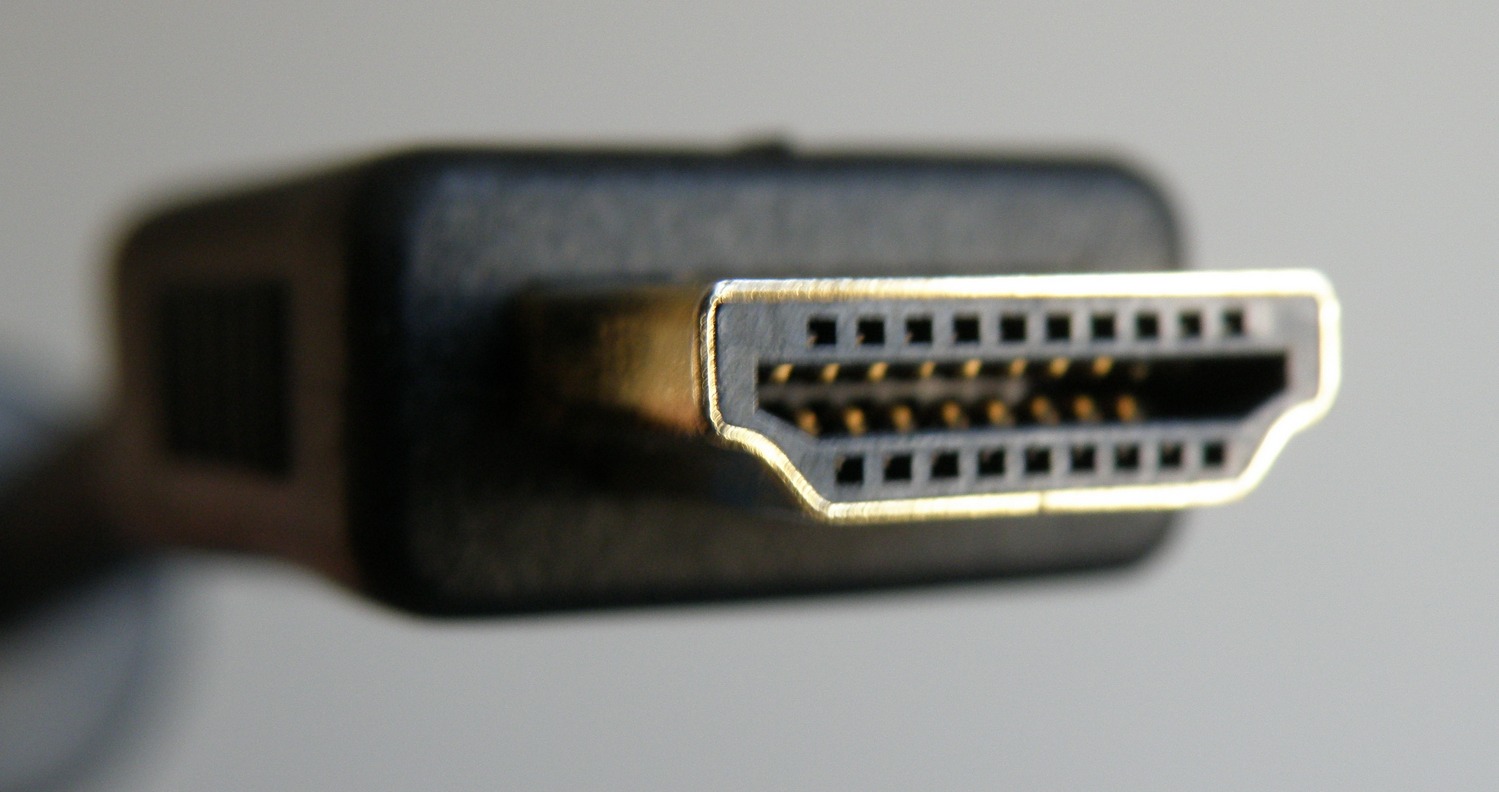
- Damaged cable pins
- Voltage instability
- Firmware bugs
- Processor timing issues
That premium HDMI cable you bought three years ago? Its connectors might be corroded. Your TV’s HDMI port could have loose connections. Even dust buildup affects signal integrity.
Deep Color and Enhanced Format settings stress this negotiation process. Some TV processors can’t handle the bandwidth demands, leading to intermittent failures. It’s like asking a Honda Civic to tow a boat—technically possible, occasionally disastrous.
Proven Fixes That Actually Work
Start with simple solutions before replacing expensive gear.
Power cycle everything first. Unplug your console and TV for thirty seconds, then reconnect. This resets the HDMI handshake completely and resolves many blackout issues immediately.
Next, disable Deep Color or Enhanced Format in your TV’s HDMI settings. Navigate to your TV’s picture settings and turn off “Enhanced HDMI” or “Deep Color” for the problematic port. You’ll lose some color range, but gain stability.
Try different HDMI ports—each port may handle bandwidth differently depending on your TV model. Replace cables if you’ve got spares, since even “certified” cables can fail over time. Check for firmware updates on both your console and TV. Manufacturers actually do fix these issues, despite what angry forum posts suggest.
Prevention Beats Frustration
Quality cables and regular maintenance prevent most handshake failures.
Invest in certified Ultra High Speed HDMI cables with proper shielding. Clean HDMI ports monthly with compressed air. Avoid frequent plugging and unplugging, which wears connector pins.
Your blackout problem isn’t part of some industry plot—it’s physics meeting imperfect manufacturing tolerances. The solutions work because engineers designed them to work.