



During a road trip, things are stressful enough without fumbling through six different apps to find an EV charger. You know the drill: Maps for navigation, ChargePoint for station availability, ParkMobile for street parking, and maybe PlugShare for backup options. Each app requires unlocking your phone, searching icons, and navigating menus while traffic moves around you.
Custom shortcuts eliminate this digital scavenger hunt entirely.
iOS Makes Automation Surprisingly Simple
Apple’s Shortcuts app turns complex workflows into single taps.
Your iPhone already has everything needed to streamline driving workflows. The pre-installed Shortcuts app works like digital LEGO blocks—no coding required.
- Open the app, tap the plus sign, then “Add Action” to access categories like Maps and Open App
- Choose “Get Directions,” preset your destination (home, work, favorite charging station)
- Tap the settings icon to “Add to Home Screen”
- Upload a custom icon—maybe a lightning bolt for your EV charger shortcut—and you’re done
One tap now launches Maps with your destination loaded and EV routing enabled, assuming you’ve connected your vehicle in Maps settings. It’s like having a personal assistant who never forgets your preferred charging network.
Android Offers More Control, Demands More Effort
Flexibility comes with complexity, but the payoff is worth understanding.
Android takes a different approach through app shortcuts and third-party launchers. Long-press any app icon to reveal built-in shortcuts—ChargePoint typically shows “Nearby Stations” while PlugShare offers community features. These work immediately but offer limited customization.
Third-party launchers like Nova or Smart Launcher typically provide deeper control: custom icon packs, gesture controls, and widget integration that can display live charging station availability directly on your home screen. The trade-off is setup complexity. Where iOS gives you one unified system, Android gives you multiple paths to the same destination.
Real-World Applications Beyond Basic Navigation
Smart shortcuts address the messy reality of modern driving logistics.
Consider your actual driving routine: navigating to an unfamiliar restaurant, finding parking nearby, then locating a charger for the trip home. Custom shortcuts can handle this entire sequence.
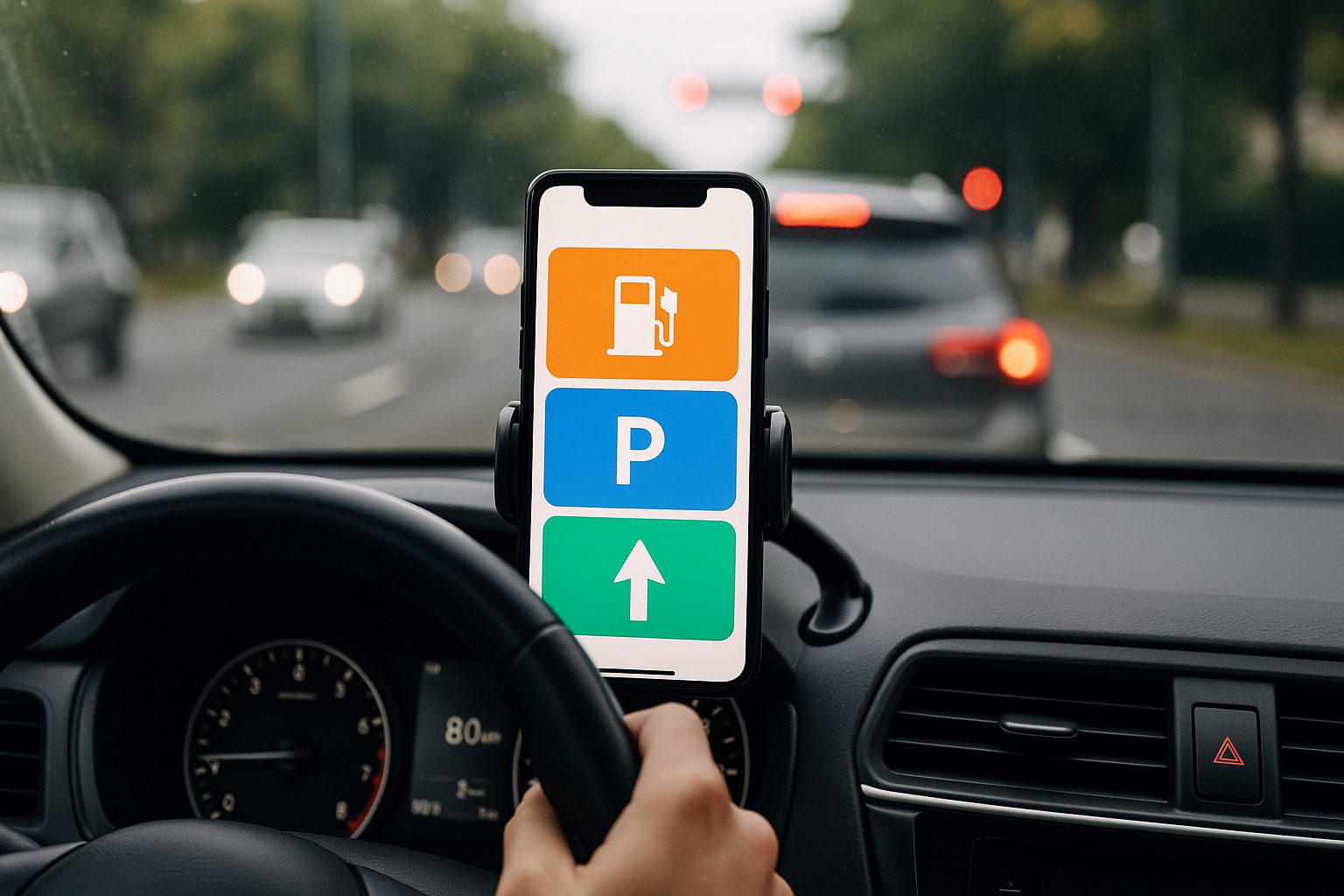
Create one shortcut that opens Maps with restaurant navigation, another that launches ParkMobile for your destination area, and a third that opens ChargePoint with your location preferences. Visual customization matters too—distinctive icons reduce the cognitive load of identifying the right shortcut while driving. A parking icon (🅿️) tends to register faster than hunting through similar-looking app logos. If you need a production-ready asset, this catalog includes a tuned location icon that reads at small sizes and drops neatly into token-driven color systems.
Your phone becomes a mobility command center rather than a collection of separate apps. The initial setup requires some patience, but the daily payoff—fewer taps, less distraction, faster access to the tools that actually matter on the road—compounds every time you drive somewhere new. This streamlined approach can significantly boost productivity during your daily commute.