




Apple CarPlay now integrates into hundreds of car and motorcycle models worldwide, transforming your vehicle’s dashboard into a familiar, safer extension of your iPhone. This system simplifies everything from navigation to messaging with voice-driven control, ensuring your focus stays on the road. This list compiles standout features and hidden tricks that elevate your daily drive, making your commute feel less like a chore and more like a highly personalized command center.
14. Apple CarPlay
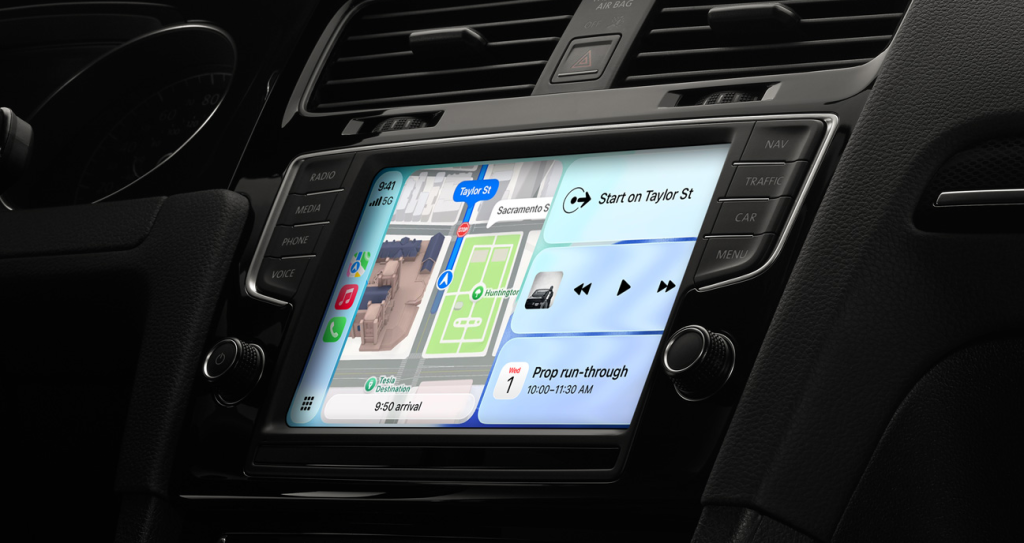
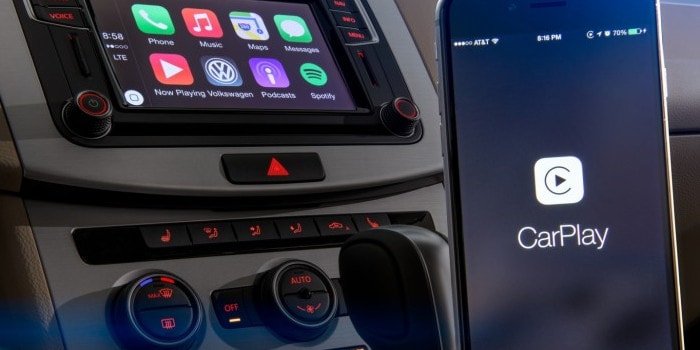
Apple CarPlay instantly transforms your car’s infotainment screen into a powerful extension of your iPhone, bringing core apps like Maps and Music directly to your dashboard. This system mirrors compatible iPhones, starting with the iPhone 5 running iOS 7.1 or later, allowing for safer, voice-driven interaction primarily via Siri. You can connect using a USB Lightning or USB-C cable, or wirelessly in newer vehicles, giving you access to calls, messages, and navigation without fumbling with your phone.
With compatibility across hundreds of car and motorcycle models, plus various aftermarket head units, it acts as a digital co-pilot for your daily grind, ensuring your attention stays on the road. Stuck in rush hour? Command Siri to reroute or even order dinner via integrated food ordering apps. Recent updates introduced custom wallpapers, widgets for quick glances at weather or calendar, and support for fueling apps like Chevron and Texaco. Fueling up directly from your dashboard eliminates fumbling with payment at the pump. This integration turns your vehicle’s display into a streamlined command center for your digital life, making every drive more connected and less distracting.
13. Shortcuts Personal Automations for CarPlay (Custom Connect/Disconnect Sounds)
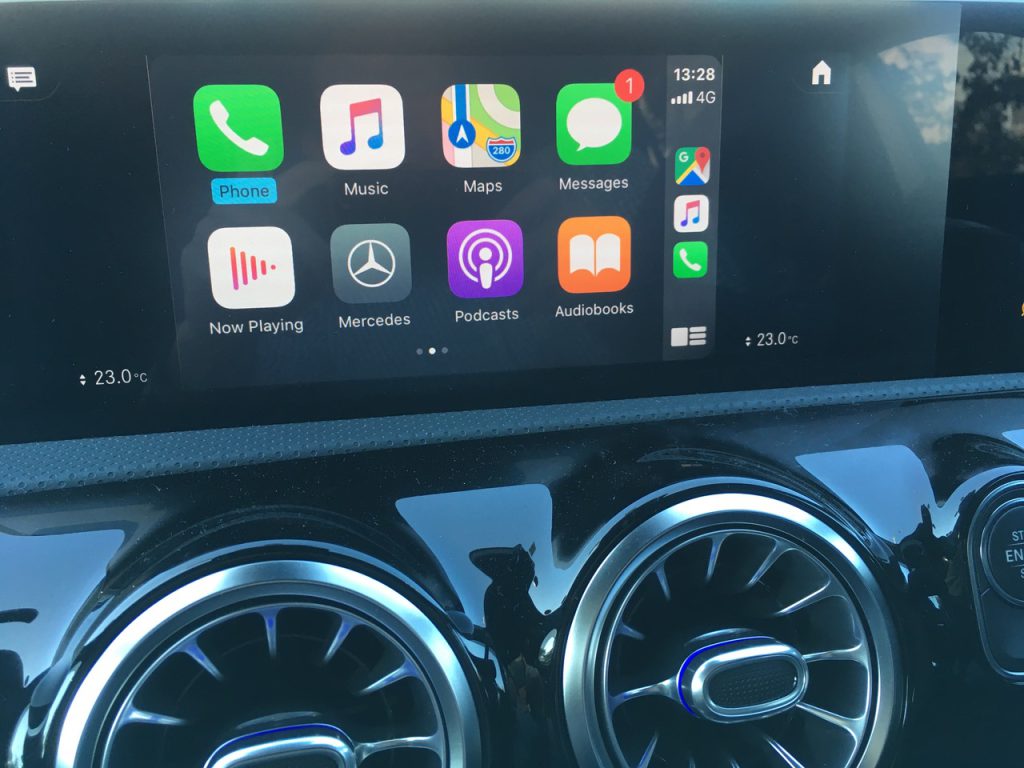
The default CarPlay connection beep feels as inspiring as elevator music. Thankfully, your iPhone’s Shortcuts app offers a backstage pass to personalization. You can create Personal Automations that spring into action the moment CarPlay connects or disconnects, transforming mundane prompts into a bespoke experience. Set these automations to Run Immediately, bypassing any annoying pop-ups.
This setup is straightforward: navigate to the Shortcuts app, select the CarPlay trigger under Travel, create a new shortcut, then add a Play Sound action to your chosen audio file. Suddenly, your car can greet you with a custom sound, making every drive feel like a mission launch. This same system can also kick off your favorite music app, activate a specific Focus mode, speak custom text, or even open navigation to your next destination. The creative potential for making your car’s tech truly yours is practically endless.
12. CarPlay App Arrangement and Hiding Apps (Settings on iPhone)
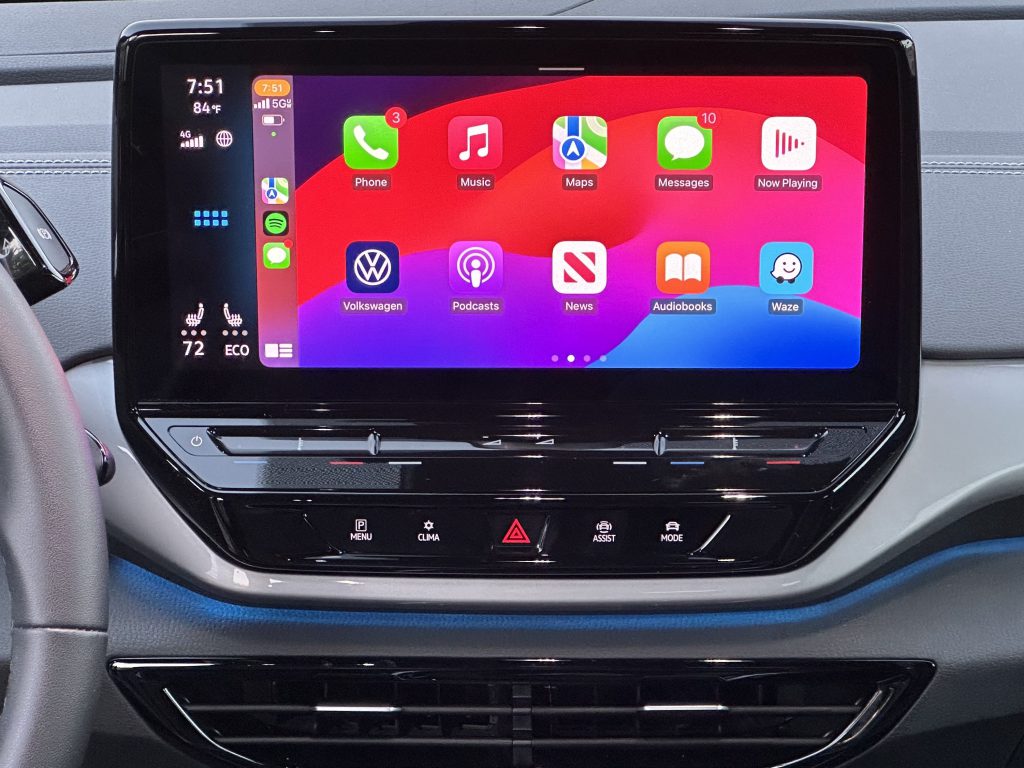
Managing your CarPlay app layout happens directly on your iPhone, sparing you the digital scavenger hunt on your car’s touchscreen. Navigate to Settings > General > CarPlay > [Your Car] > Customize (or Apps) to streamline your in-car display. You can effortlessly reorder applications using the three-line hamburger handle, dragging them into place.
To hide an app you rarely touch, simply tap the red minus icon, removing it from your active grid. Should you reconsider, tapping the green plus icon in the More Apps section brings it back. While core system apps like Phone, Music, Maps, Messages, and Settings cannot be removed, third-party apps offer full flexibility. This hands-on approach keeps your CarPlay screen focused, ensuring only essential tools are front and center.
11. CarPlay Widgets (Dashboard Widget Stack Customization)
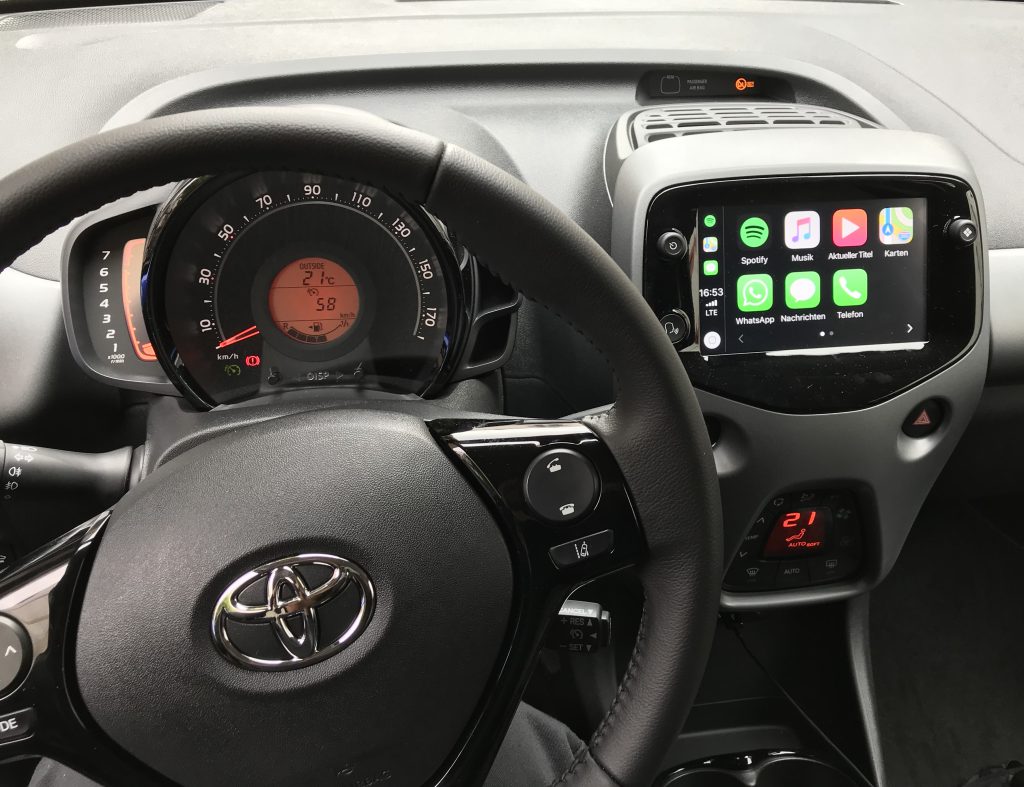
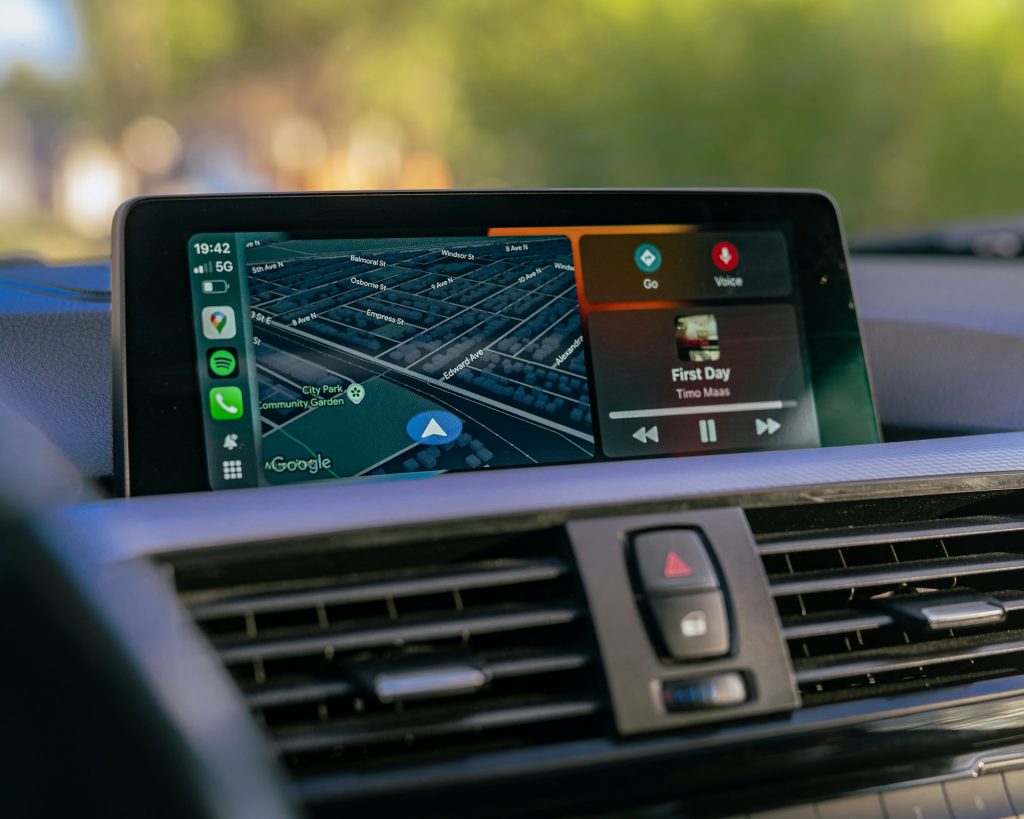
CarPlay’s Dashboard can display stacked widgets simultaneously (up to around five slots depending on your vehicle’s screen size), presenting essential information such as Maps, media controls, and calendar entries without needing to jump between full apps. Third-party widgets also integrate seamlessly, ensuring your most vital glanceable data is always front and center, rather than buried under layers of menus.
You can customize this layout directly from your iPhone, navigating to Settings > General > CarPlay > [Your Car] > Widgets. Swapping widgets is straightforward. Here, you can add new widgets, reorder their stack, and enable Smart Rotate or Widget Suggestions for dynamic content. Dragging items rearranges them, and tapping to remove keeps your display lean; top items in the list appear most prominently, delivering a tailored, efficient, and utterly indispensable dashboard experience.
10. CarPlay Appearance Settings (Dark Mode, Always Dark, Automatic)
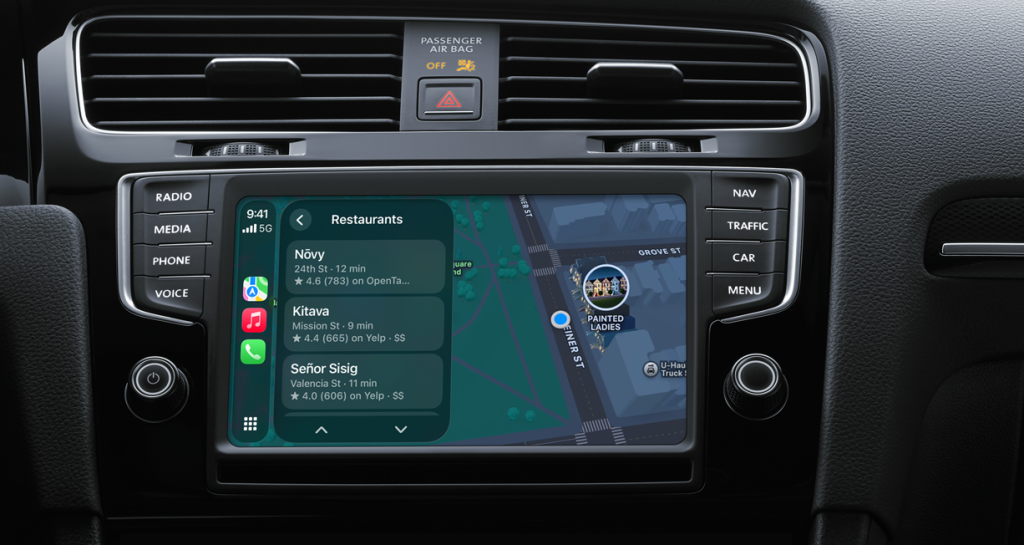
Apple notes CarPlay is set to dark appearance by default in most vehicles. This system operates with its own dedicated appearance settings, a separate control panel for your car’s display. You access these options in the CarPlay Settings app, under Appearance. Drivers can choose Always Dark or Automatic, which switches between light and dark styles based on time of day or ambient lighting.
The dark interface significantly reduces glare and minimizes distraction at night. For consistent visibility or enhanced output, selecting Always Dark remains your best choice. Newer iOS versions allow per-car adjustments directly from your iPhone’s settings. This ensures your view is optimized, whether under midday sun or navigating dimly lit streets, ultimately improving comfort and focus behind the wheel.
9. CarPlay Wallpapers (Background Color and Style)
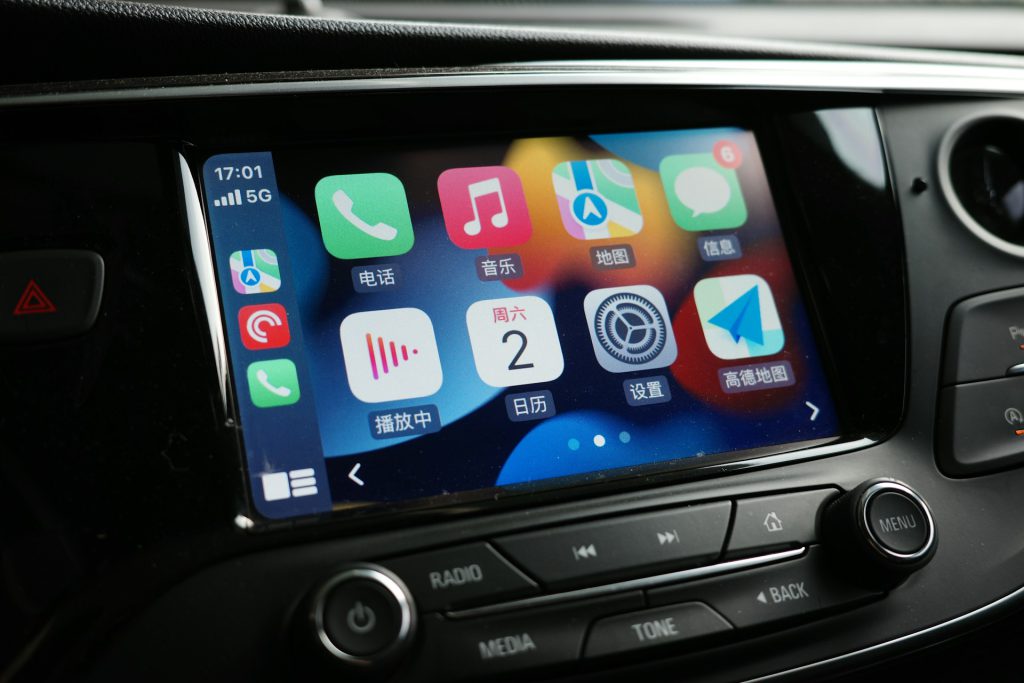
Personalization is paramount in the modern driving experience. CarPlay now lets you change wallpapers directly from its Settings app; just navigate to Settings > Wallpaper. You can choose from built-in light/dark paired images and solid colors like white or black. These backdrops can auto-switch with your car’s appearance mode when set to Automatic, ensuring visual consistency.
For vehicles with OLED displays or dark interiors, selecting a black or very dark wallpaper helps icons pop and reduces eye strain. Recent iOS versions allow per-vehicle wallpaper choices directly from your iPhone under Settings > General > CarPlay > [car] > Wallpaper. This means you can tailor a calm background for your commute or a vibrant one for weekend trips, ensuring your display always matches your aesthetic and functional preferences.
8. iPhone Accessibility Color Filters (Used to “Unlock” Alternate CarPlay Colors)
Apple’s iOS offers Color Filters under Settings > Accessibility > Display & Text Size > Color Filters, a feature designed for color vision deficiencies. These system-wide filters, like Red/Green for protanopia and Green/Red for deuteranopia, remap screen colors and allow intensity adjustments. Enabling these filters impacts all external displays, including your CarPlay interface, an often-unintended side effect.
A familiar red gradient on your car’s screen might suddenly shift closer to pink or purple, turning basic backgrounds into unexpected aesthetic choices. Apple cautions that these filters change how images and videos appear. However, many drivers have discovered this setting, transforming an accessibility tool into a creative workaround for unique CarPlay themes.
7. Chevron / Texaco App with CarPlay Fuel Payment
Running on fumes triggers a primal panic, but now you can avoid that drama. Your CarPlay interface, on iOS 16 or later devices, turns your dashboard into a fuel command center with the Chevron and Texaco apps. This industry-first approach to in-car fuel payment lets you locate nearby stations, select a pump, and add a carwash without touching your phone. It requires the app installed and logged in with a linked payment method, because adding payment details from CarPlay itself isn’t supported.
You open the app on the car’s dashboard screen, quickly confirm your details, select your pump number, and tap Authorize to begin fueling. No more fumbling with cards or punching in zip codes at a germy touchscreen. This seamless integration ensures your pit stop feels effortless. The system even issues a digital receipt, streamlining your expense tracking and getting you back on the road faster.
6. Chick‑fil‑A CarPlay Integration
Placing a quick meal order on the go while stuck in traffic used to mean dangerous screen tapping. Chick-fil-A’s Apple CarPlay integration tackles this directly, enabling pickup orders from your vehicle’s display. To activate, you need the Chick-fil-A app, a Chick-fil-A One account logged in with a saved payment method, and a prior digital order or saved favorite. This setup streamlines the process.
The CarPlay interface, due to safety limitations, keeps things tight, focusing solely on your recent orders and saved favorites. Reordering your go-to chicken sandwich becomes effortless. You can select pickup options such as inside, drive-thru, curbside, or Mobile Thru at participating locations. Payment draws from your default Chick-fil-A One card. This focused utility makes it practical for loyal, repeat customers.
5. Domino’s Pizza CarPlay App
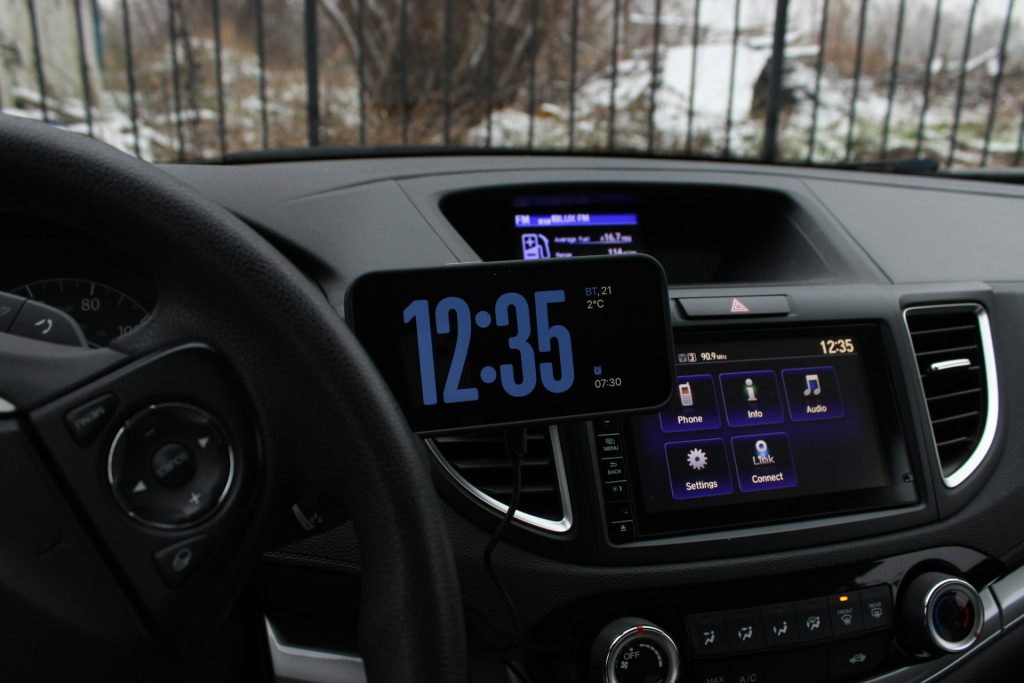
A sudden hunger pang while navigating rush hour no longer requires pulling over. Domino’s offers a direct solution from your car’s screen, with its CarPlay app for U.S. customers to place pickup orders. This setup allows you to use Tap to Order, instantly reordering a saved Easy Order or a recent favorite with minimal distraction. Activating this requires the Domino’s iPhone app, a logged-in Pizza Profile, and at least one Easy Order or recent order saved.
For custom requests, the Call to Order option connects you directly to a representative via hands-free calling, ensuring your unique pizza vision comes to life without pulling over. The app also displays nearby Domino’s locations, crucial when hunger strikes in unfamiliar territory. You can monitor your order’s progress with Domino’s Tracker, avoiding the familiar “Is it here yet?” anxiety. This integrated system streamlines the entire pickup ordering process, transforming your car into a mobile command center for pizza acquisition.
4. ChatGPT CarPlay App (AI Assistant in CarPlay)
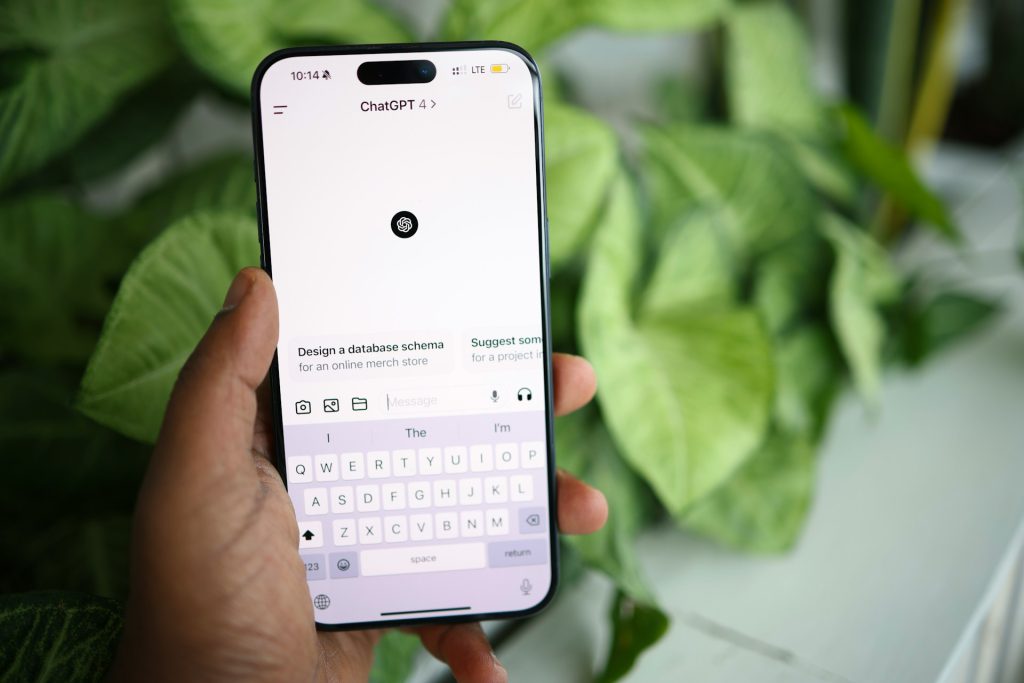
Artificial intelligence is rapidly integrating into vehicle systems, and ChatGPT’s CarPlay app offers an early look. Available for iPhones running iOS 26.4 or later, this app enables voice-only conversations directly through your infotainment screen. To begin, update the ChatGPT iOS app, connect your iPhone to CarPlay, then select ChatGPT and choose New voice chat. Once it says Listening, you are ready to engage.
You can resume existing chats or initiate new ones within specific Projects from the CarPlay display. An optional setting can launch ChatGPT automatically in voice mode. This AI assistant is strictly conversational, unable to control vehicle functions or access navigation data. Asking for road trip trivia, such as Route 66 history, transforms mundane drives into learning opportunities.
3. Kia Telluride with Apple CarPlay
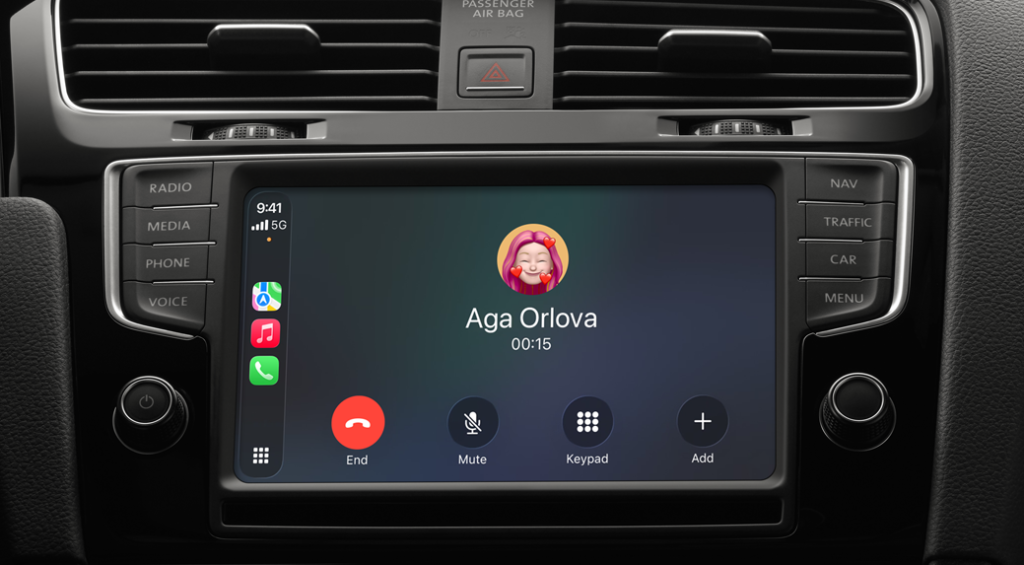
Apple CarPlay landed as a standard feature across all trims of the Kia Telluride, beginning with its first generation in 2020. This integration brought essential iPhone functionality directly to the SUV’s central touchscreen. For Telluride models from 2020 through 2025, this meant a wired connection, typically via the USB-A data port. Once connected, you get hands-free calls, messaging, music, and Siri-based navigation, with the KIA icon always returning you to the native vehicle interface.
The redesigned 2027 Telluride models finally cut the digital tether, introducing wireless Apple CarPlay and Android Auto through Bluetooth and Wi-Fi. This upgrade eliminates the cable dance, providing instant phone mirroring the moment you start the car. You simply connect and go, enjoying media and navigation without the minor hassle of a USB cable. Knowing these specific integration details ensures you avoid any setup surprises with your new ride.
2. Apple Maps in CarPlay (Zoom Gestures and Controls)

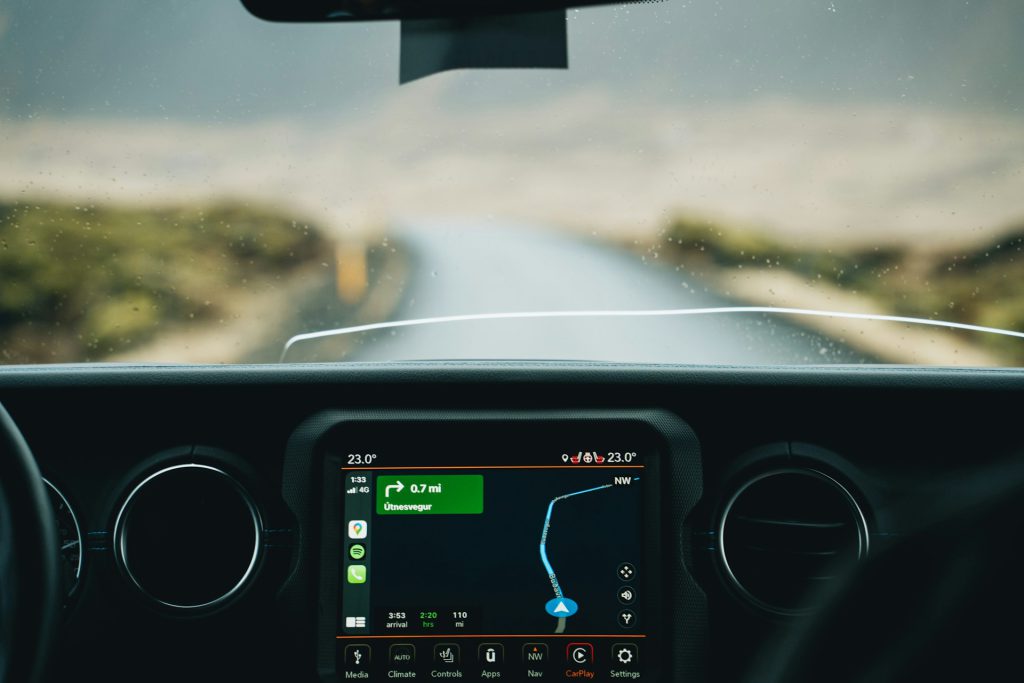
Navigating an unfamiliar route should not require multiple attempts to locate basic controls. Apple Maps in CarPlay provides zoom controls beyond basic on-screen + / − buttons. For displays with multitouch pinch-to-zoom support (a feature introduced with iOS 26+ on compatible head units), a precise hidden gesture exists for systems lacking pinch support: double-tap-and-hold, then slide your finger up or down. This transforms your map into a responsive, dynamic canvas.
This fluid control proves crucial when confirming a tricky turn or spotting an obscure side street. Anyone caught by a sudden highway exit knows the drill; granular detail is sometimes immediately necessary. While you manually adjust the map to pinpoint a landmark, Apple Maps dynamically adjusts zoom during navigation. This ensures upcoming maneuvers remain visible, making manual tweaks temporary.
1. Live Activities in CarPlay (Including Dismiss/Clear Behavior)
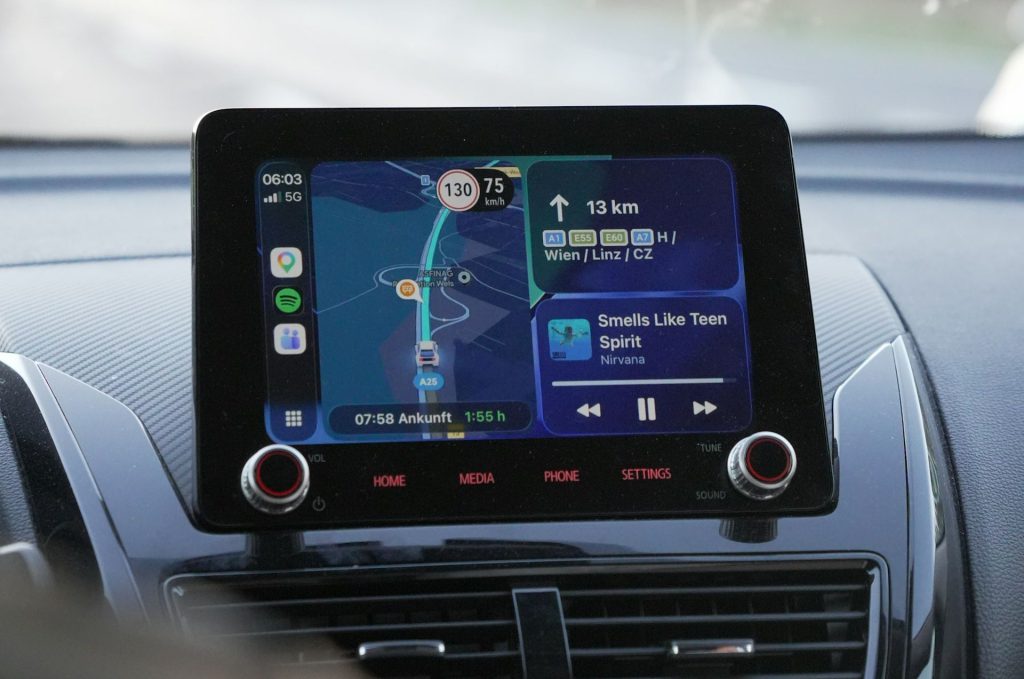
Managing constant real-time updates while driving is a recipe for distraction, but Live Activities in CarPlay offer a focused solution. Available with iOS 26 and later, these glanceable updates from apps like sports scores or deliveries appear directly on your dashboard. They feature compact, non-interactive layouts; no accidental taps or wrestling with mini-buttons.
This system supports multiple Live Activities simultaneously, letting you swipe between them or long-press to clear one. Control which apps send alerts via your iPhone settings under Settings > Apps > [app] > Live Activities. You get crucial info—a pizza delay or a game-winning goal—without the visual clutter, maintaining focus where it matters most: the road ahead.