



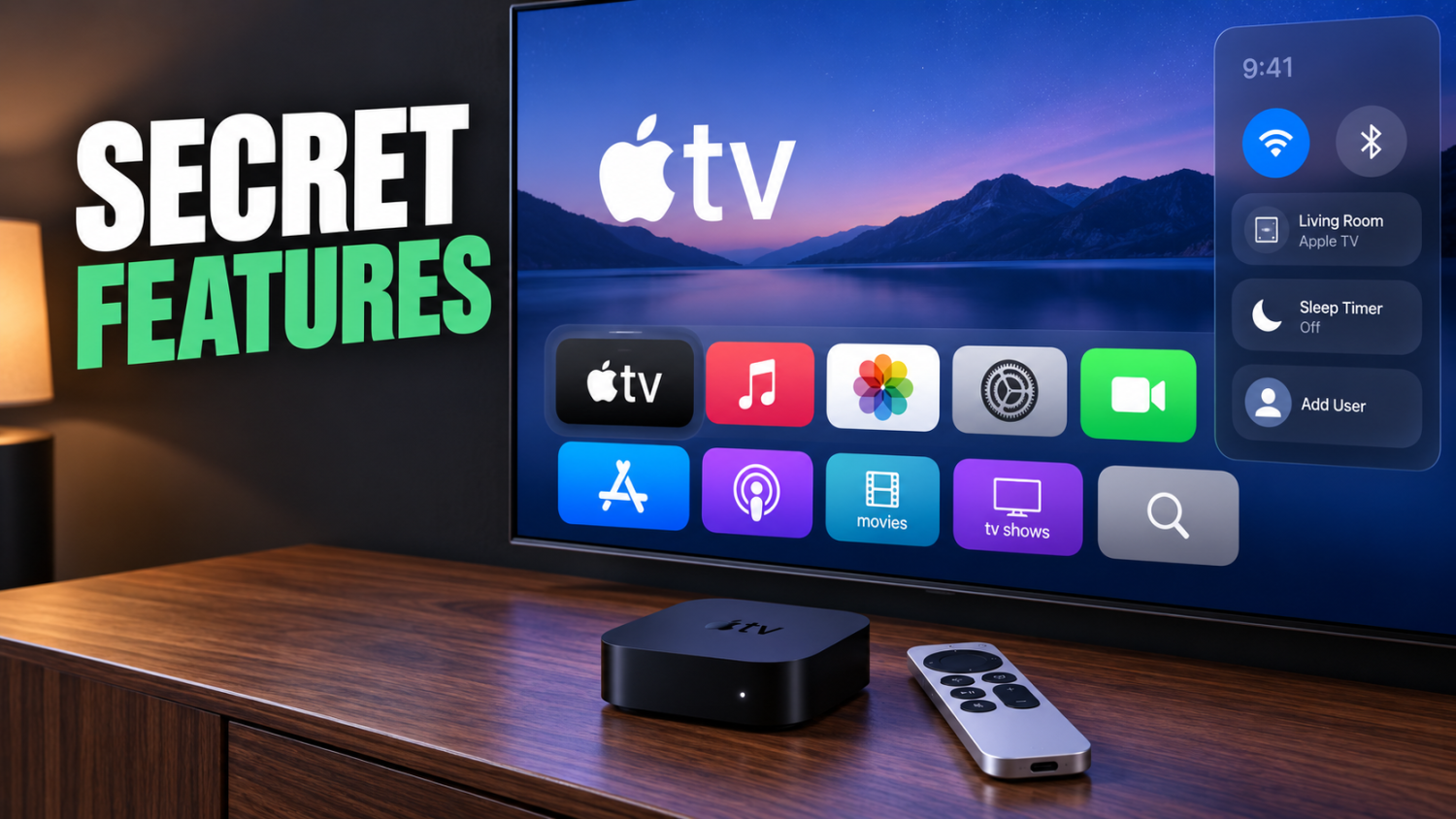
The current Apple TV 4K, powered by Apple’s A15 Bionic chip, delivers stunning 4K resolution at up to 60 frames per second. Yet most owners barely scratch the surface of what this compact device—measuring around 3.66 inches square—truly offers. Many users treat it like any basic streaming stick, overlooking crucial features that elevate your entire home entertainment experience. This curated list uncovers powerful, often-hidden settings and functionalities that promise smoother video, clearer calls, and a more intuitive interface. If you’re ready to unlock your Apple TV’s full potential, these insights will prove invaluable.
10. Apple TV 4K “Match Content” (Match Frame Rate / Match Dynamic Range)

Automatically sync output to each video’s original format—no more forced conversions.
Jerky video playback often ruins an otherwise perfect movie night, especially when a streaming box forces every piece of content into a single output. The Apple TV 4K’s Match Content settings address this directly, ensuring what appears on screen matches the creators’ intentions.
Enabling Match Frame Rate automatically adjusts the HDMI output to align with the source video’s original frame rate, supporting 24, 25, 30, 50, and 60 fps. Match Dynamic Range likewise switches between SDR, HDR10, HDR10+, and Dolby Vision modes, adapting to the content’s mastering.
You’ll notice a brief black screen during these transitions—a minor pause for picture perfection. Apple recommends setting the default output to 4K SDR and enabling both match options for optimal picture quality, eliminating judder and ensuring film-based material appears authentic.
9. Apple TV 4K FaceTime app with iPhone Continuity Camera
Turn your living room into a video call studio using your iPhone as the camera.
Bringing video calls to the biggest screen in your home became effortless with the Apple TV 4K’s new FaceTime app. This feature leverages an iPhone or iPad as the camera and microphone through Continuity Camera, turning your living room into a communal space for family chats.
You simply start FaceTime on the Apple TV, select your profile, and confirm on your phone when a pop-up appears. The devices must have FaceTime enabled and be signed into the same Apple Account. This setup streamlines group interactions, transforming small phone screens into expansive communal experiences.
Once connected, you gain access to powerful tools like Center Stage, Portrait mode for blurring backgrounds, and fun Reactions, all manageable from the Apple TV Control Center. Grandparents can see the entire family—kids and pets included—clear as day on the big screen without everyone crowding around a phone. This integration truly takes video calls from a personal device to a shared, immersive event.
8. Apple TV Remote app / Apple TV Remote in iPhone Control Center

Control your Apple TV from your iPhone—because the physical remote always vanishes.
Few things frustrate like a vanished TV remote when you need it most, but your iPhone offers an escape hatch. When your Apple TV shares the same network as your iPhone, you can access the Apple TV Remote directly from your iPhone’s Control Center. This virtual remote provides essential navigation, play/pause controls, and a full keyboard for search.
Typing out a movie title like “Oppenheimer” suddenly becomes less of a hunt-and-peck nightmare and more like texting. This feature gives you full command over your Apple TV; you can power the device on or off directly from your phone, eliminating the need to search for the physical Siri Remote. Navigating playback becomes as intuitive as swiping your social feed.
7. Apple TV Siri Remote clickpad modes (Click and Touch vs Click Only)

Disable touch gestures to prevent accidental swipes—precision over speed.
User interface preferences often resemble a dating app; everyone has their non-negotiables. The Siri Remote‘s touch-enabled clickpad, offering both directional clicking and swipe gestures, initially aimed for versatility, making it easy to scrub through timelines or jump through menus.
This “Click and Touch” mode enables quick navigation, letting you pinpoint exact moments in content. However, the touch surface’s sensitivity can lead to accidental selections. Anyone who has ever tried to quickly navigate a streaming menu only to land three episodes ahead knows this frustration.
For those who find the swipe gestures too eager, the option to switch to “Click Only” mode is genuine relief. You can find this setting under Settings → Remotes and Devices → Clickpad. This mode disables touch input entirely, meaning every interaction requires a deliberate press. This prevents those unintended swipes that plague many users, allowing you to click confidently through options without inadvertently selecting a new show.
6. Apple TV user profiles and Kid mode / content restrictions
Separate viewing preferences and shield young eyes from mature content.
Fighting over the remote used to define shared entertainment devices, often turning family movie night into a battle of preferences. Apple TV resolves this with robust user profiles, offering each person a personalized corner of the streaming universe.
Each profile keeps separate recommendations, a distinct Up Next queue, individual watch and music history, and even specific AirPods pairings. This ensures your true-crime podcast doesn’t suddenly hijack your partner’s carefully curated zen playlist.
Beyond mere personalized queues, navigating the digital landscape for younger viewers demands a firmer hand than a polite suggestion. Kid mode restricts access to age-inappropriate shows and apps, customizable by specific age and region ratings. Nobody wants a random gritty drama popping up in a child’s profile. This granular control gives you the peace of mind that comes with knowing the curated content truly fits the audience.
5. Apple TV 4K and AirPods integration via Control Center
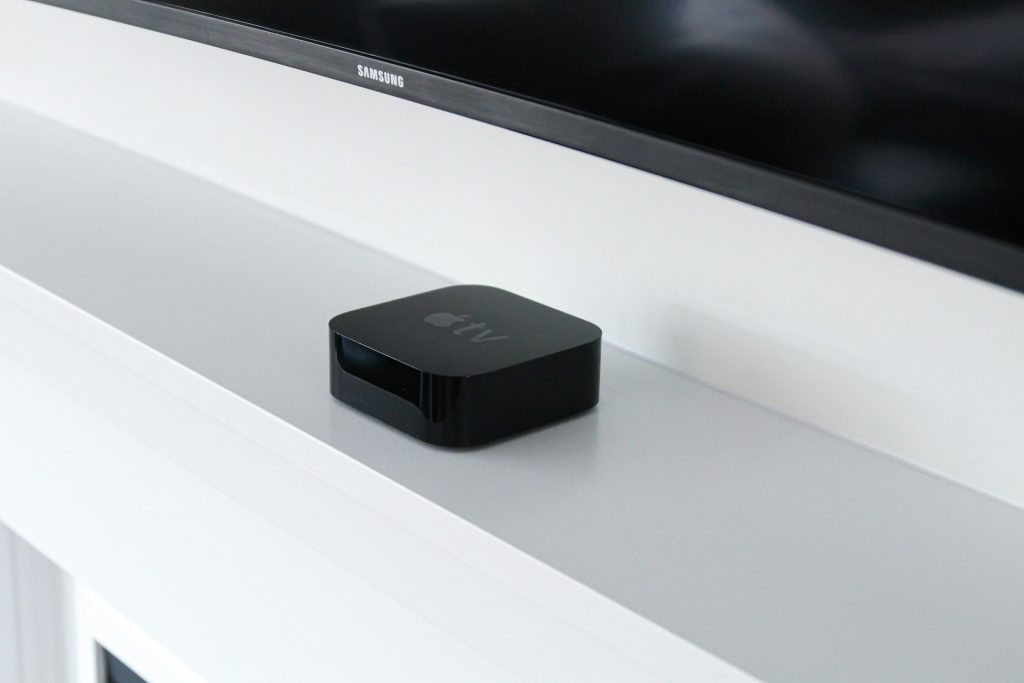
Route audio to your AirPods instantly—perfect for late-night viewing.
When the house is asleep but that true-crime documentary isn’t going to watch itself, you need private audio. AirPods—specifically the 3rd gen, Pro, or Max models—automatically connect to your Apple TV 4K if they share the same Apple ID.
To enable this, simply press and hold the TV button on your Siri Remote to pull up Control Center. From there, select the AirPods tab, and audio instantly routes to your earbuds. This seamless integration ensures you can keep binge-watching a show like “The Bear” at 2 AM without disturbing anyone.
Apple TV 4K also supports Audio Sharing, letting two sets of AirPods connect simultaneously with individual volume control. It beats fiddling with Bluetooth settings, delivering a level of efficiency that makes late-night viewing effortless.
4. iPhone Screen Mirroring to Apple TV (AirPlay)

Cast anything from your iPhone to the TV—apps, photos, presentations, you name it.
Instant content sharing from your iPhone can transform your living room TV into a dynamic personal display. Access the Control Center, tap the Screen Mirroring option, and your device’s screen instantly appears on your Apple TV, leveraging AirPlay protocol.
This feature acts as a versatile projector, casting anything from apps and videos to personal photos or presentations directly to the big screen. What you see on your phone, everyone else sees on the TV, in real time. Sharing your latest vacation photos to friends becomes effortless; your curated album fills the screen with a quick tap, video orientation automatically adjusting as you rotate your device.
This utility shines brightest for apps lacking native tvOS versions, essentially turning your television into a super-sized display for your phone.
3. Apple TV Sleep Timer / Sleep settings via Control Center
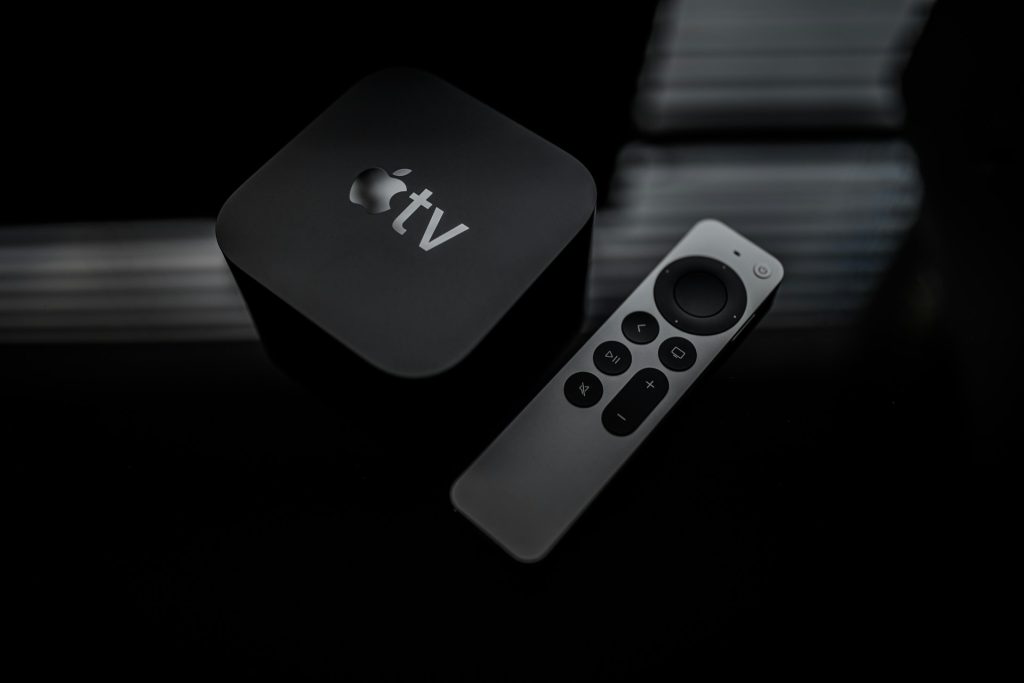
Stop wasting electricity—set the box to sleep after you’ve dozed off.
A device in standby mode still consumes a small amount of electricity, accumulating unnoticed over time. The Apple TV helps you manage this with adjustable sleep settings. You can configure the automatic sleep delay in Settings → General → Sleep After, choosing when the device enters a low-power standby mode during inactivity.
This sleep mode is distinct from a full power-off; it ensures a quick resume, avoiding the glacial boot-up of older streaming boxes. Sometimes you need immediate control over power management, particularly when your eyelids get heavy.
Holding the TV button on the Siri Remote brings up Control Center, where you can quickly access sleep timer options. You can set the timer for 15, 30, 60, or 120 minutes, ensuring the device doesn’t run all night like a forgotten podcast. These features conserve energy without forcing you to manually power down, allowing the Apple TV to wake instantly when you’re ready.
2. Apple TV Appearance settings (Light/Dark/Automatic) and icon size

Switch interface brightness automatically and resize icons for better visibility.
Ever found yourself squinting at a bright screen in a pitch-black room, wishing for a quick fix? The Apple TV offers appearance settings that function like a dimmer switch for your interface. You can select Light, Dark, or Automatic modes.
Automatic cleverly shifts between light during the day and dark at night based on your local time. This means no more blinding white menus disrupting your carefully curated late-night viewing vibe, making the transition seamless as the sun sets. Dark mode is particularly effective for reducing eye strain.
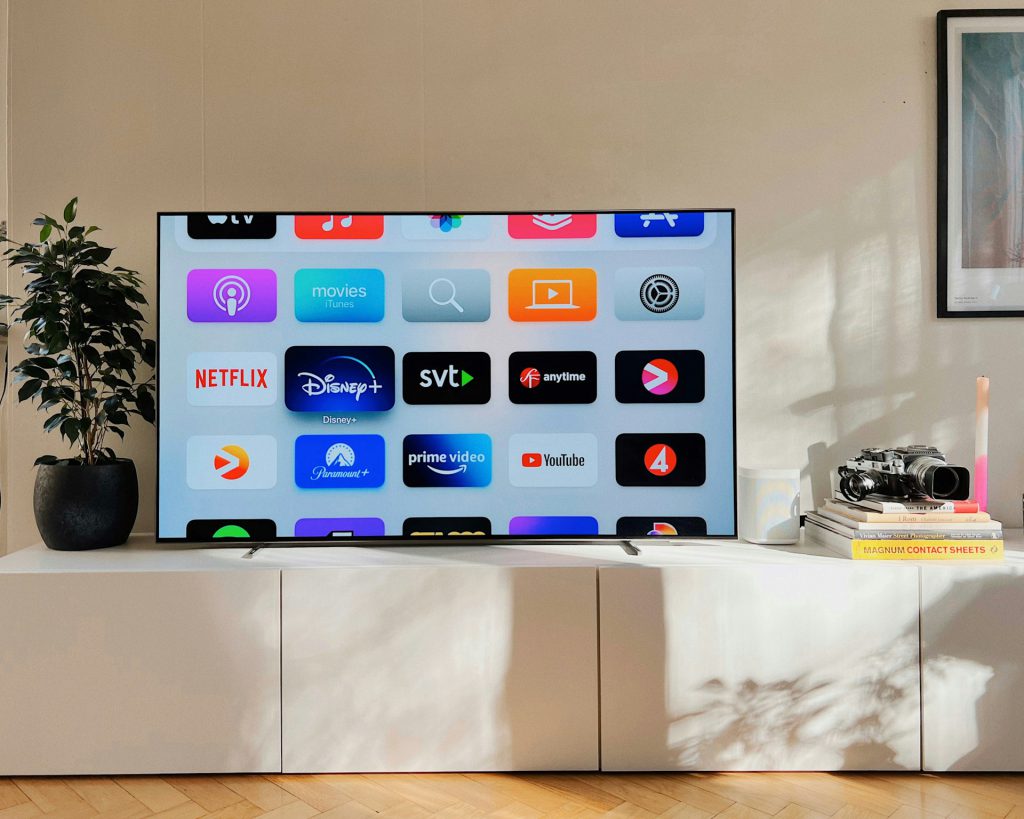
Beyond just the ambient glow, you can also adjust the Home screen’s icon size. Choose “Default” to display six apps across the top row, a familiar layout for most users. If you prefer a less crowded view or have visual difficulties, the “Large” setting shows five apps, each proportionally bigger and easier to discern. This level of customization ensures that whether you prefer a minimalist interface or need enhanced visibility, your entertainment hub adapts to your personal visual preferences.
1. Apple TV 4K (latest generation) – hardware and core specs

A15 Bionic power meets HDMI 2.1—the tech foundation for everything else.
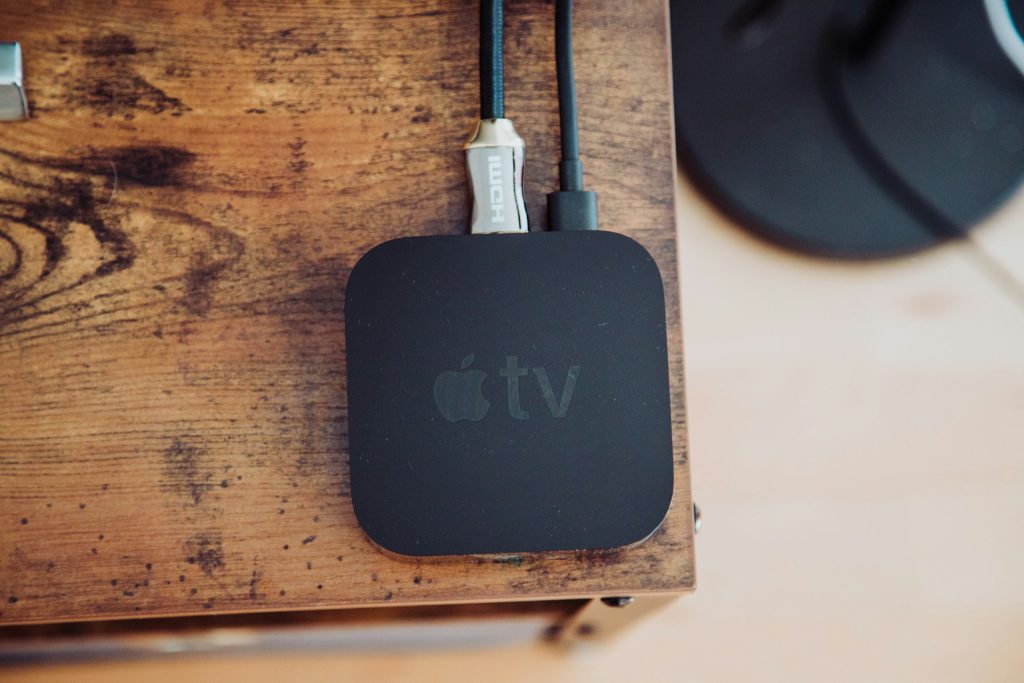
The A15 Bionic chip, powering the 2022 Apple TV 4K, delivers processing capabilities that future-proof your streaming setup. This device supports 4K resolution at up to 60 fps, seamlessly handling SDR and HDR formats like Dolby Vision, HDR10, HDR10+, and HLG via HDMI 2.1.
You get visual fidelity so sharp, demanding content streams without a hitch. This compact powerhouse handles HEVC (Main 10 profile) up to 2160p/60, ensuring every detail pops. Measuring approximately 3.66 inches square and 1.2 inches high, it fits discreetly behind your TV.
A nature documentary’s vibrant 4K HDR springs to life instantly, without buffering. Wi-Fi and Wi-Fi + Ethernet versions, with Thread support, mean this robust hardware forms the bedrock for advanced features like Match Content, Continuity Camera, and seamless AirPods integration.