




Major OS updates usually arrive packed with elaborate functionalities that most people never touch. iOS 27 breaks from that tradition by delivering Apple Intelligence features that genuinely improve daily phone use. These changes streamline common tasks and solve real annoyances without requiring a computer science degree to appreciate. The following features represent the updates that will actually reshape how you interact with your iPhone every single day.
8. iOS 27 Performance and Battery Enhancements
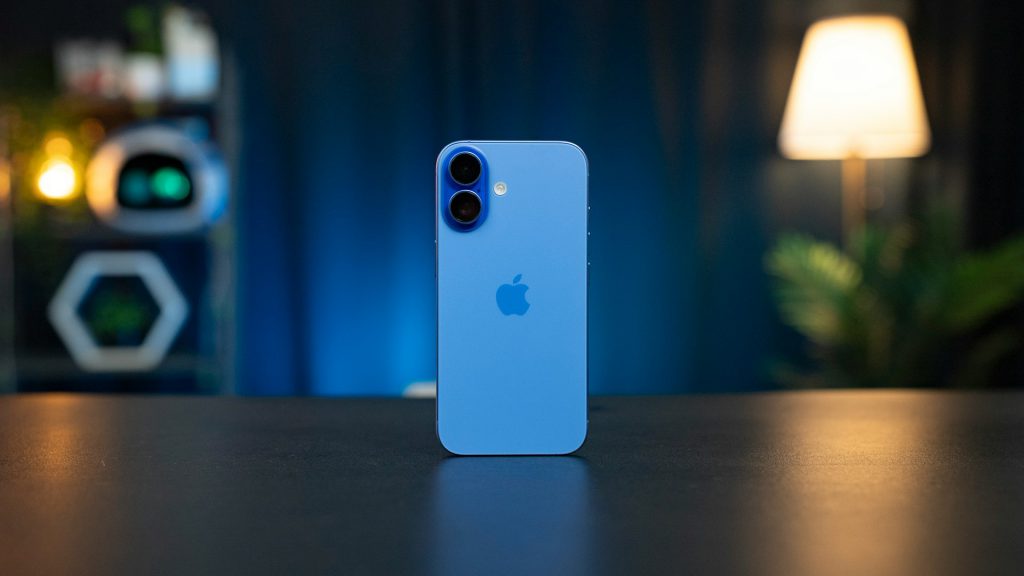
Older iPhones get a legitimate speed boost without forcing an upgrade.
Major OS updates often turn perfectly functional older iPhones into digital molasses. iOS 27 takes a different approach. This release specifically targets core responsiveness, making the system feel notably faster and more fluid compared to iOS 26. App switching now operates with actual crispness instead of that familiar lag.
This optimization extends to devices as far back as the iPhone 11, so you aren’t forced into an upgrade just for basic performance. Apps launch quicker, and your phone won’t feel like it’s struggling under pressure. This approach makes daily interactions smoother and extends the practical lifespan of your current device.
7. Natural-Language Shortcuts in iOS 27
Automation finally becomes accessible without needing to understand actions and variables.
Automating complex tasks on an iPhone used to require understanding the arcane logic of actions and variables. iOS 27’s revamped Shortcuts app removes that barrier entirely. With Apple Intelligence, tapping “New Shortcut” brings up a “Describe a Shortcut” interface where you simply type or dictate what you want.
Tell your phone “Set up my morning routine,” and it programs itself to check your calendar at 7 AM, grab the weather, and play your chosen playlist. The system guides you through the process, even locating specific items without menu diving.
Non-technical users can now craft advanced multi-step routines. The era of automation belonging solely to power users is over; iOS 27 turns a previously intimidating tool into something actually accessible for everyone.
6. Messages Smart Suggestions for Calendar Events
Text-based scheduling gets automated prompts that actually work.
Negotiating schedules over text creates endless back-and-forth. In iOS 27, when a friend texts “Let’s paint your kitchen next Friday,” Apple Intelligence automatically detects the event reference. It displays an inline “Add to Calendar” prompt directly within your conversation.
Tapping reveals a pop-up pre-filled with the event title, date, and time options ready for quick adjustments. This smart suggestion extends beyond Messages to other Apple apps like Mail, streamlining the entire process.
The feature moves from a simple text to a scheduled event in minimal taps. No more screenshot-copy-paste gymnastics or hoping you remember to add it later.
5. Improved Paste Suggestions in iOS 27
Clipboard content gets proactive single-tap insertion across apps.
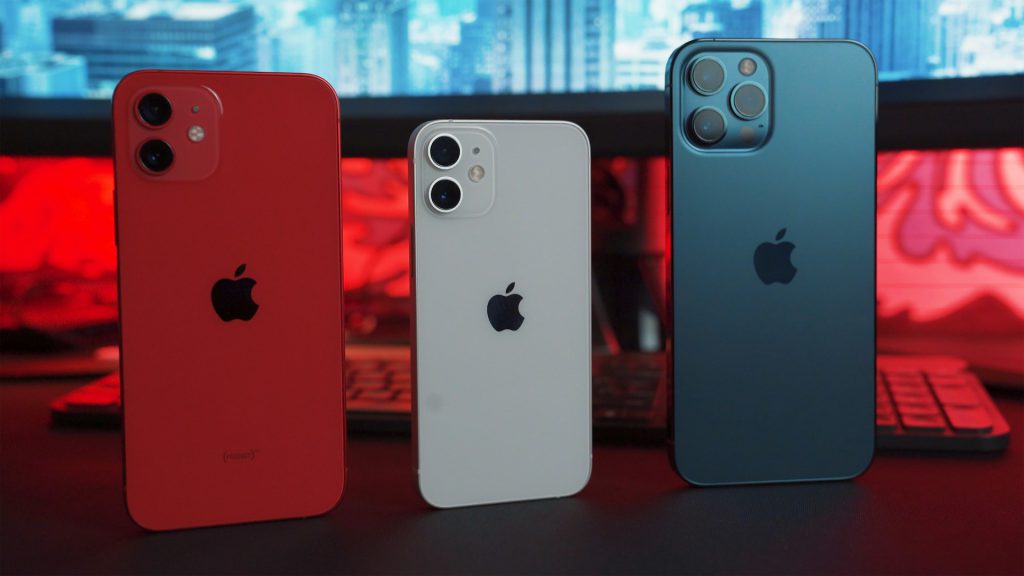
The ritual of copying content, then performing the long-press dance in another app to paste it, finally gets streamlined. iOS 27 broadens clipboard awareness so when you copy something (a photo from Photos, a link from Safari), your iPhone proactively displays a contextual “Paste” suggestion above the text input field.
You can now move an image into Messages, a URL into Mail, or a text snippet into Safari with a single tap. This seemingly minor update simplifies multi-app workflows considerably.
4. Separate Alarm and Ringtone Volume Controls
Wake-up alarms and incoming calls finally get independent volume settings.
Your iPhone’s alarm volume no longer needs to match its ringer setting. In Settings → Sounds & Haptics, a new “Match Ringtone Volume” toggle appears. Disabling it reveals a dedicated slider for Alarms and Timers.
You can set a loud wake-up call without every incoming text sounding like an emergency. This separation means maintaining a discreet ringer for calls while your crucial morning alarm still cuts through. The system now offers up to three distinct volume controls: ringtones, alarms, and system sounds.
This update directly resolves a complaint that’s frustrated users for years. No more choosing between peaceful mornings and reliable wake-up calls.
3. Find My “Hide Location” Feature in iOS 27
Temporary location privacy without awkward conversations or permanent changes.
Sharing your location used to feel all-or-nothing, forcing awkward conversations about trust. iOS 27 introduces a “Hide Location” feature in the Find My app’s People tab that lets you temporarily pause sharing with specific contacts without revoking access completely.
This option defaults to a 12-hour period, after which sharing automatically resumes. The person whose access is paused sees only “No Location Found” instead of your live location.
You can duck out for a quick 15-minute solo walk or even for multiple days without broadcasting your every move. This enhanced control offers a pragmatic solution for personal location privacy, acknowledging that sometimes you just need a bit of digital space.
2. Compact Lock Screen Clock Option
Smaller clock placement frees screen space for wallpaper visibility.
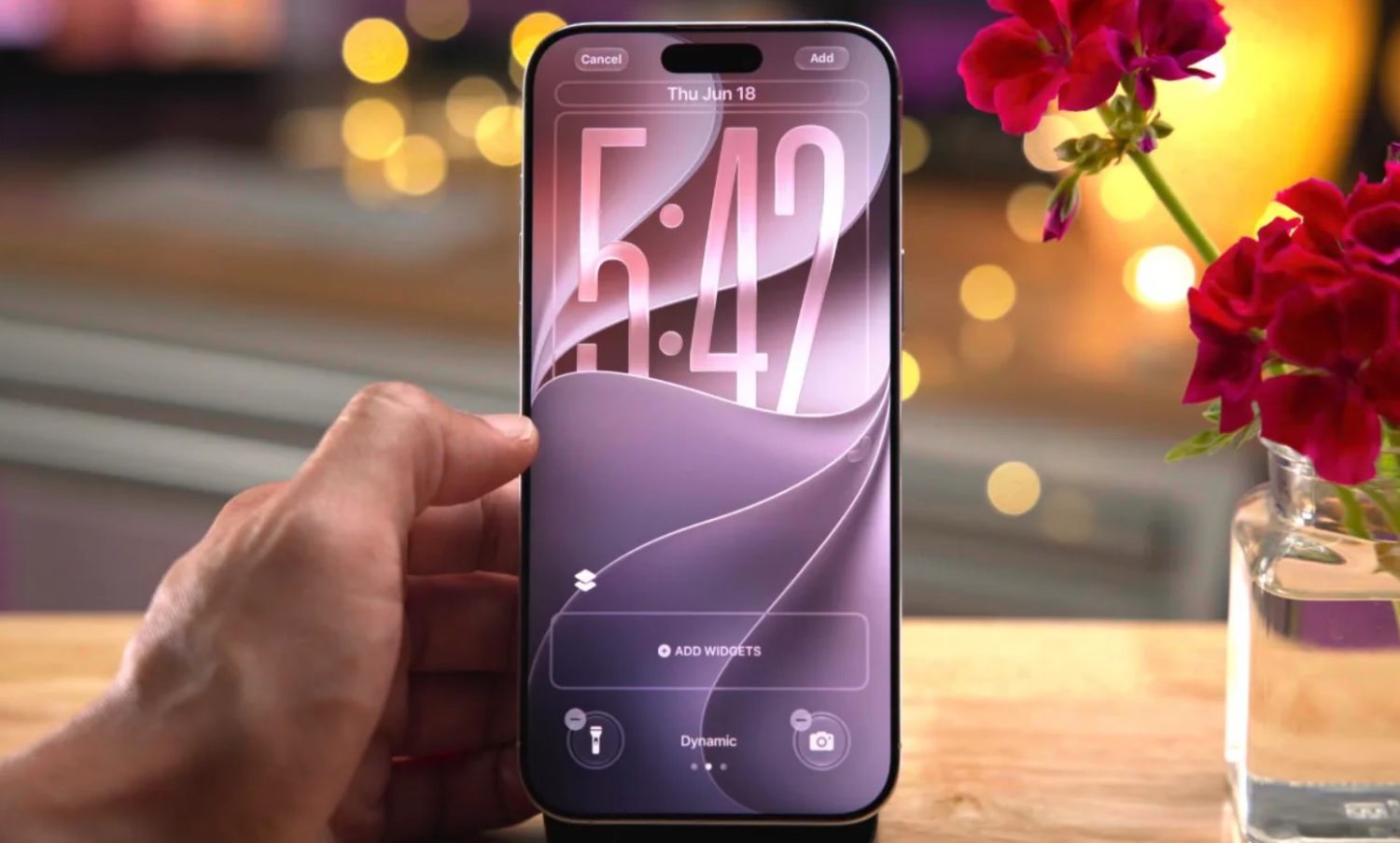
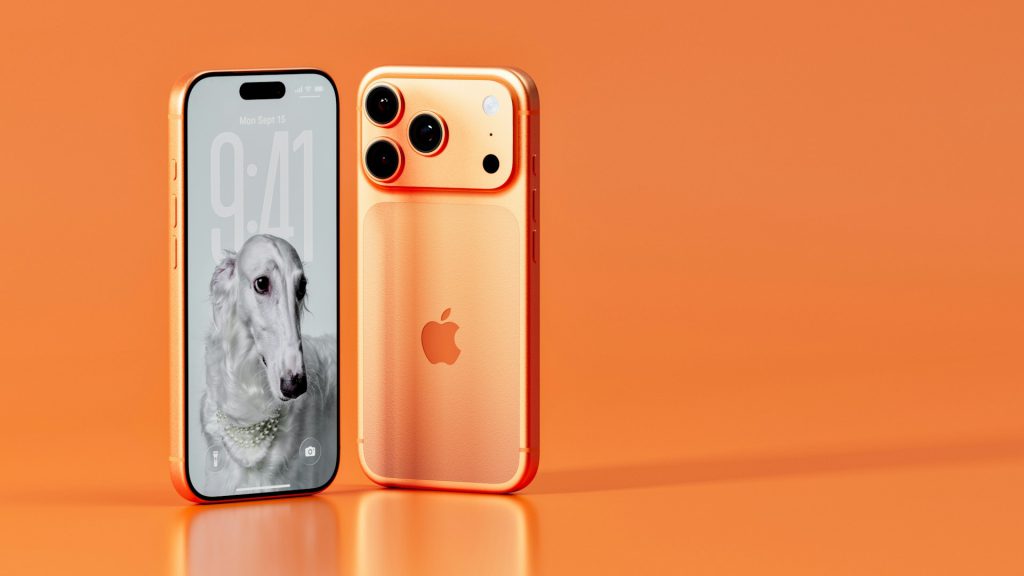
The compact Lock Screen clock option significantly reduces the time display size and relocates it to the top area. To activate this, touch and hold your Lock Screen, then tap Customize. Tap the clock itself, and from the Font & Color panel, select the compact clock icon (two horizontal bars).
This action shrinks the time display, freeing significant screen real estate for your chosen wallpaper. You can now display a cherished photo without the clock competing for attention.
The compact layout applies individually per Lock Screen, letting you tailor each one for distinct Focus modes or visual preferences. Your favorite images truly shine without digital noise blocking the view.
1. SMS Spam and Message Filtering Improvements
Automated junk classification keeps your main Messages view actually clean.
A daily barrage of spam messages means constantly sifting through digital junk. iOS 27 provides automated filtering that classifies unwanted SMS into separate lists. Access this feature via Settings → Apps → Messages, where Text Message Filtering options give you control over incoming communications.
This improved filtering instantly cleans your main Messages view. Unwanted texts no longer create notification noise, yet remain accessible within a separate folder for review.
You can check for miscategorized messages without cluttering primary conversations. Your phone finally works for you instead of the spammers, which is how it should have functioned from the start.