



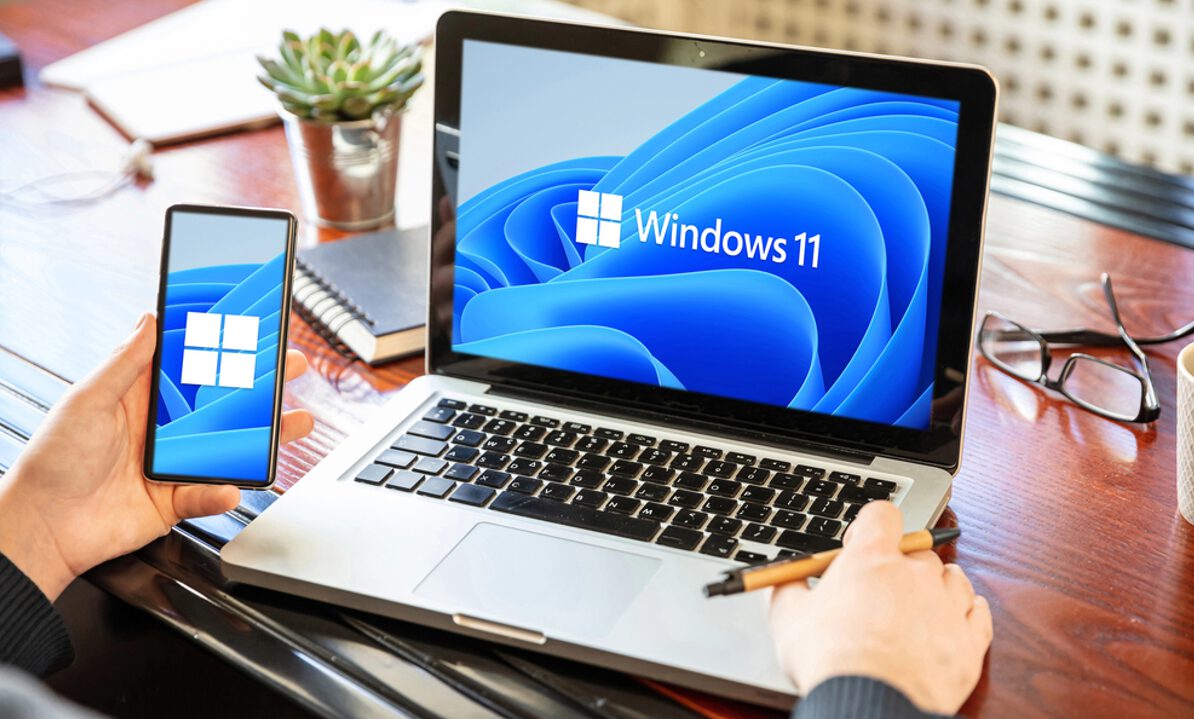
Your enterprise workstations just asked for BitLocker recovery keys after April’s Patch Tuesday, and you’re not alone. Microsoft confirmed that updates KB5083769 and KB5082052 are forcing one-time BitLocker recovery prompts on Windows 11 systems with specific enterprise configurations. The good news? This affects a limited subset of managed devices, and Microsoft provides clear workarounds to prevent the disruption.
The Technical Trigger Behind Enterprise Headaches
Specific Group Policy and Secure Boot combinations create the perfect storm for BitLocker prompts.
The issue strikes systems meeting all these criteria:
- BitLocker enabled on the OS drive
- The “Configure TPM platform validation profile for native UEFI firmware configurations” Group Policy includes PCR7
- System Information shows “Secure Boot State PCR7 Binding” as “Not Possible”
- The device runs older Windows Boot Manager code
Microsoft’s push toward the 2023-signed Windows Boot Manager conflicts with existing BitLocker validation profiles.
Personal devices rarely encounter this scenario—it’s primarily an enterprise IT management issue where Group Policy configurations create the problematic conditions.
The Fast-Track Fix for IT Teams
A simple Group Policy change prevents the recovery prompt before it happens.
Before installing the updates, navigate to “Computer Configuration > Administrative Templates > Windows Components > BitLocker Drive Encryption > Operating System Drives” and set the TPM validation policy to “Not Configured.” Run gpupdate /force to apply changes, then suspend BitLocker with manage-bde -protectors -disable C: followed by manage-bde -protectors -enable C: to refresh the bindings. This preemptive approach eliminates the recovery prompt entirely while maintaining your security posture.
Alternative Routes and Future Plans
Known Issue Rollback offers another path while Microsoft works on permanent solutions.
Enterprise customers can request Known Issue Rollback (KIR) deployment through Microsoft Support for Business, which prevents the 2023 Boot Manager transition altogether. Microsoft plans a permanent fix in upcoming updates, but IT teams shouldn’t hold their breath—Patch Tuesday waits for no one. The recovery key entry happens only once per affected system, so even if you encounter the prompt, subsequent restarts won’t repeat the annoyance.
Check your Group Policy configurations and run msinfo32 to verify PCR7 status before rolling out April’s updates. Your future self will appreciate the five minutes spent on prevention over the hours spent explaining BitLocker prompts to confused users.