



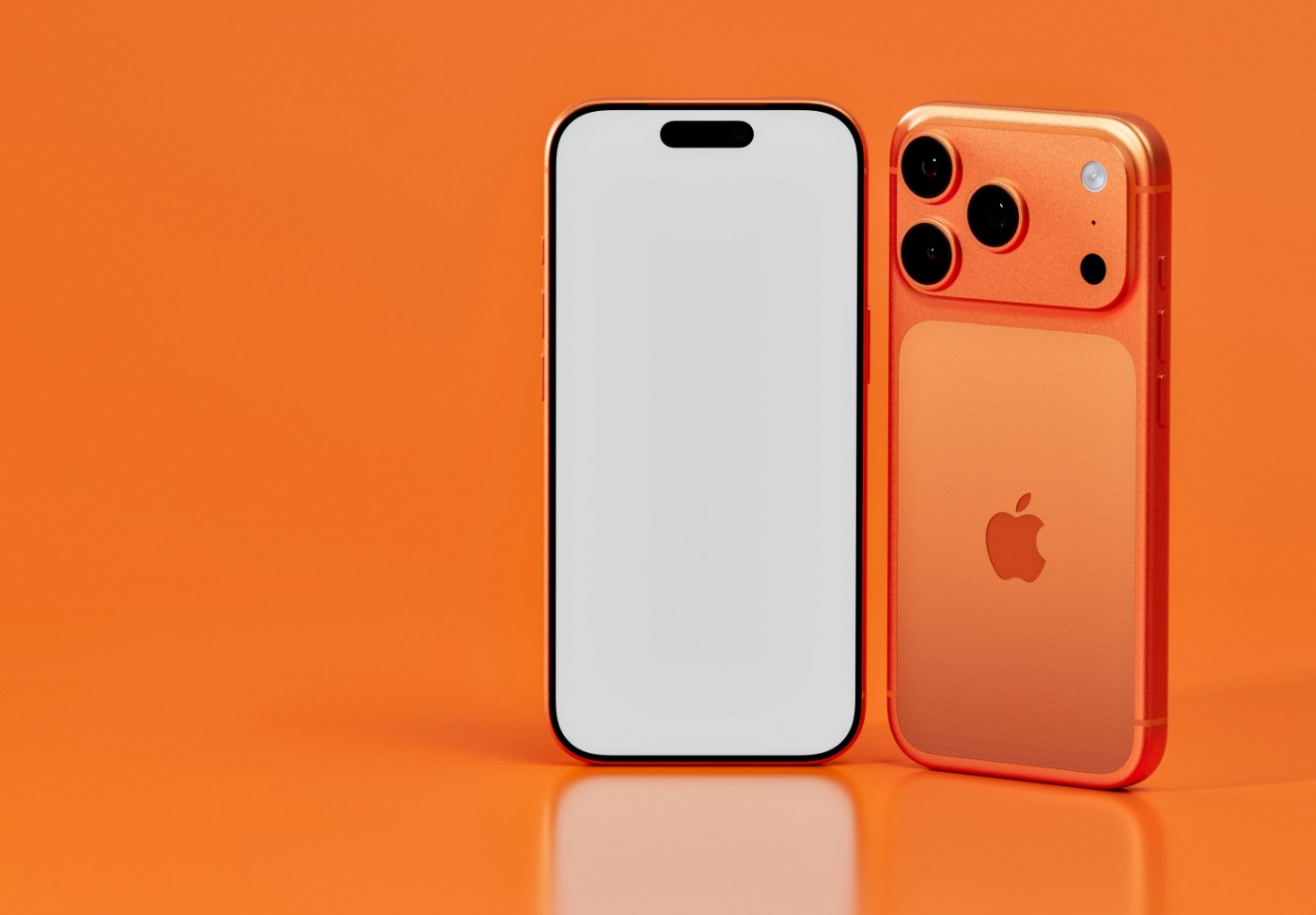
Your iPhone’s most powerful features hide behind accessibility menus and buried settings—features Apple doesn’t exactly highlight in their polished keynotes. They should. These powerful tools are selling points.
Productivity Shortcuts That Actually Matter
Transform your device into a productivity powerhouse with gestures Apple rarely mentions.
Double-tap the back of your iPhone to instantly launch your camera, toggle the flashlight, or trigger any shortcut you want. This Back Tap feature lives in Settings > Accessibility > Touch, and it’s faster than fumbling through your home screen like you’re playing iPhone Tetris.
You can also create custom vibration patterns for specific contacts—long-press any contact, edit their ringtone, then tap Haptics > Create New Vibration. Your phone becomes a personal notification system, letting you identify callers by feel alone.
Want a cleaner home screen? Long-press any empty area, tap the page dots at the bottom, and uncheck pages you don’t need. Apps automatically move to your App Library while your main screen stays zen-level organized.
Performance Tricks That Actually Work
Clear memory and extend battery life using features Apple tucked away in accessibility settings.
When your iPhone starts lagging, clear the RAM without rebooting. Enable AssistiveTouch in Settings > Accessibility > Touch, then use the volume up/down plus power button sequence, select Home, then Cancel. Your phone refreshes its memory instantly.
Battery anxiety getting real? Look for Adaptive Power Mode in Settings > Battery on newer models. This AI-driven feature learns your usage patterns and adjusts background refresh accordingly.
Meanwhile, disable True Tone, Attention Awareness, and Auto-Brightness if you’re tired of your screen dimming at the worst moments—these “helpful” features often work against you in low light situations.
Camera and Media Secrets Worth Knowing
Unlock photo quality improvements and shortcuts that require zero third-party apps.
Your iPhone likely shoots 24MP photos by default, but newer models can capture 48MP images with significantly sharper detail. Check Camera settings to enable this resolution boost for your social media game.
Even better—use your AirPods as a remote camera trigger for group shots or steady long-exposure captures. No more awkward timer rushes or blurry selfie stick moments.
Tired of screenshot thumbnails cluttering your workflow? Disable them in Settings to save images directly to Photos, skipping the preview step entirely.
The question remains: why does Apple bury these genuinely useful features in accessibility menus and obscure settings? Maybe they’re protecting that “it just works” simplicity, but you deserve to know what your expensive pocket computer can actually do.