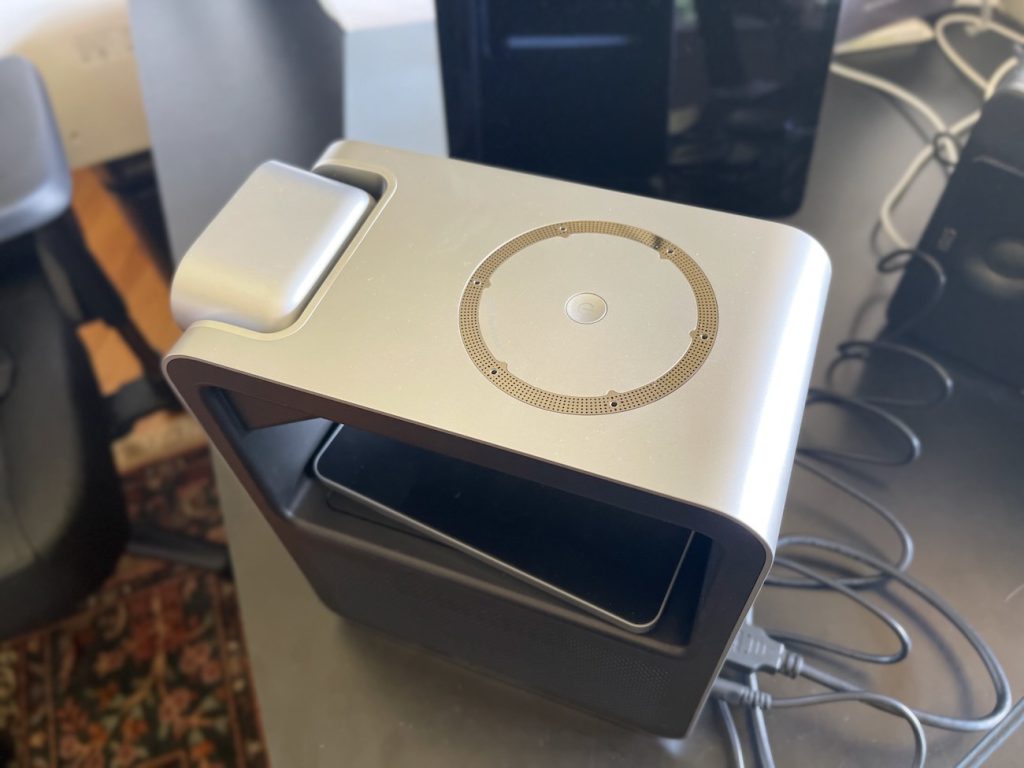







I set the Core30 up in my home office, which is not what CZUR built this thing for. This is a conference room hub, designed to sit at the front of a table and frame a group of people from several feet away. I put it a few feet from my face and expected it to struggle. It didn’t. The camera locked onto me instantly and kept tracking as I moved around, even at a distance the device wasn’t designed to handle. That’s the kind of moment that tells you a company actually tested their auto framing instead of just writing it on a spec sheet.
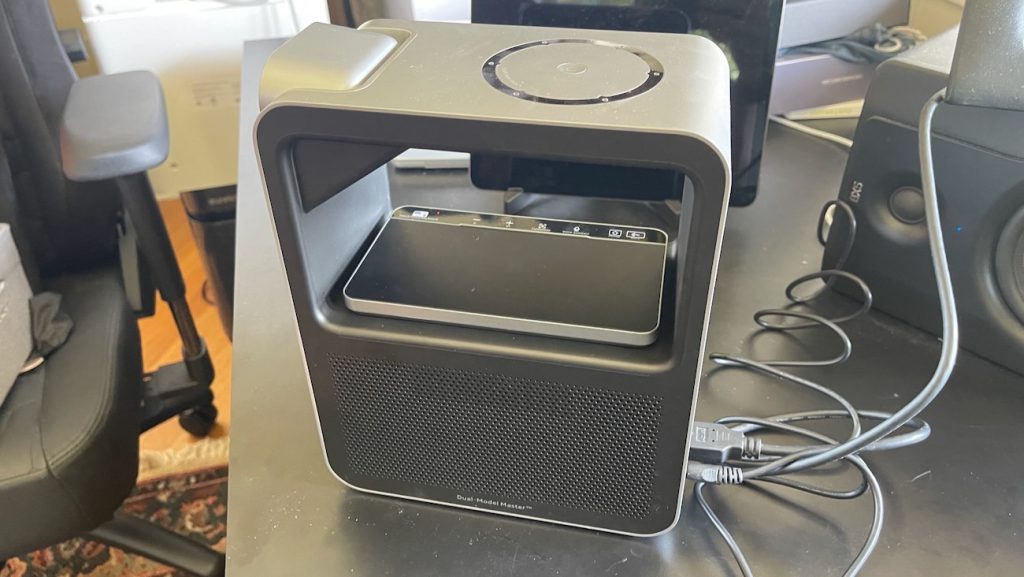
Then I tried to plug it into my Mac Mini as a webcam and hit a wall. More on that in a minute.
Where the Core30 Fits
CZUR splits its meeting hub lineup into two families. The StarryHub Pro builds in an actual projector, aimed at rooms without a screen already on the wall. The Core series drops the projector entirely and instead plugs into a TV, monitor, or existing display over HDMI, which CZUR calls its Bring Your Own Display approach. The Core line comes in three sizes, Core20, Core30, and Core50. The Core30 is the middle option, built for mid sized rooms rather than huddle spaces or large boardrooms.
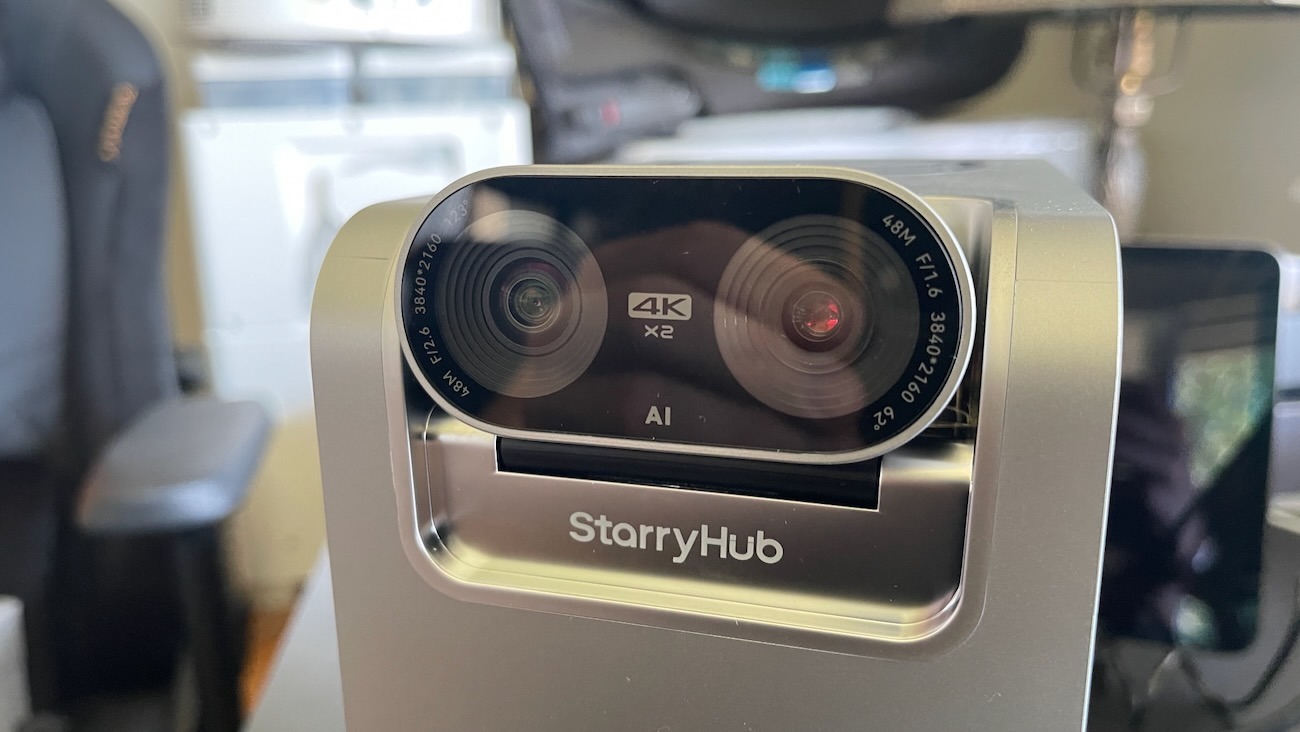
The headline feature is the dual camera setup. CZUR put two separate 48 megapixel Sony sensors in this thing, both capable of true 4K video. One is a 123 degree ultra wide lens for capturing the whole room, the other a 62 degree telephoto lens that zooms in on faces up to 5 meters out. That’s a real upgrade from the single camera setup on the older StarryHub Pro, which tops out at 1080p.
As for price, CZUR doesn’t list one for the Core30 on its own site as of this writing, and I haven’t found it listed yet on Amazon or other major retailers under this exact model name. For context, the older projector based StarryHub Pro carries a $1,299 list price, though it’s been discounted to $999 in recent testing. The Core30 should land somewhere in that neighborhood given the comparable hardware, but I’d wait for a confirmed number before treating that as gospel.
Competitors in this category include the Meeting Owl 3, the Poly Studio X30, and the Logitech Rally Bar Mini. All three chase the same buyer, someone who wants a single self-contained device instead of a rat’s nest of separate cameras, speakerphones, and casting dongles.
The Cameras Are the Whole Pitch, and They Deliver
The dual camera system is genuinely the best part of this device. Recording myself in 4K, I could watch the camera zoom in as I moved closer and pull back out as I stepped away, reframing smoothly the whole time. It’s using the wide lens to see the whole space and the telephoto lens to lock onto whoever’s talking, and the handoff between the two is seamless enough that you don’t notice it happening.
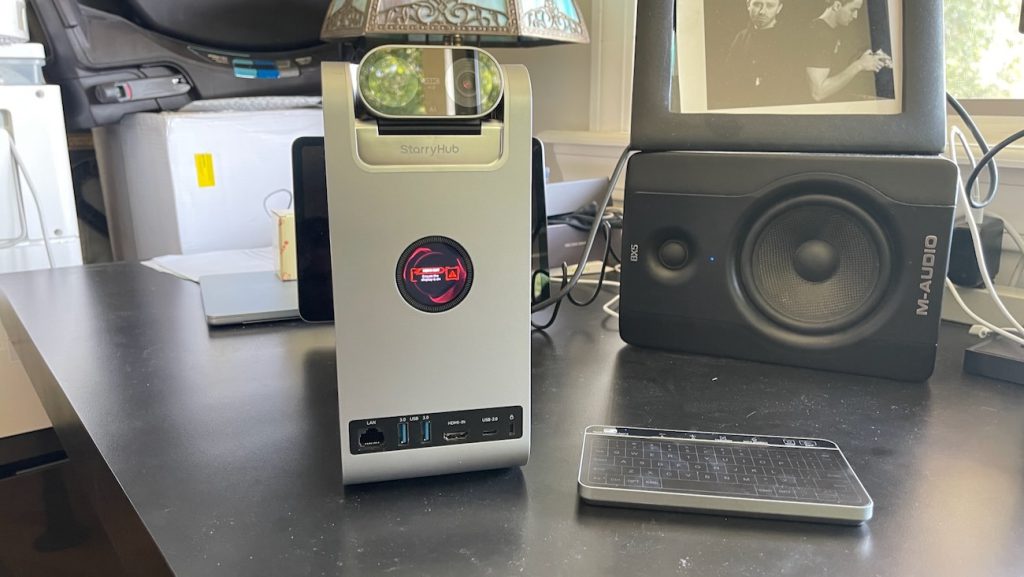
The gesture controls tie into this. Raise your hand and the camera tracks you as the active speaker. Do it again and it lets go. There’s also a whiteboard gesture, a peace sign essentially, that locks the camera onto a whiteboard and cleans up the perspective automatically. I didn’t have a whiteboard handy to fully test that one, but the hand-raise tracking worked exactly as described every time I tried it.
Screen Casting Is the Easiest Part of the Whole Device
If you want one feature that just works without thinking, it’s the screen casting. The Core30 throws a short code on screen, and you punch that same code into AirPlay on your phone or Mac to start casting. No app to hunt for, no pairing menu to dig through. I tested this from my iPhone and my Mac and both connected in seconds. File transfer between my phone and the hub uses the same code system, and it was just as fast.
Audio Held Up Across Five Sessions
I ran five separate meetings through the Core30, 30 to 40 minutes each, mostly on Google Meet. Every session came through loud and clear on both ends. Nobody I met with mentioned echo, dropouts, or muffled audio, which is really all you can ask from a conferencing mic array. The six microphone setup did its job without me having to think about it, which is the best compliment I can give a piece of audio hardware.
Logging Into Google Meet Means Logging In On the Device
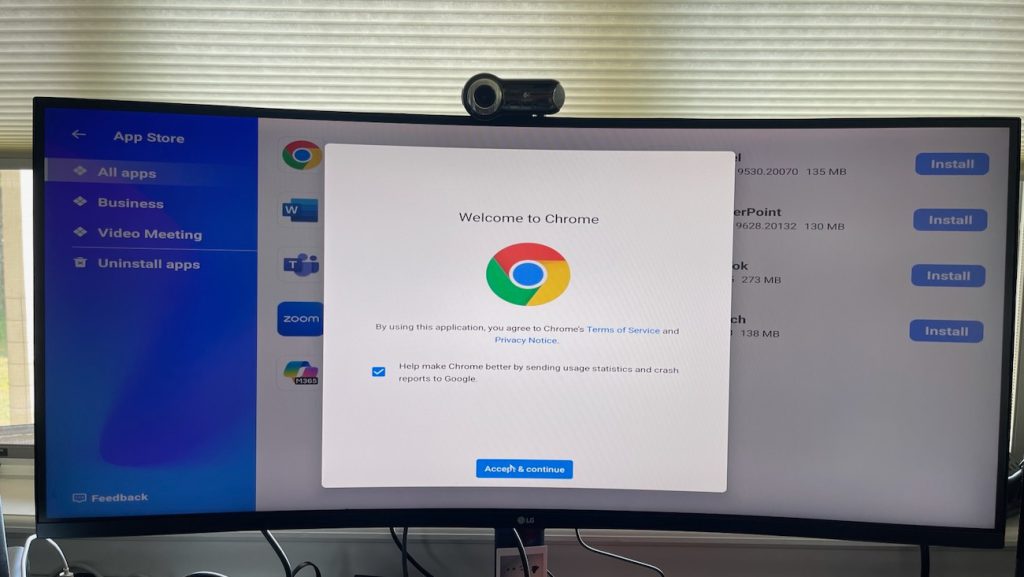
One limitation worth flagging clearly. There’s no phone-based handshake to join a Google Meet call the way you might expect from something built around instant AirPlay pairing. You log into your Google account directly on the Core30 itself, then join or start meetings from there. That’s simply how host mode works on this device. It’s not broken, it’s just a different workflow than the tap-and-go casting experience trained me to expect from everything else on this hub.
USB Webcam Mode Works, but the Setup Isn’t Obvious
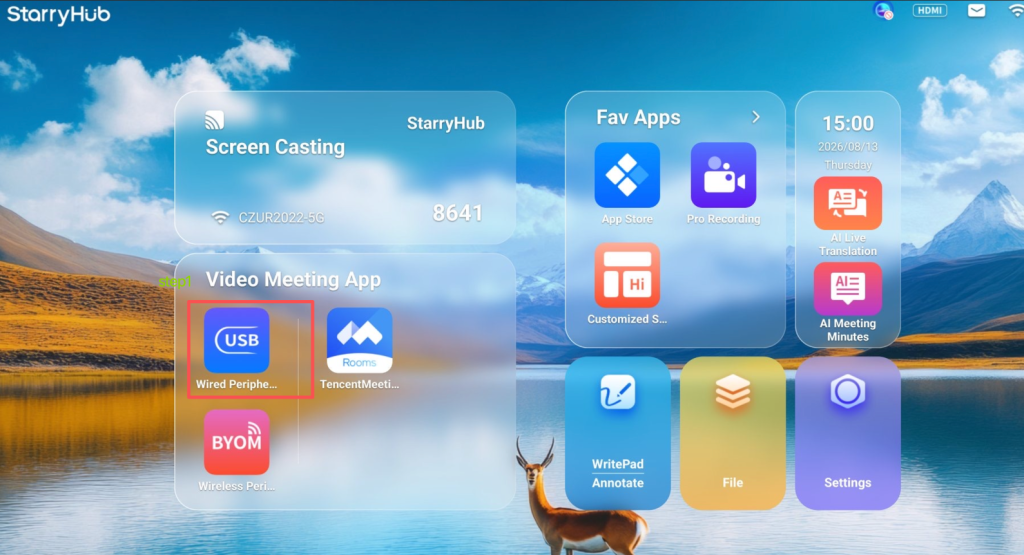
The Core30 can also work as a USB webcam for a laptop or desktop, which makes the built-in camera system considerably more useful beyond running meetings directly from the device.
Using the included remote, you can switch the Core30 into its wired peripheral/BYOM mode, then connect the unit to your computer through USB-C. Once connected, the Core30 becomes available as a camera for apps like Zoom and Google Meet, letting you use its camera and framing features while still running the meeting from your own computer.

CZUR also supports BYOM wirelessly through its ClickDrop dongle, giving you another option if you’d rather avoid running a USB-C cable between the Core30 and your computer.
That also means features like Auto Framing and Speaker Tracking can carry over to this setup. Turn the framing option on, select the mode you want, and the Core30 handles the camera movement while your Mac or PC handles the actual call.
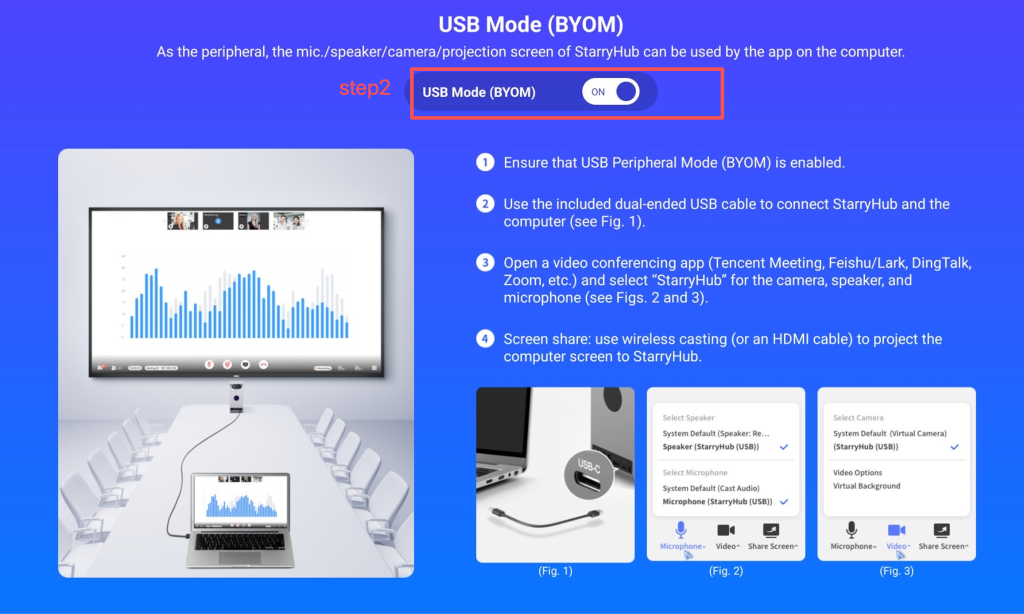
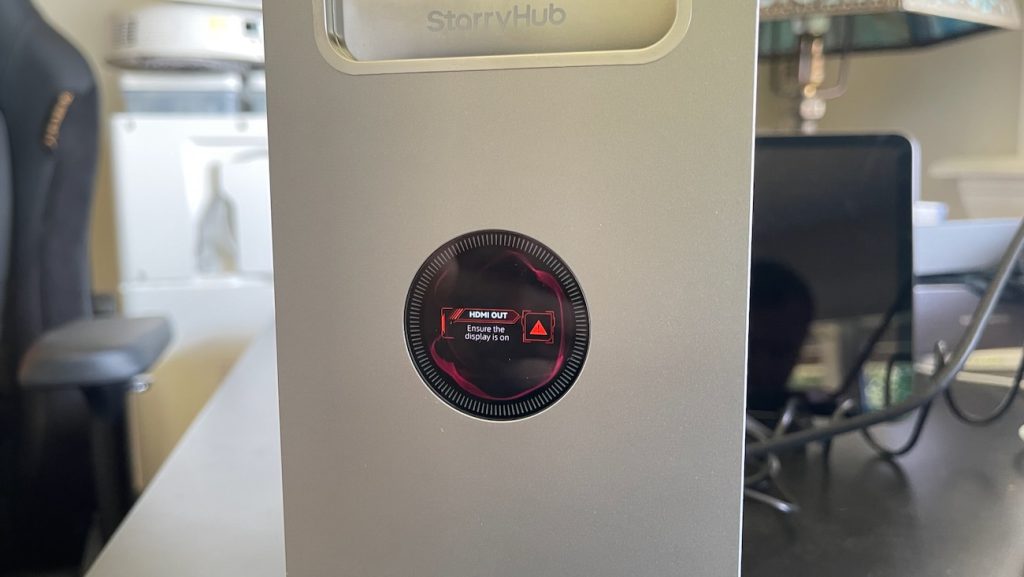
The confusing part is CZUR’s documentation. Some of the company’s instructions reference ports and terminology that don’t line up especially well with the Core30 itself, which initially sent me down the wrong path. But fear not, there is a solution!
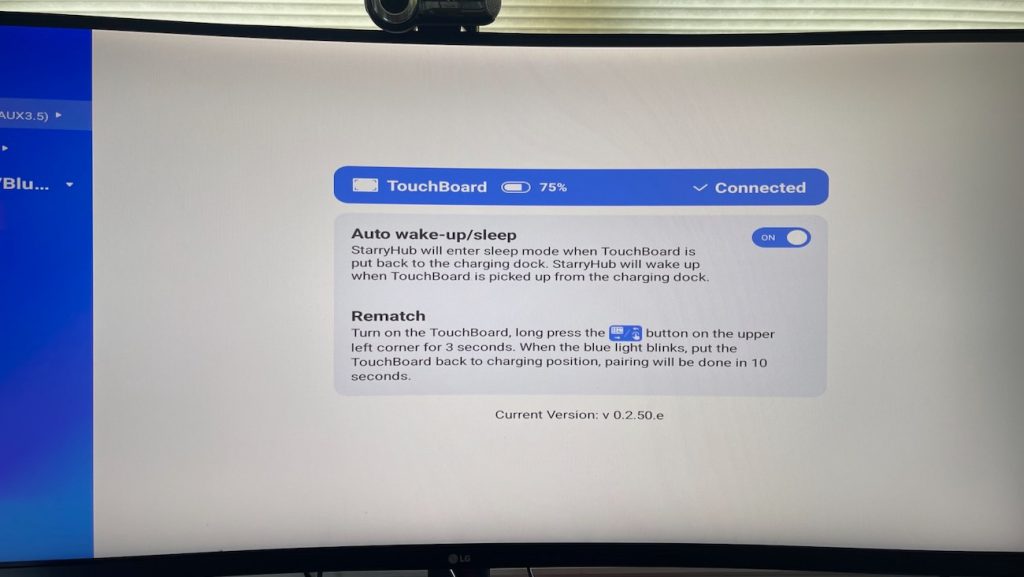
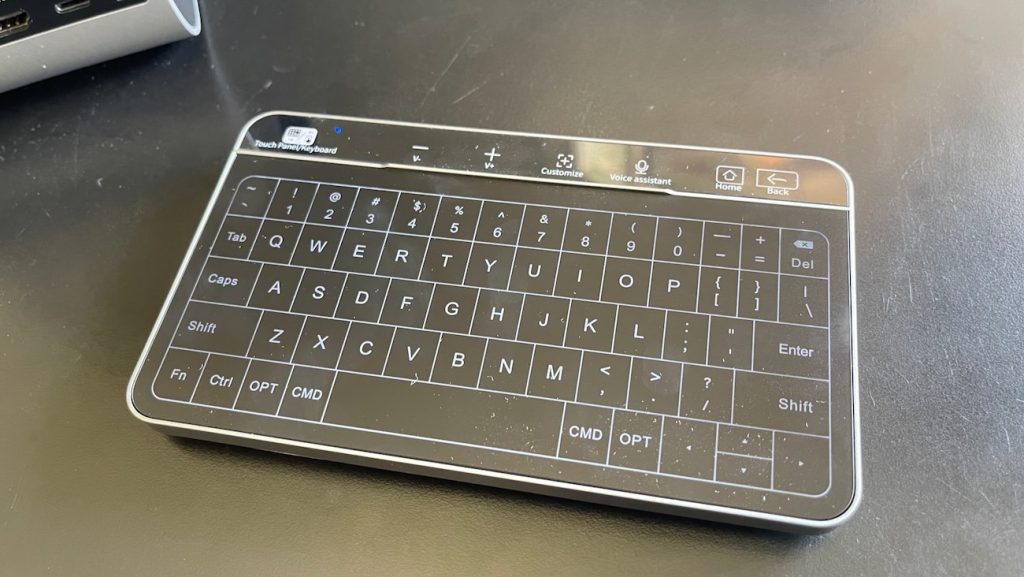
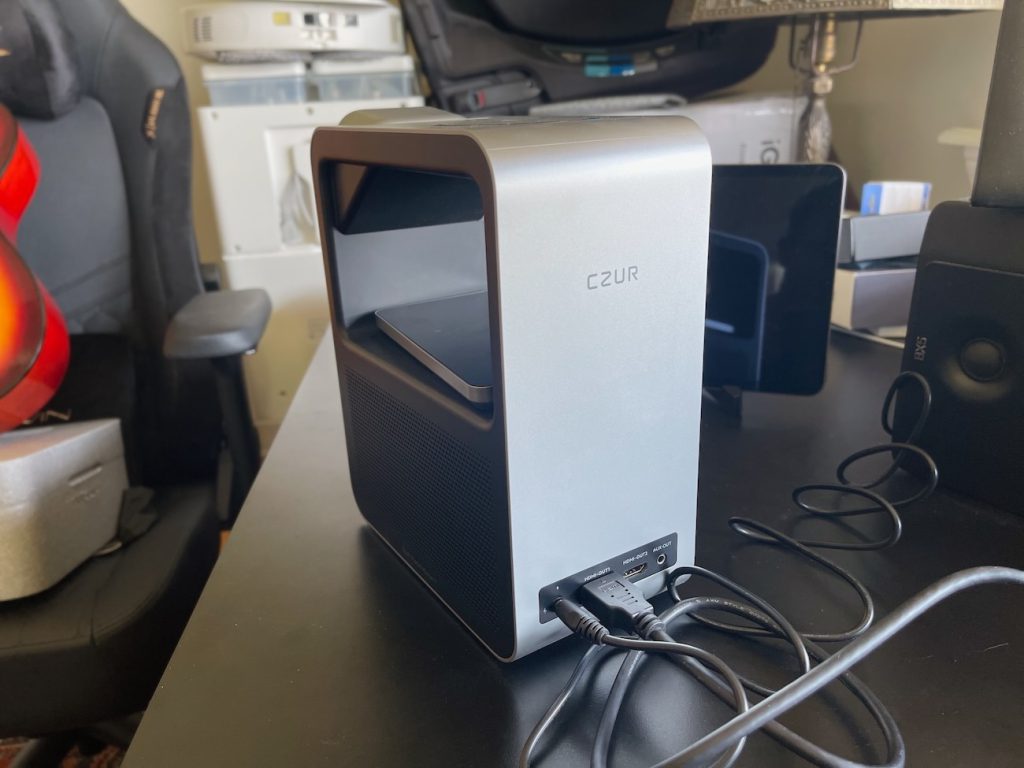
For a wired connection, the key is to use the Core30’s USB-C 2.0 connection and enable the peripheral mode from the device rather than simply plugging into one of the front USB ports and expecting it to appear as a webcam. Using the include keyboard, just click into the USB Mode and turn on the option.
Once I had it configured correctly, though, it worked well. And it’s an important feature: you aren’t locked into the Core30’s standalone meeting interface. You can use the hardware as the camera system for the conferencing apps and computer setup you already prefer, either over USB-C or wirelessly with ClickDrop.
What I Didn’t Fully Test
Two features I noticed but couldn’t fully evaluate. The Core30 has a live bilingual translation mode that splits language groups by seat, and an AI meeting notes function that generates minutes automatically. Both are listed as supported in the settings menu, but neither came up naturally across my five sessions since I wasn’t running multilingual meetings or specifically testing note generation. I’d want to see those in action before making a claim either way.
How I Tested
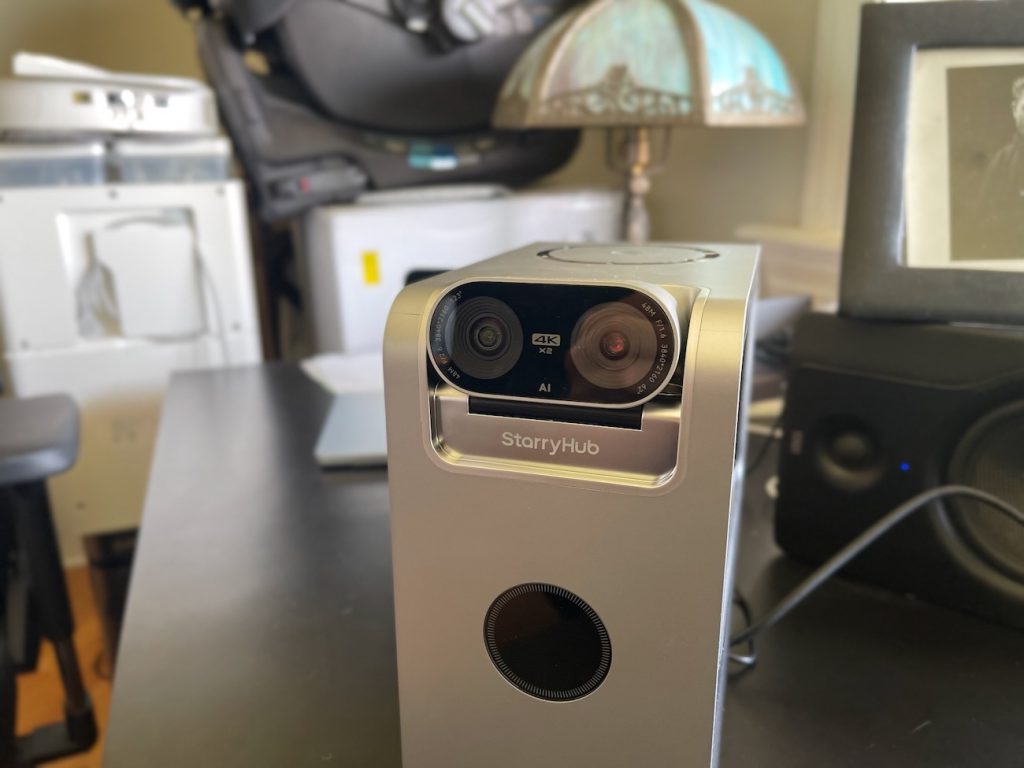
I set the Core30 up in my home office, not a conference room, which is admittedly outside its intended use case. I ran five separate video call sessions over five days, each lasting 30 to 40 minutes, mostly on Google Meet, logging into the device directly for each call.
I tested AirPlay screen casting and file transfer from both an iPhone and a Mac. I recorded myself in 4K to evaluate the dual camera reframing and zoom behavior while moving around the room. I attempted to connect the Core30 to a Mac Mini in USB Peripheral Mode using both the front USB-C and USB 3.0 ports, following CZUR’s published setup instructions.