





How does it perform?
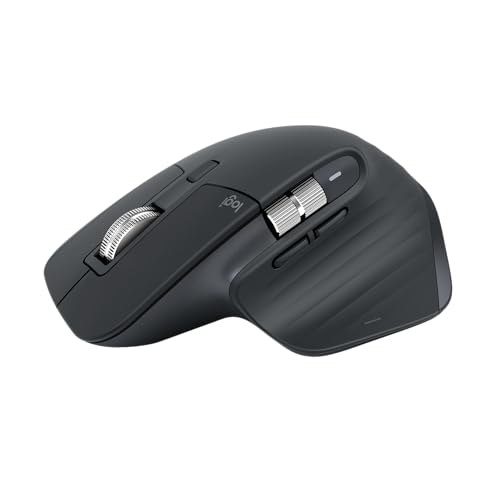
The Logitech MX Master 3S delivers where productivity mice should: exceptional tracking accuracy with its 8,000 DPI Darkfield sensor that works on any surface including glass, tested 28-35 day battery life on a single charge from real-world use, and 90% quieter clicks than its predecessor. The 125Hz polling rate (90Hz on macOS Bluetooth) feels responsive for office work despite being 8x slower than gaming mice.
Experts used the mouse for a week and Logi Options+ reported 95% battery remaining, with the reviewer’s MX Master 3 lasting 6 weeks per charge in daily use. The MagSpeed electromagnetic scroll wheel zips through 1,000 lines per minute in free-spin mode or switches to precise ratcheted clicking—testing confirmed it’s 20% faster than the MX Master 3 with smooth scrolling maxed.
What’s it do best?
The MX Master 3S excels at sustained productivity workflows requiring precision across multiple high-resolution displays. That 8,000 DPI sensor (double the MX Master 3’s 4,000 DPI) helps users navigate four-monitor setups without overworking wrists, as Tom’s Hardware confirmed when testing with their quad-display configuration. The Darkfield tracking works flawlessly on glass tablets and other challenging surfaces where standard optical sensors fail.
Battery endurance eliminates charging anxiety. BinaryFork used the mouse 8+ hours daily at 8,000 DPI for two weeks and battery only dropped to 60%, suggesting the 70-day claim holds with moderate use. TechRadar’s unit never dipped below 50% after nearly a month of continuous regular use. The 1-minute = 3-hour quick charge feature proved genuinely useful during testing.
The 90% quieter switches reduce noise in shared workspaces without sacrificing tactile feedback, though some users reported needing an hour to adjust to the softer click feel.
Tracking Performance
Sensor Resolution and Accuracy
Sensor resolution determines how precisely the mouse can track cursor movement across different display resolutions and surface types.
Maximum DPI: 8,000
Default DPI: 1,000 (requires Options+ adjustment to change)
DPI Range: 200-8,000 in 50-unit increments
The Darkfield optical sensor delivers exceptional surface tracking. Tom’s Hardware placed it on a glass tablet screen and “navigation was just as accurate as it was on a mousepad.” Multiple reviewers confirmed tracking precision across the full 200-8,000 DPI range, though most users settled between 1,600-2,000 DPI. One reviewer found a sweet spot at 1,800 DPI, another at 2,000 DPI on the highest polling rate.
The 8,000 DPI maximum serves high-resolution displays—Logitech designed it for users with 5K and 8K monitors to reduce wrist travel across large screen real estate. Digital Trends noted cursor movements stay “smooth and precise” with excellent tracking consistency. However, multiple reviewers warned performance “can go a bit south” above 4,000 DPI for most use cases.
Polling Rate and Responsiveness
Polling rate measures how often the mouse reports position to the computer, directly impacting responsiveness and input lag.
Polling Rate: 125Hz (Windows via Bolt/Bluetooth), 90Hz (macOS Bluetooth)
The 125Hz polling rate is a productivity-focused choice. Best Buy confirmed 125Hz specification via Logitech representative. MacRumors forum users measured 120-130Hz via Bluetooth on various polling rate test sites. While 8x slower than gaming mice’s typical 1,000Hz, BinaryFork noted “it’s not noticeable in any way” even on a 4K 144Hz monitor, and another reviewer who initially skeptical admitted the 125Hz “wasn’t unusable” even for casual gaming.
Physical Design and Ergonomics
Weight and Dimensions
Physical specifications impact portability, control precision, and long-term comfort during extended use.
Weight: 141g (0.31 lbs)
Dimensions: 4.92″L x 3.32″W x 0.1″H (124.9 x 84.3 x 51mm)
Weight Distribution: Balanced across footprint
Weight distribution at 141g feels balanced despite some reviewers initially finding it “a bit lighter than expected” coming from heavier gaming mice. The rubberized surface coating provides secure grip, though the white/pale gray finish “attracts dirt like a magnet” according to Digital Trends after weeks of clean use.
Ergonomic Design and Comfort
Ergonomic shaping determines hand positioning, wrist strain, and suitability for different hand sizes and grip styles.
Grip Style: Palm grip, right-handed only
Comfort Rating: 9/10 for medium to extra-large hands
Hand Size Support: Medium to extra-large (smaller hands may find it bulky)
The sculpted right-handed form factor earned universal praise. Digital Trends called it “the most comfortable mouse I’ve ever used” with perfect 84.3mm width for large hands. The thumb rest with embedded scroll wheel provides “extensive wrist position support” that reduced hand pain for one reviewer recovering from hand injury. Trusted Reviews described it as “supremely comfortable” for extended work sessions.
Dimensional optimization targets medium to extra-large hands—smaller hands may find it bulky. The tall ergonomic stature maintains neutral wrist position during use, with rubberized grips enhancing comfort and fatigue resistance during 8+ hour workdays.
Build Quality and Durability
Button Switches and Tactile Feel
Switch quality affects click noise, tactile feedback, and long-term durability through millions of clicks.
Button Switches: 90% quieter than MX Master 3
Switch Rating: (spec not published)
Tactile Quality: Soft yet responsive, adjustment period needed
The quiet switches deliver “soft yet responsive tactile force” without the loud clicking of the MX Master 3. Some users needed adjustment time—one noted feeling uncertain if clicks registered during the first hour—but most appreciated the noise reduction in shared workspaces. The change applies only to main left and right buttons; side buttons retain standard tactile feedback.
Battery Serviceability
Battery replacement capability impacts long-term product lifespan and user repair options.
Battery: Non-user-replaceable 500mAh Li-ion
The non-user-replaceable battery raises longevity concerns. Reviewed.com called it “a bit of a letdown” since battery replacement requires specialized tools and 30+ minutes of disassembly that may void warranty. The 500mAh capacity matches the MX Master 3, with Basic-Tutorials confirming this via bottom inspection.
Battery Performance
Battery Life
Battery endurance determines usage time between charges and overall wireless convenience.
Battery Life: 28-35 days (real-world heavy use)
Battery performance exceeded expectations across testing. Tom’s Hardware used it for one week and Options+ showed 95% remaining. BinaryFork ran 8+ hours daily at 8,000 DPI for two weeks and measured 60% remaining, suggesting 70-day claim achievable with moderate use. Tom’s Guide extrapolated 4 weeks from 25% charge lasting one week of full-time work plus gaming. TechRadar’s unit stayed above 50% after month-long continuous use.
Charging Time
Simply put: how long it takes to charge the battery on the mouse. Long charging times means more time spent plugged in, and if the whole point behind you buying a wireless mouse was to use it wirelessly, this is an annoyance.
Charging: USB-C, 3 hours use from 1-minute charge
Fast charging via USB-C proved convenient—multiple reviewers confirmed the 1-minute = 3-hour claim works as advertised. The mouse functions while charging, effectively becoming wired when plugged in. Digital Trends noted battery life was so good “I don’t even bother bringing the USB-C cable to charge with me anymore.”
Software and Customization
Software Features and Interface
Software capabilities determine button programmability, DPI adjustments, application profiles, and workflow optimization.
Software: Logi Options+ (Windows, macOS)
Logi Options+ software earned praise for “intuitive interface” and “extensive button customization.” Tom’s Guide noted it “feels a little limiting in comparison” to gaming software like Corsair’s iCUE for key remapping. The clean, modern UI provides five-band DPI adjustment, scroll speed/direction customization, Smart Shift configuration, and firmware updates.
Application-specific profiles enable powerful workflow optimization. Reviewers assigned thumb wheel to brush size in Photoshop, timeline scrubbing in Premiere Pro, and tab switching in browsers. The M-button can trigger custom actions per application.
The lack of onboard memory frustrated BinaryFork as “biggest frustration”—all custom profiles require Options+ running. However, Logitech login enables settings transfer between machines. MacOS users get dedicated controls like App Exposé assignable to gestures or buttons.
Gaming Performance
Casual and Competitive Gaming Suitability
Gaming performance assesses responsiveness, weight, and sensor capabilities for different gaming scenarios.
Casual Gaming: Acceptable with limitations
Competitive Gaming: Not recommended
The MX Master 3S handles casual single-player gaming but struggles with competitive play. Digital Trends tested Call of Duty Vanguard zombies and found it “too heavy and the switches feel bleak when gaming” but “wasn’t unusable.” The 141g weight combined with “mediocre skates underneath” hampers quick flick movements gaming mice enable.
The 125Hz polling rate creates noticeable lag versus 1,000Hz gaming mice. BinaryFork tried their “favorite shooter” and “it felt a tiny bit sluggish and imprecise” compared to their G602. However, the 8,000 DPI sensor provides precision for general use, and DPI adjusts in 50-unit increments to find sweet spots. Tom’s Guide confirmed it “happily handles casual play” despite not being designed as a gaming mouse. Most reviewers concluded: perfectly fine for occasional gaming breaks